Recon
The Recon tab of a process provides a view of all transactions pertaining to the process that have been parsed and loaded into the system, and shows whether transactions could successfully be reconciled and settled.
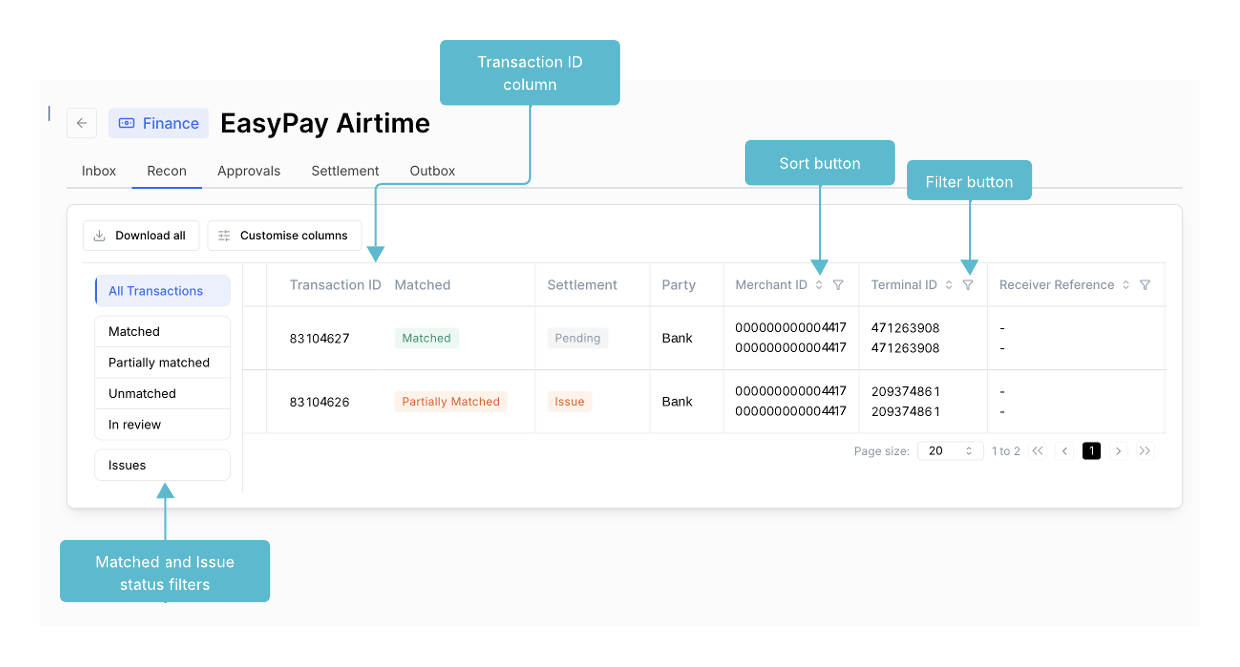
Operators can use the Recon tab to:
- View all transactions for which records have been loaded into the system and view the available record(s) of each transaction.
- View the recon status and settlement status of each transaction in the system.
- Apply filters and sorting to refine the transaction set.
- Select one or more transactions from the list that is displayed, or perform a bulk selection to all transactions that satisfy filters that have been applied.
- Manage transactions that could not be reconciled and hence can not be settled.
- Download selected transactions to be exported.
Recon Status of a Transaction
A transaction’s recon status (displayed in the Matched column in the transaction grid) indicates whether the records of a transaction could be reconciled (“matched”) by Electrum Finance.
| Recon status | Description |
|---|---|
| Unmatched | One of the records of the transaction have not yet been loaded into the system and hence the transaction’s records could not be matched. |
| Partially matched | Both records of the transaction have been uploaded but one or more message fields of the two records could not be matched. |
| Matched | Both records of the transaction have been uploaded and all necessary message fields could be matched. |
| In review | This shows transactions that are pending approval. Use it to track transactions when you don't have access to the Approvals tab. |
Each transaction on the Recon tab is displayed by grouping all available transaction records together that describe the single financial transaction.
Electrum Finance uses matching fields to identify transaction records that describe the same transaction.
- If both records of a transaction are available from files that have been uploaded to the system, then these records are both displayed as a single line item for the transaction on the Recon tab.
- Each such financial transaction line item is assigned a unique identifier by Electrum Finance, called a Transaction ID.
- Examples of matching fields include the Retrieval Reference Numbers (RRNs) and Date and Time fields, but can be configured to be appropriate for the transactions being reconciled.
Electrum Finance uses matching fields to identify transaction records that describe the same transaction.
- As soon as both records of a financial transaction are available, then Electrum Finance can compare the necessary message fields in the transaction to determine whether the two records are reconcilable.
- An example of a reconcilable field is the Amount field.
These two criteria work together to achieve reconciliation and settlement. For example, the STAN (System Trace Audit Number) may be used to identify that two records reflect the same transaction (matching field) and the amount may be used as the reconcilable field. If the STAN (matching field) and amounts (reconcilable field) are identical, then the records would be matched and could proceed to Settlement. If, however, the matching fields are identical but the reconcilable fields differ, then the records show as “Partially Matched”.
The matching and reconcilable field criteria are configured on a per-process basis so that they are appropriate for the transaction records that contribute to it.
The Transactions Grid
The columns that are visible in the Recon tab are configurable per process to be appropriate for the transactions that are being displayed. For example, for some transactions, it may be important to see the BIN number or merchant ID, whereas for others the terminal ID and RRN (Retrieval Reference Number) may be relevant. The columns depend on the fields in the transaction records being compared; however, there are some fields that are typically present in the Recon tab. These are described in the table below.
| Column | Description |
|---|---|
| Transaction ID | This unique number is assigned to each transaction when it is loaded into Electrum Finance. Clicking the Transaction ID selects the transaction record. |
| Matched | The status of the transaction record in terms of the matching and reconcilable field criteria. The status may be: Matched - there are two transaction records with identical matching and reconcilable field values. Partially Matched - there are two transaction records with identical matching field but differing reconcilable field values. Unmatched - a single transaction record from one party has no corresponding transaction from the other party; in other words, the transaction record does not have identical values for matching fields with any other transaction record. |
| Score | A measure of match between the fields in a transaction record from two different parties. A score of -1 indicates that the transaction has been manually rejected. A score of 0 indicates that the transaction is unmatched. In this case only one record will be visible for the transaction. A score less than 100% indicates that one or more reconcilable fields are not identical in the two records. The value shows the proportion of non-matching fields out of all fields that are configured to be reconcilable. The non-matching fields are highlighted. |
| Party | One of the entities that provide transaction records to be compared as part of the reconciliation process. |
| Amount | The value of the transaction according to the transaction record. |
Customising the Transaction Grid
To show or hide columns
- In the Recon tab, click the columns button.
- Select the columns to show or deselect the columns to hide.
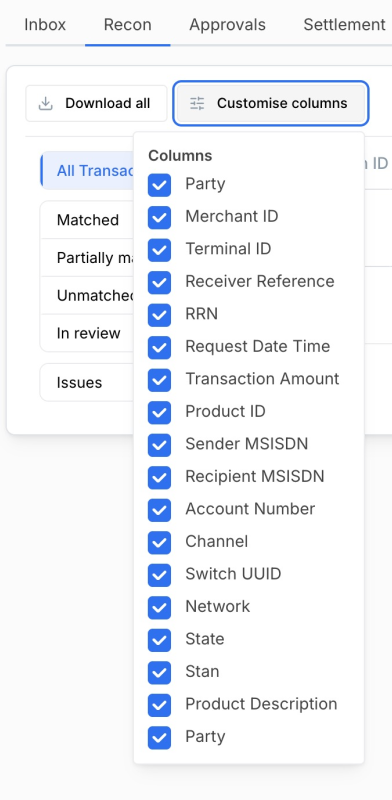
Take care not to hide columns that have active filters on them, as this may prevent viewing all transactions.
Some columns can not be hidden, including the Matched, Score, and Party columns.
To sort results in the transactions grid
- In the Recon tab, click the Sort button of a column to apply sorting to the transactions grid based on that column.
- Click the Sort button again to reverse the sort order.
- Click the Sort button again to reset the sorting based on that column.
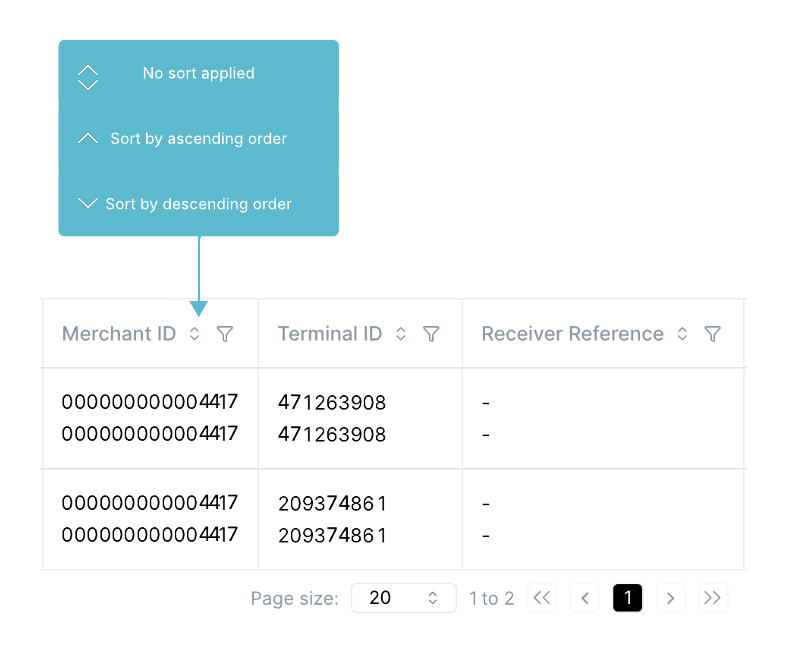
Sorting can be applied to more than one column in the transactions grid.
To filter transactions based on recon status
In the Recon tab, click any of the recon status buttons on the left of the screen.
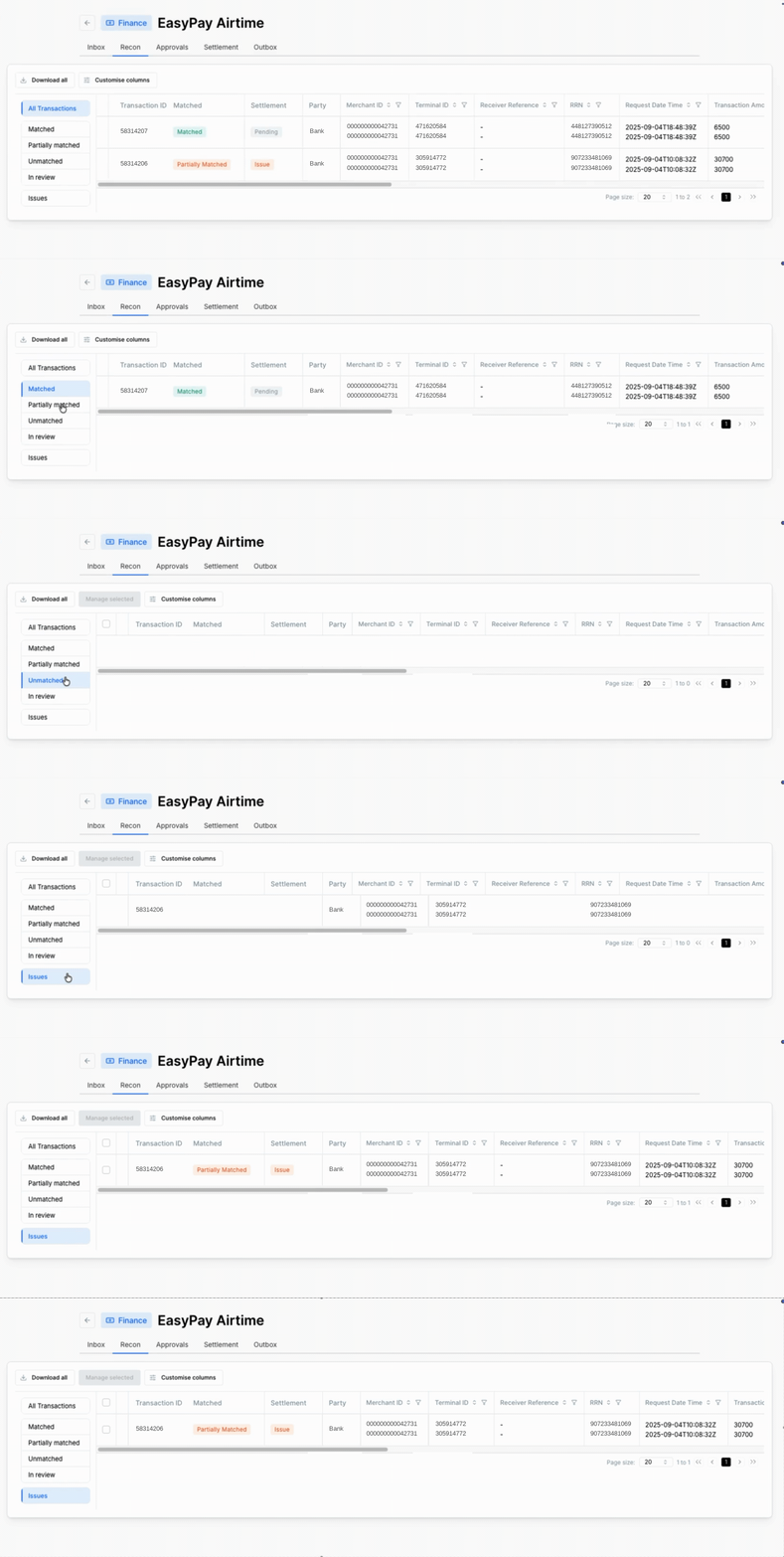
The filter is applied and only the applicable transactions are shown.
To apply filters based on transaction message fields
An operator can apply filters to the available columns to refine the results in the transactions grid.
One or more filters can be applied to a specific column; e.g., an operator can select to view all transactions that have an amount of more than 500 and less than 2000.
- In the Recon tab, click the filter button of a column.
- Depending on the column, enter the required criteria for the filter.
- Click the Add button to add more filters to the column.
- Click ok.
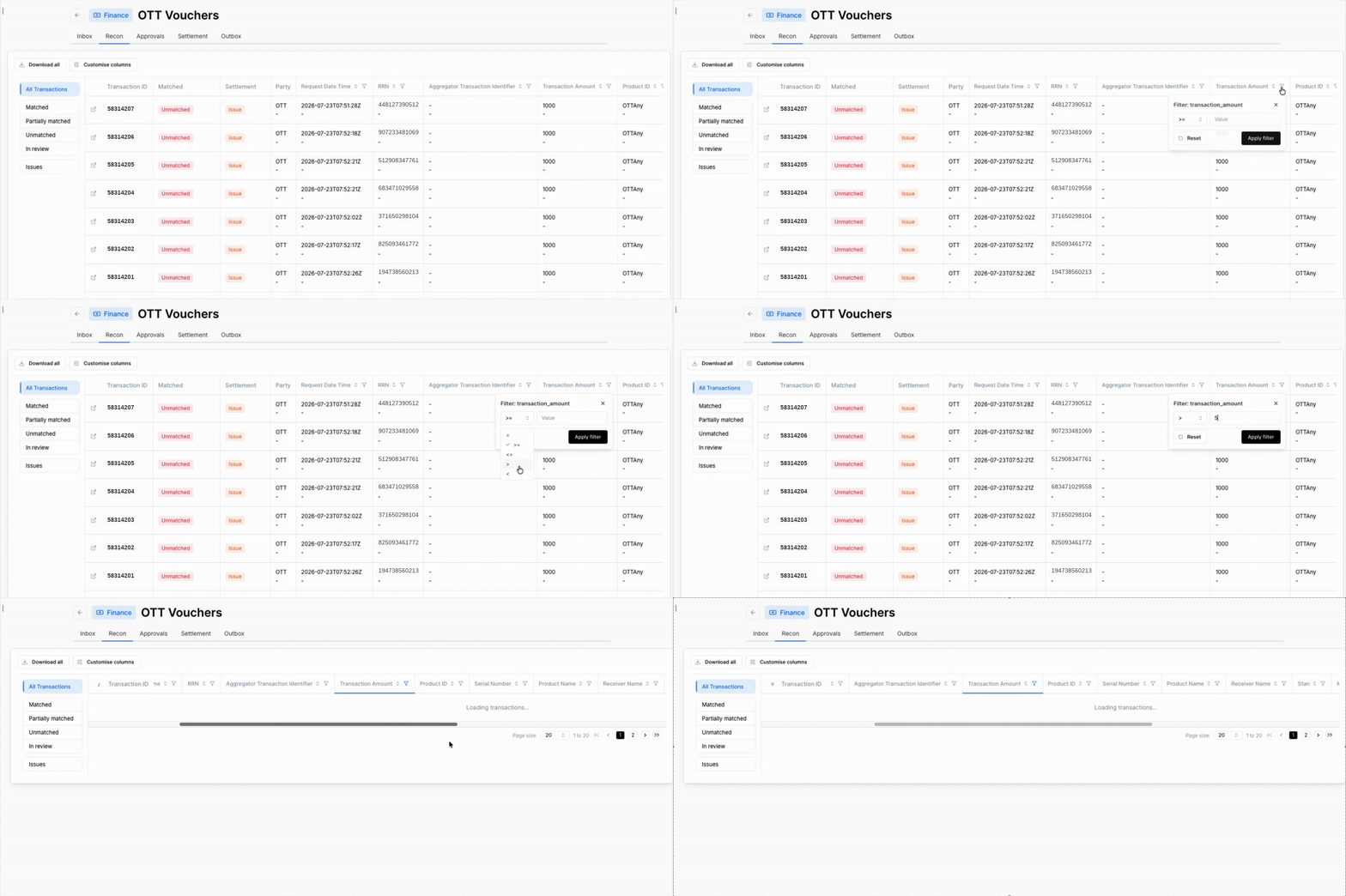
The filter is applied and only the applicable transactions are shown. In addition, the filter button is highlighted to indicate that a filter has been applied to that column.
If the download button is clicked while one or more filters are active, then only the filtered transactions will be downloaded. See Downloading Transactions section below.
Selecting Transactions
To select transactions
- In the Recon tab, ensure all required filters are applied to the transactions.
- Click on the Transaction ID of each transaction to select, or use the select all / deselect all button to select all transactions that satisfy the applied filters.
- The manage selected button above the transactions grid displays a transaction selection indicator with the number of transactions that have been selected in brackets, and each selected transaction is highlighted in the grid.
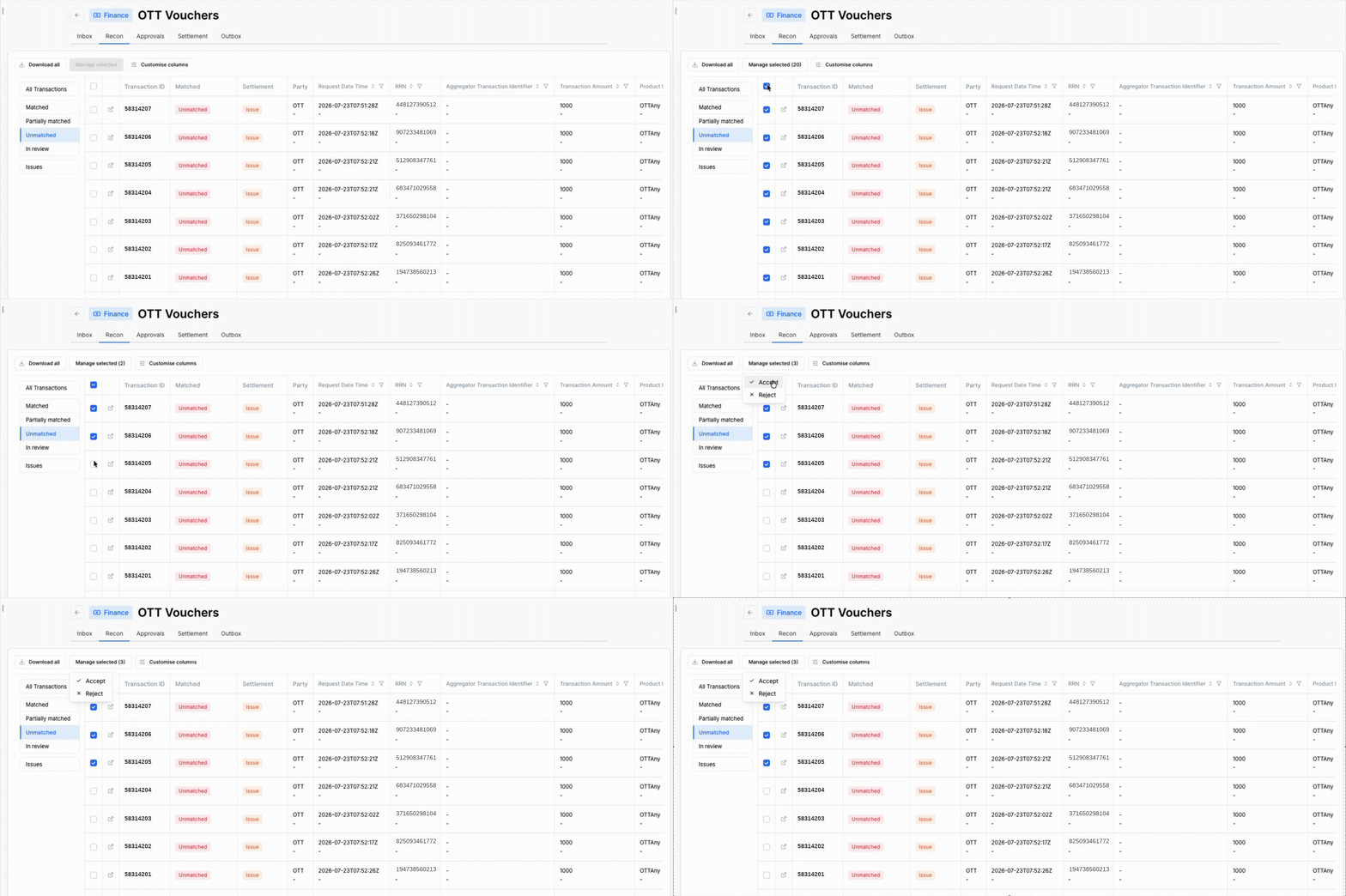
Clicking the select all / deselect all button selects all transactions that satisfy the filters that have been applied, across the current page in the Recon tab.
Clicking the select all / deselect all button when viewing transactions with the Partially matched or Unmatched filter applied results in the select all number transactions button displaying. Clicking this button selects all transactions to which the current filter applies, across all pages.
Managing Unmatched Transactions
If a transaction’s recon status is unmatched, the system has not yet received both records of the transaction and hence the transaction could not yet be matched.
An operator may wish to perform no action and wait for the outstanding transaction to be uploaded, at which time Electrum Finance will update the transaction’s status in the Recon tab.
Alternatively, an operator may manage the transaction in the Recon tab by accepting or rejecting the existing record of the transaction.
Accept action
The available record is accepted as the correct version of the transaction even if another record for the transaction will be uploaded at a later time. After a transaction has been accepted by an operator, and approved by a reviewer, then:
- The transaction’s recon status is updated to matched.
- The transaction can proceed to be settled.
Reject action
After a transaction record has been rejected, and approved by a reviewer, then:
- The record’s Matched status is updated to Rejected.
- The transaction can not be settled. The record will be excluded from the settlement calculations. It is not possible to undo the Reject action after it is approved.
To manage unmatched transactions
- Select one or more transactions that have a recon status of unmatched.
- Click the manage selected button.
- From the drop-down list, click an option:
- Accept
- Enter a note to explain the reason for the resolution.
- Click Yes.
- Reject
- Enter a note to explain the reason for the rejection.
- Click Yes.
- Accept
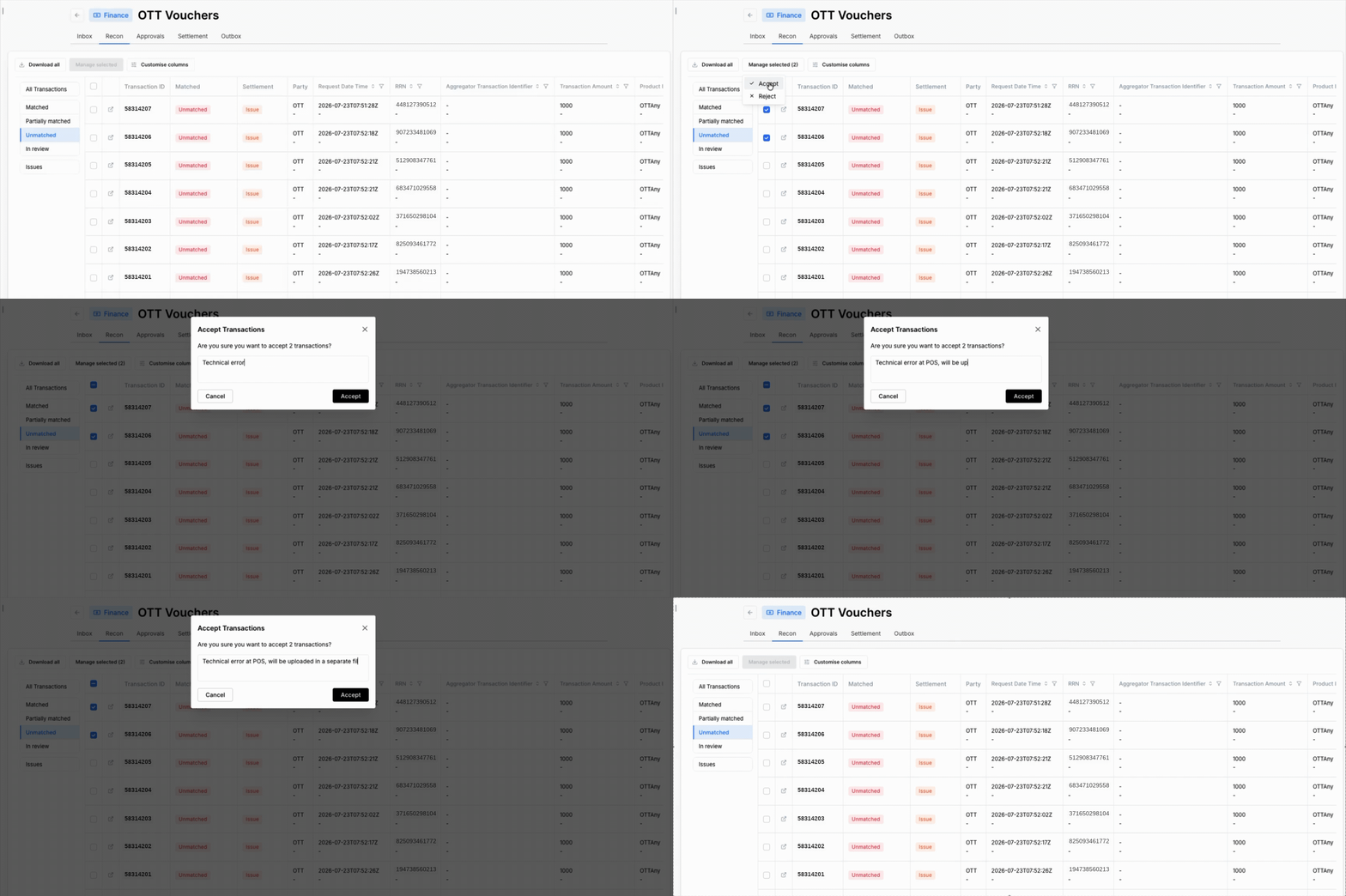
The action is registered for a user with the appropriate permissions to approve it.
The action of approving or rejecting transaction records requires approval by a user with the appropriate permissions.
Managing Partially Matched Transactions
If a transaction’s recon status is partially matched, the system has received both records for the transaction but was unable to match all of the necessary message fields of the two records.
The transaction will remain in a status of partially matched until it is resolved by an operator in the Recon tab.
Resolve action
The operator selects which of the two records should be accepted as the correct version. After a transaction record has been accepted by an operator, and approved by a reviewer, then:
- The transaction’s recon status is updated to matched.
- The transaction can proceed to be settled.
Reject action
After a transaction record has been rejected, and approved by a reviewer, then:
- The record’s Matched status is updated to Rejected.
- The transaction can not be settled. The record will be excluded from the settlement calculations.
To manage partially matched transactions
- Select one or more transactions that have the recon status of partially matched.
- Click the manage selected button.
- From the drop-down list, click an option:
- Resolve
- Select the party whose record must be used for settlement.
- Enter a note to explain the reason for the resolution.
- Click Yes.
- Reject
- Enter a note to explain the reason for the rejection.
- Click Yes.
- Resolve
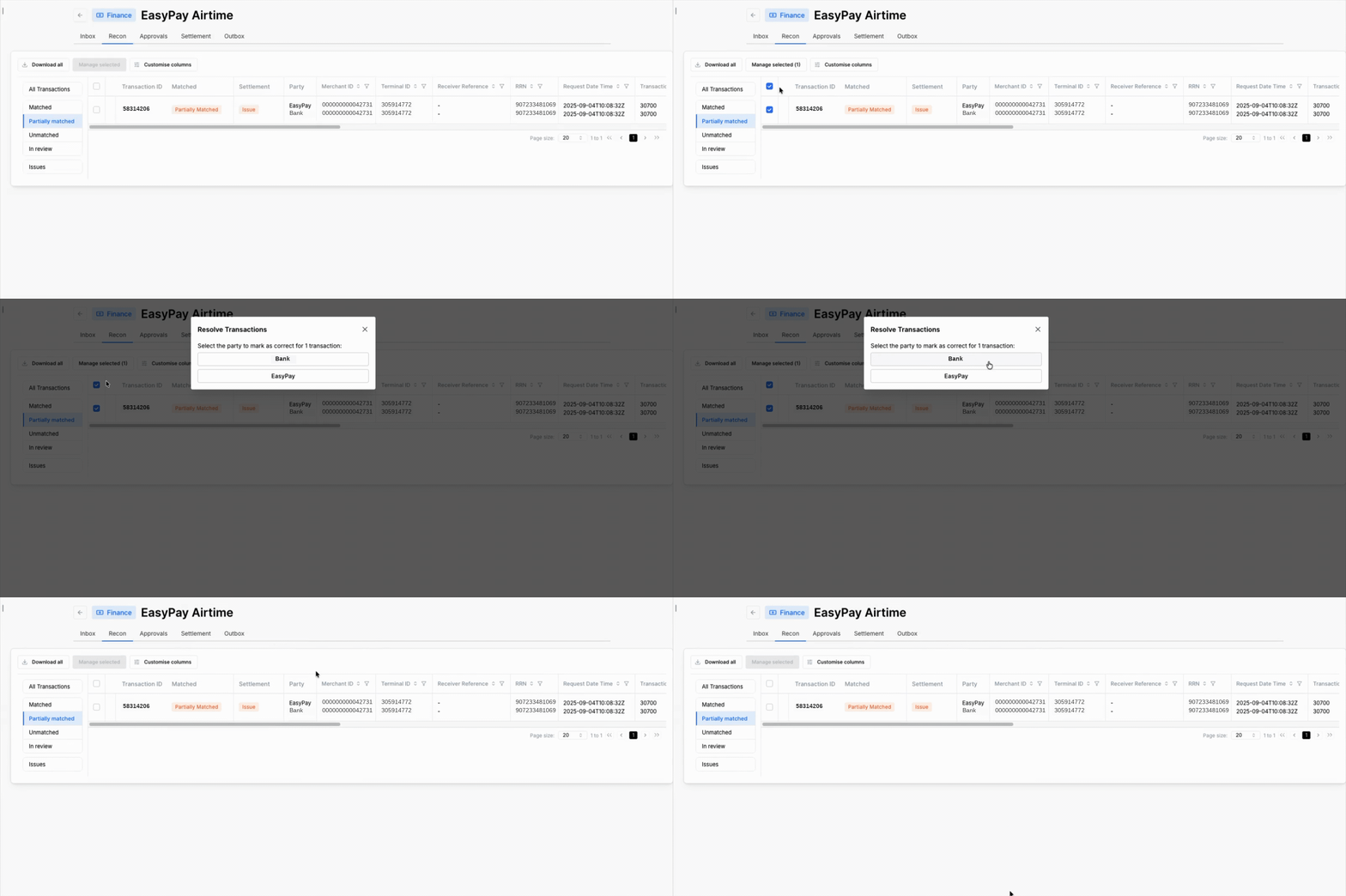
The action of approving or rejecting transaction records requires approval by a user with the appropriate permissions.
Downloading Transactions
An operator can export all transactions that satisfy a set of filters as a csv file.
To download a transaction set
- In the Recon tab, specify the necessary filters to refine the results in the transactions grid.
- Click the download button.
- In the window that opens, specify the location where the downloaded file should be saved and enter a name for the file.