Vouchers
If your Electrum solution includes cash voucher issuing (for example as part of a money transfer service), you will be able to perform various management operations in the Vouchers page of the Electrum Console.
Looking Up A Voucher
To search for a voucher
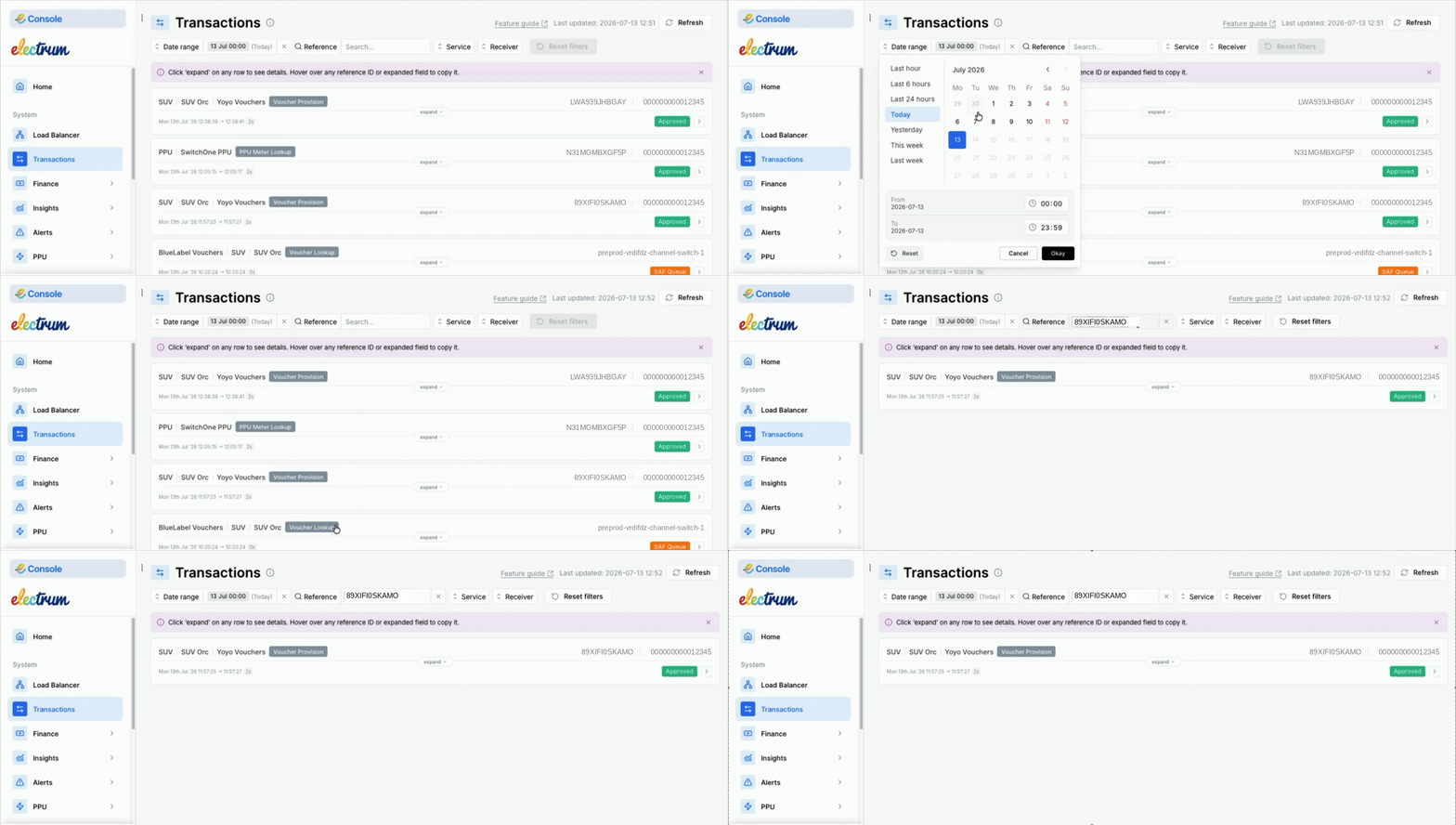
When landing on the Vouchers page, you will see a list of vouchers that have been processed most recently.
There are three filters that you can apply to the list:
- Voucher reference number.
- Date and time range for date created.
- Date and time range for date last modified.
To view details for a voucher
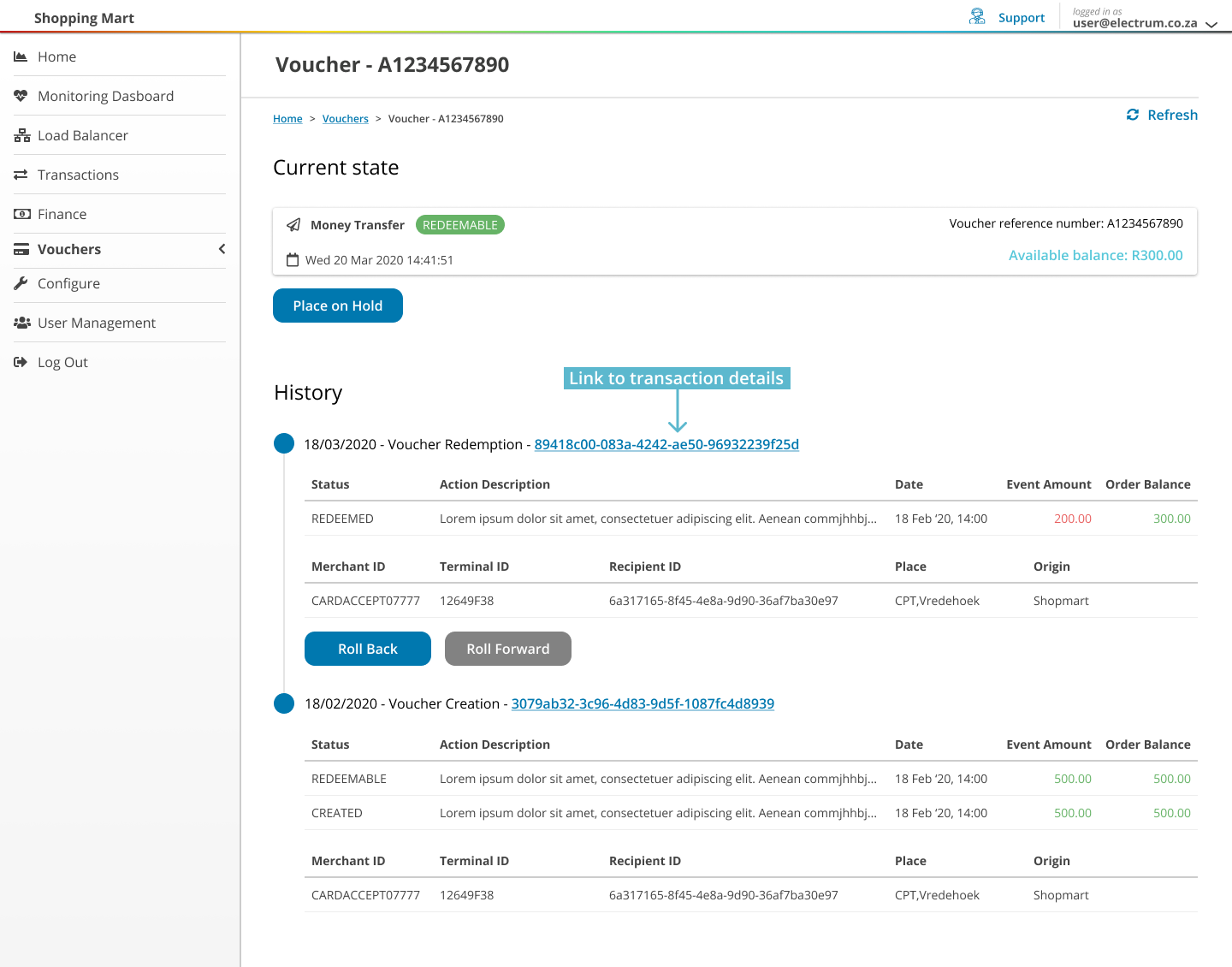
Select a record in the list to view the details of that voucher. A new page will load with two sections:
Current state
This shows the current status and available balance for the voucher.
If allowed for the current status, a button will also be displayed to place or release a hold on the voucher.
History
This is a timeline of all events that have occurred over the voucher's lifecycle.
Under certain conditions, a manual action can be applied to an event to change the voucher status. In such cases, buttons to roll back or roll forward the voucher status will be displayed.
Where an event is related to a transaction that has been processed by the Electrum Switch, a unique reference for that transaction is shown as a link. Click on this link for a detailed view in the Transactions section of the Electrum Console
Voucher Status Flows
A voucher transitions through a number of statuses during its lifecycle. The diagram below depicts all possible status flows, including whether a status is final or temporary, and where manual actions can be performed.
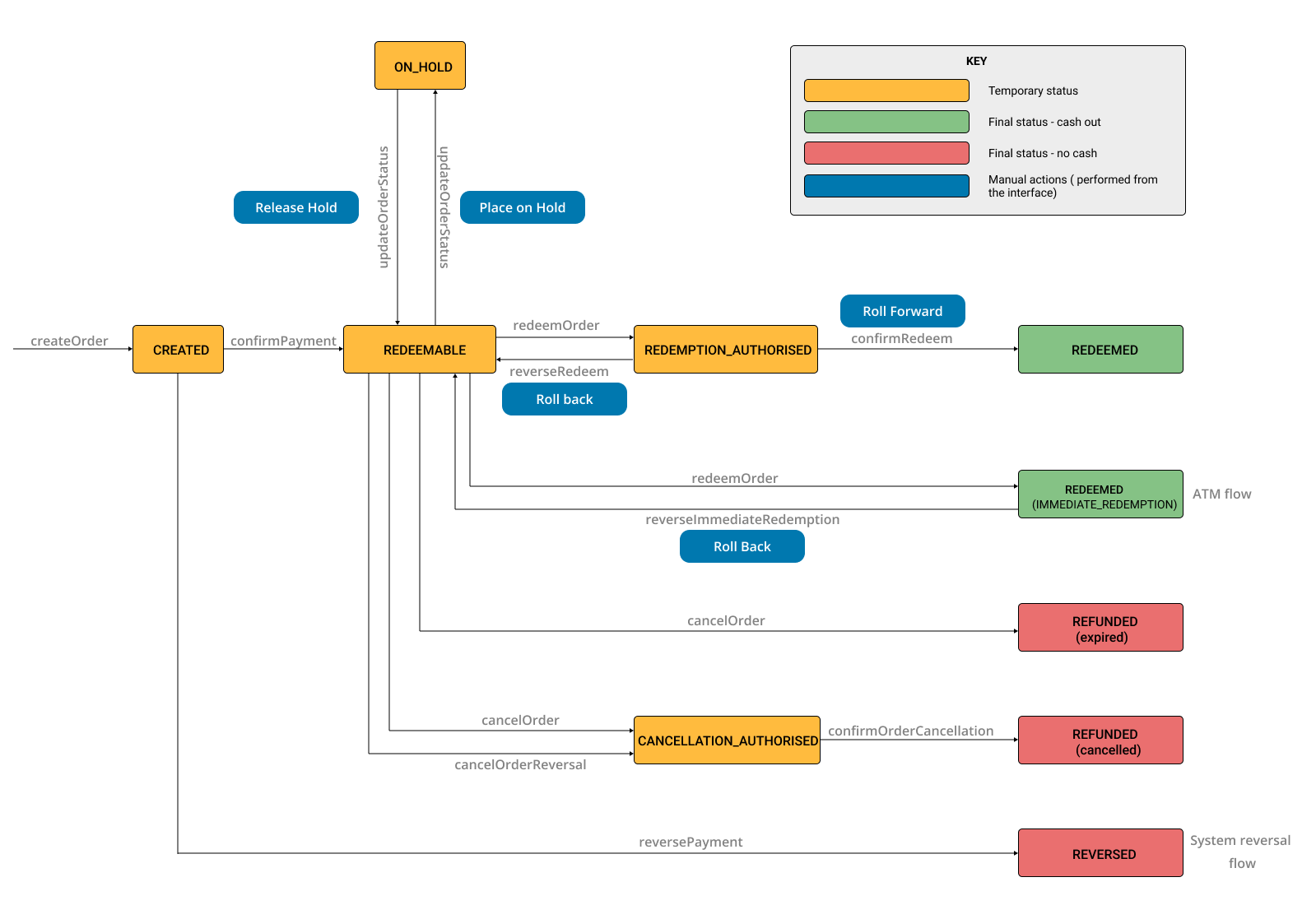
ATM transactions use a single-message flow, where authorisation and confirmation happen in a single step. Because of this, when a voucher is redeemed at an ATM, the status is considered final. However, if an error occurs at the ATM after the transaction was finalised and the recipient does not receive their cash, it is possible to roll back the status from REDEEMED to REDEEMABLE.
Performing Actions On A Voucher
To place or release a hold on a voucher
There are situations where it is necessary to temporarily block a voucher from being redeemed. A typical example is when fraudulent activity is suspected that requires investigation.
In this case, you can place a voucher on hold while the investigation is pending, and release the hold if the investigation concludes that nothing is wrong.
To place a voucher on hold:
- Navigate to the voucher detail page.
- In the Current state section, click the Place on hold button.
- An Update status dialogue will appear. Confirm the action by entering a comment in the dialogue box and click Place on hold.
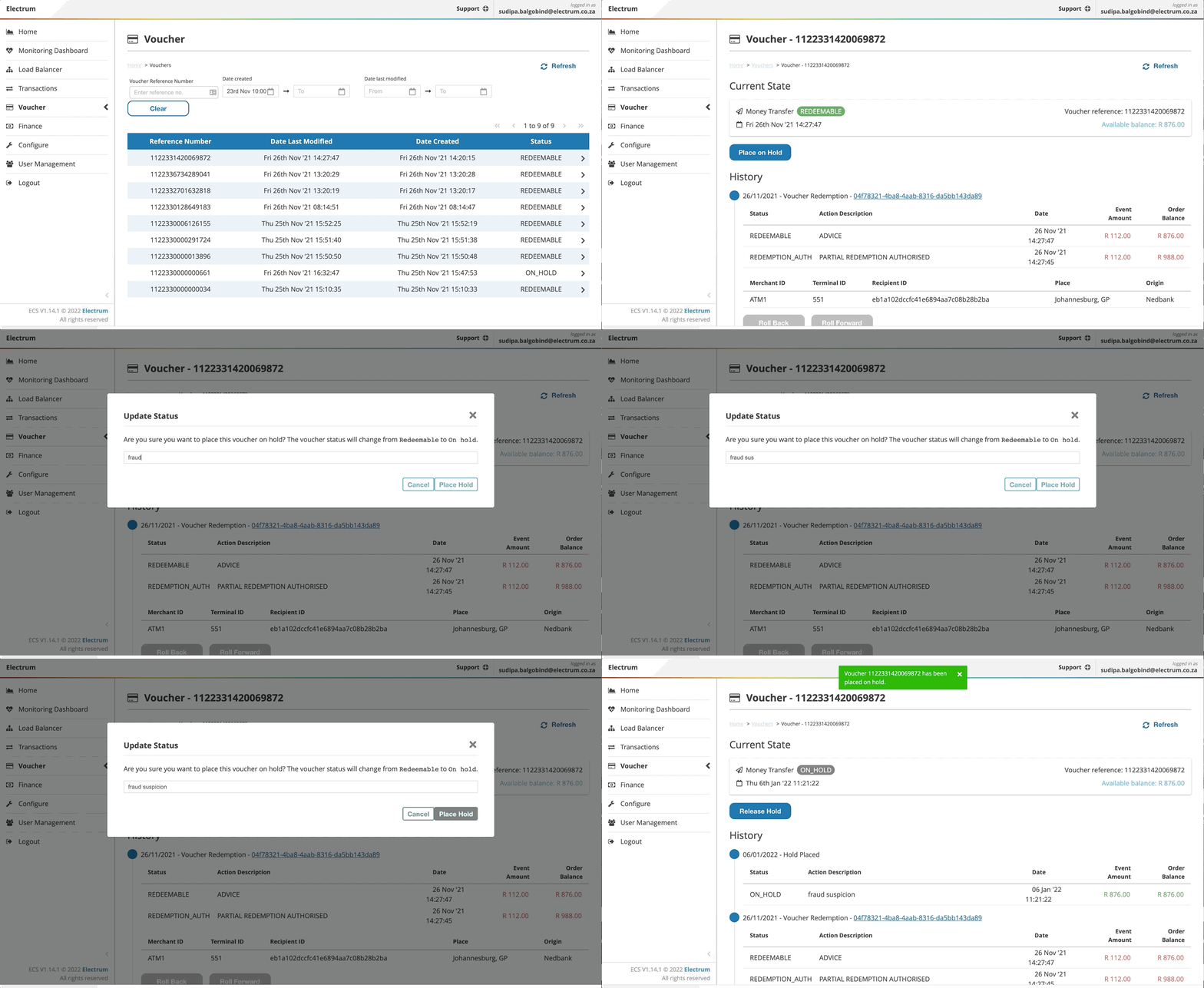
A voucher can only be placed on hold if its status is REDEEMABLE. The action of placing the hold will change the status to ON HOLD.
To release a hold on a voucher:
- Navigate to the voucher detail page.
- In the Current state section, click the Release hold button.
- An Update status dialogue will appear. Confirm the action by entering a comment in the dialogue box and click Release hold.
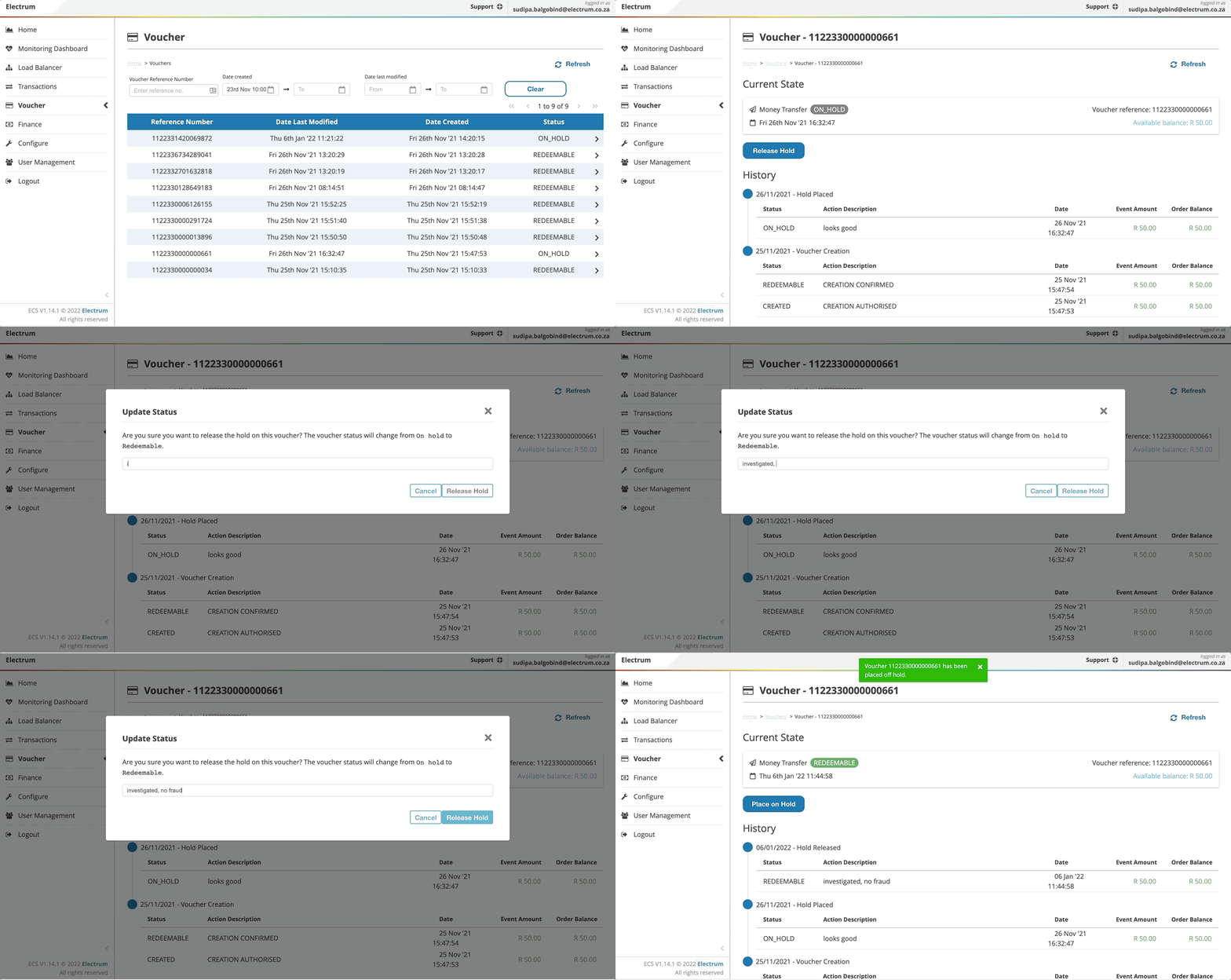
A hold on a voucher can only be released if the voucher status is ON HOLD. The action of releasing the hold will change the status to REDEEMABLE.
To roll a voucher status back or forward
Under certain conditions, a voucher may become stuck in an incorrect state that requires manual intervention to resolve. Typical scenarios include:
- A voucher redemption has been authorised at a point-of-sale or ATM, but a technical failure resulted in the cash not being paid out. This means the voucher could have a
REDEMPTION AUTHORISEDorREDEEMEDstatus, but the customer is unable to access the funds. - A cashout partner has a record of a voucher being successfully redeemed, but an error in transaction processing resulted in the voucher issuing system not receiving final confirmation of the redemption. This means the voucher will have a
REDEMPTION AUTHORISEDstatus, but its correct status should beREDEEMED.
In these cases, you can correct the voucher status by performing a roll back or roll forward.
Rolling a voucher back or forward cannot be undone. If you mistakenly roll a voucher back or forward, contact Electrum Support for help.
To roll back a voucher status:
- Navigate to the voucher detail page.
- In the History section, click the Roll back button under the most recent event in the timeline.
- An Update status dialogue will appear. Confirm the action by entering the required fields in the dialogue box and click Roll back.
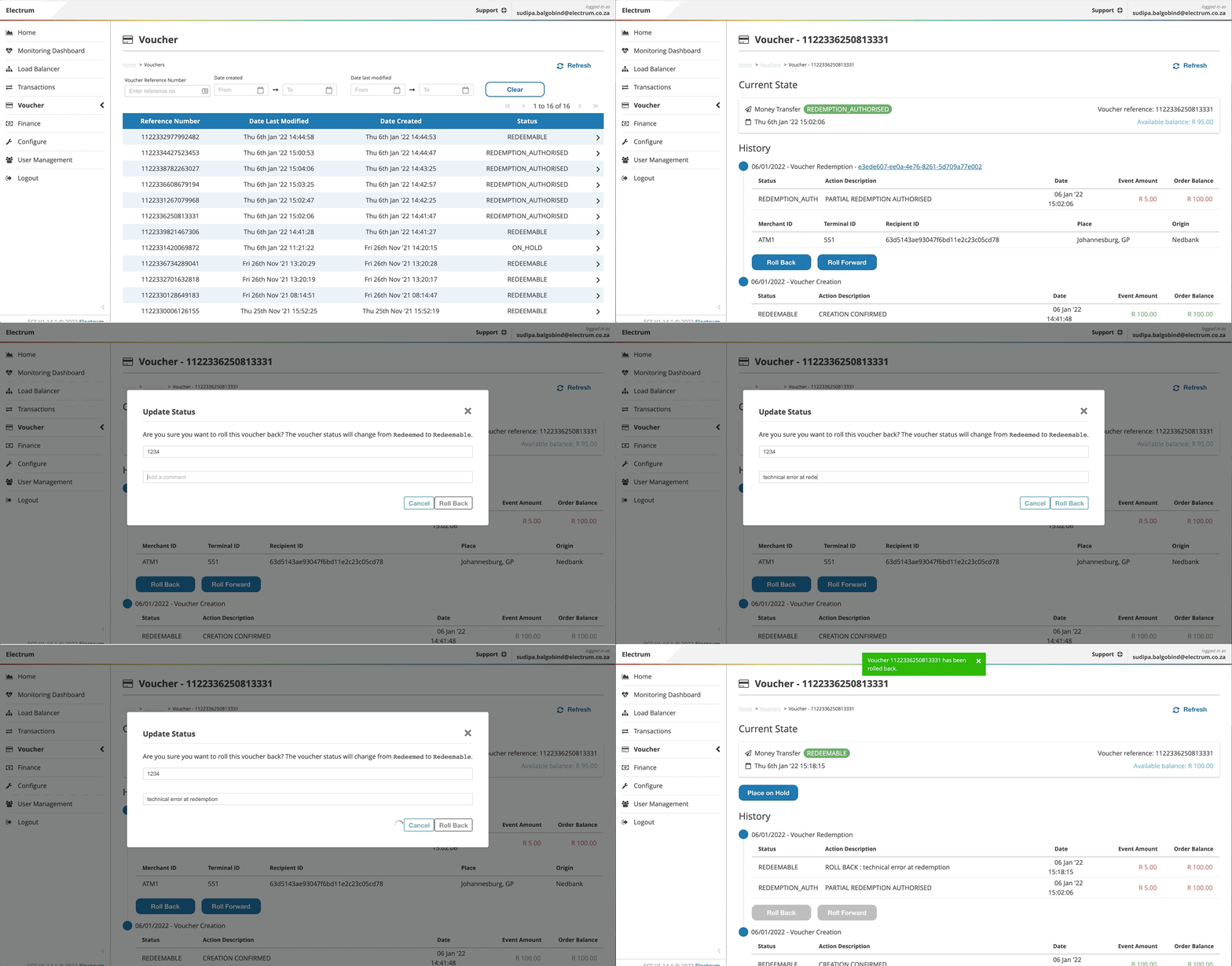
If a roll back is not allowed for the voucher, then the Roll back button will be greyed out.
The following status changes are allowed:
- From
REDEMPTION AUTHORISEDtoREDEEMABLE - From
REDEEMEDtoREDEEMABLE(ATM only)
To roll forward a voucher status:
- Navigate to the voucher detail page.
- In the History section, click the Roll forward button under the most recent event in the timeline.
- An Update status dialogue will appear. Confirm the action by entering the required fields in the dialogue box and click Roll forward.
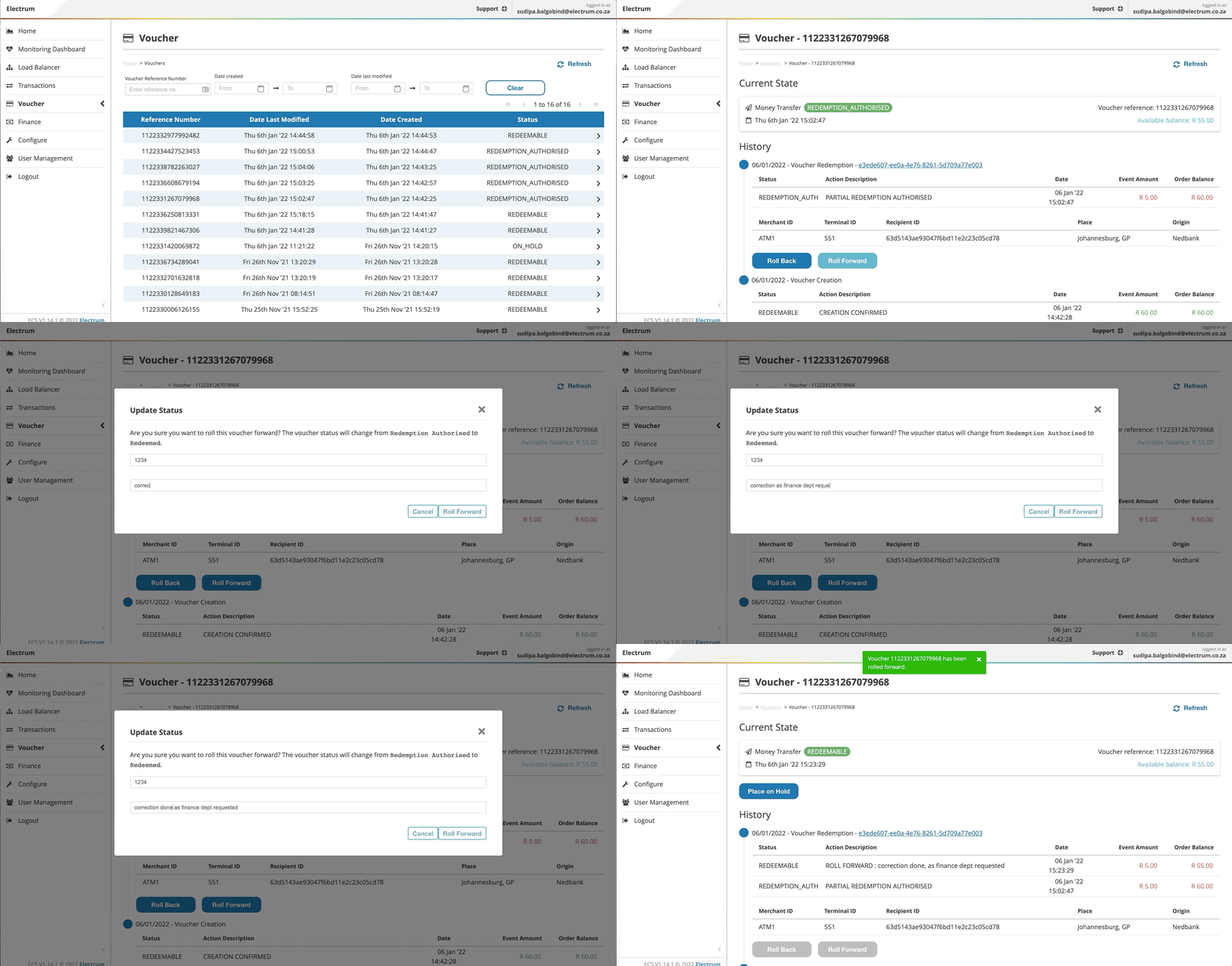
If a roll forward is not allowed for the voucher, then the Roll forward button will be greyed out.
The following status change is allowed:
- From
REDEMPTION AUTHORISEDtoREDEEMED