Configuration
Certain data used by the Electrum Switch during processing can be added, updated, and viewed in the Electrum Console. This data typically takes the form of a map of key-value pairs, which represent corresponding codes or descriptions for the originating system and the service provider, respectively. These could be product ID, product descriptions, merchant identifiers, merchant names, and the like.
A map is a collection of key-value pairs that all serve the same purpose, for example mapping product IDs from the catalogue stored on the originating system to the corresponding IDs maintained by a service provider. Such maps can be configured for multiple service providers. This allows transactions to be processed by either service provider without the originating sytem needing to know all the provider-specific IDs.
Mappings are the individual key-value pairs that are stored in a map. The mappings have a 1-to-1 relationship; each key within a map must be unique and correspond to only one value. Alpha-numeric strings are valid in the key field. The value field is less stringent and in some use cases may be a simple numerical ID, whilst in others it is a complex block of JSON.
Viewing Maps
To see all the maps that are used in your Electrum solution
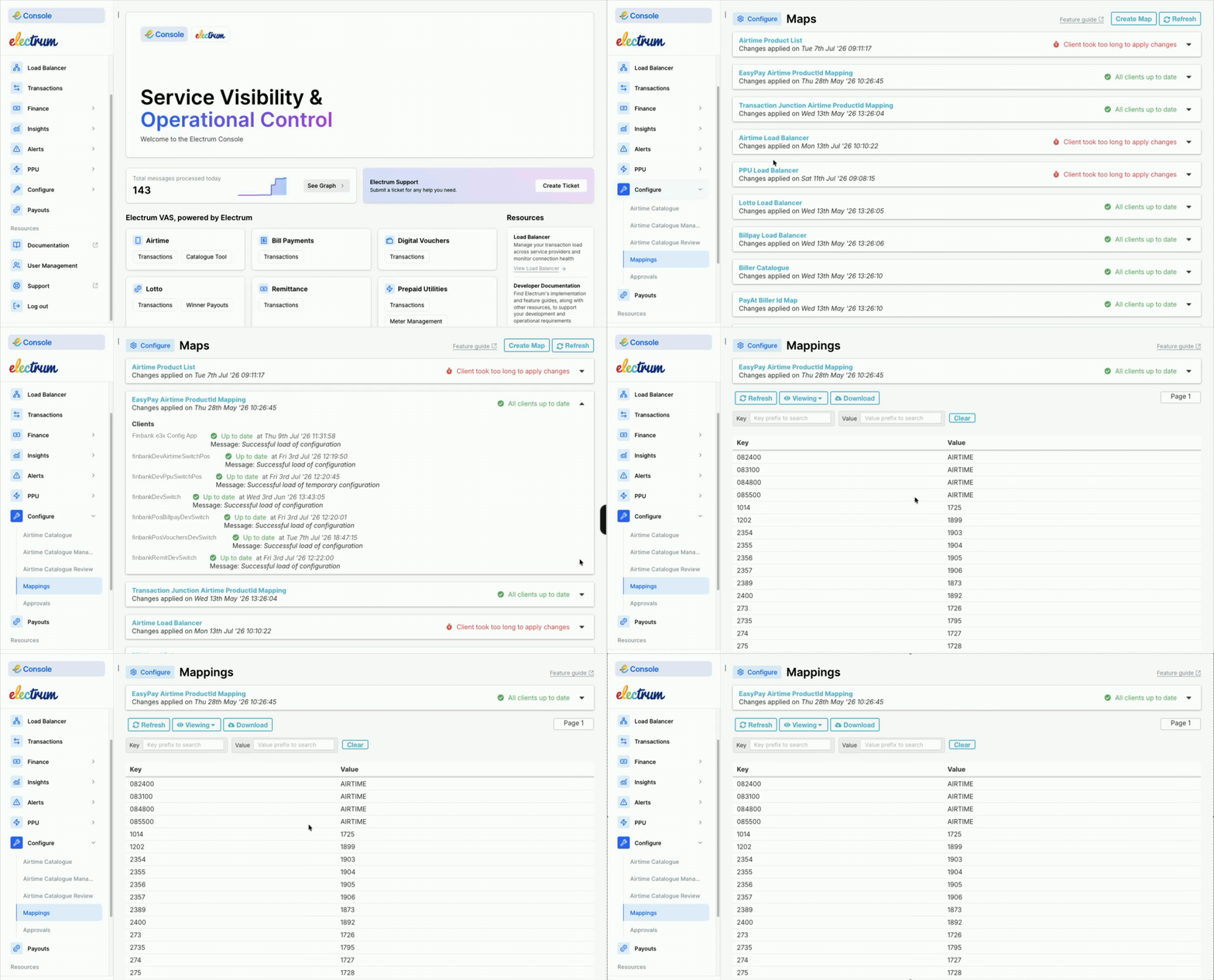
In the left-hand menu, click Configure. A list of maps displays as expandable cards.
From the Maps screen, you can see the current status of the map on the Electrum Switch. This includes when the last successful update was made.
By expanding the card you can view additional information about the status of configuration updates to the different switch instances. If an update was unsuccessful, the appropriate error details would be visible in this view.
Creating New Maps
When you start using the Electrum Console, it is likely that all the maps required for your solution are already created and in use. However, it may necessary to create new maps infrequently. It is not possible to delete maps, so only create them when they are definitely required.
To add a new map
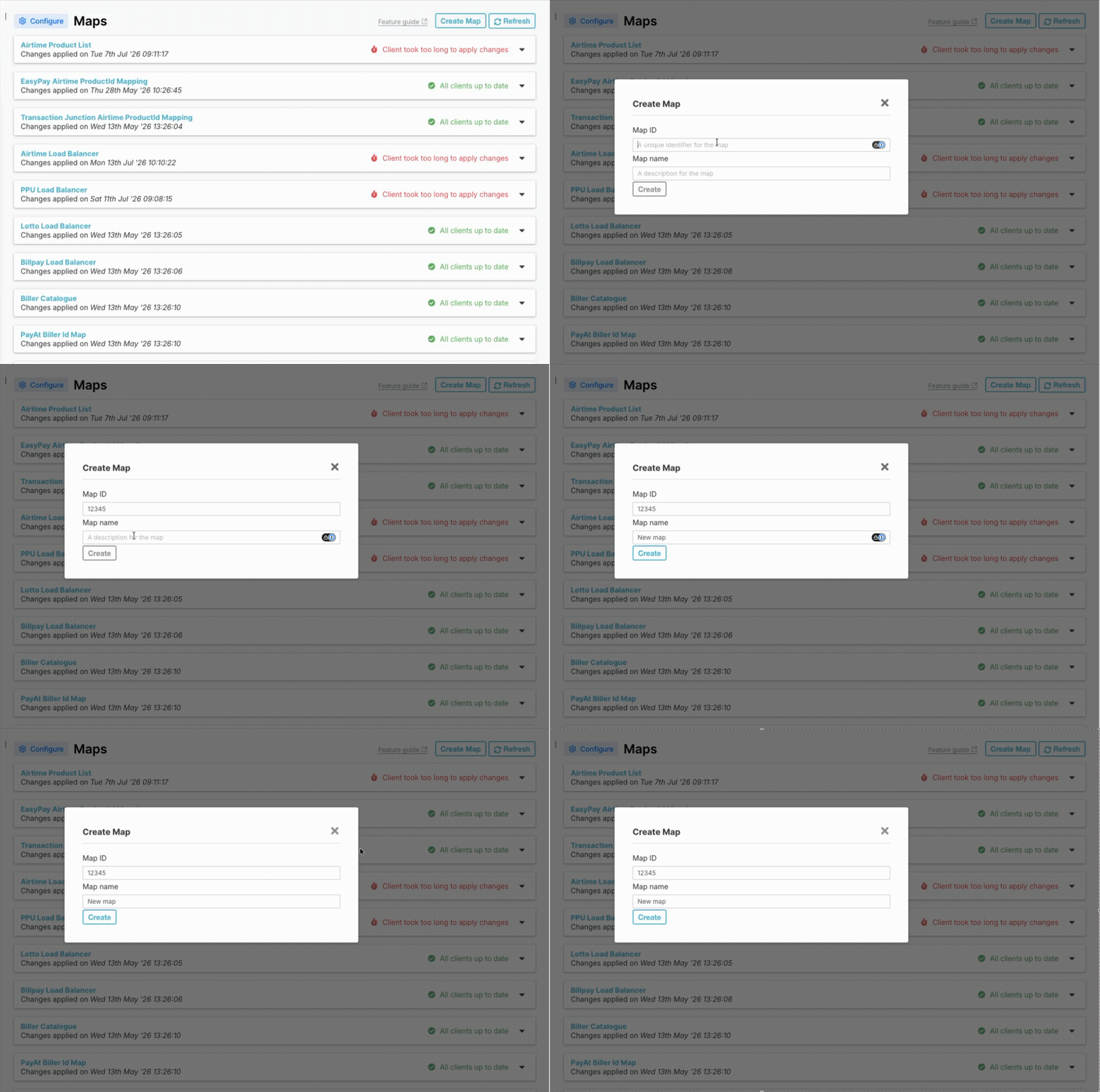
- Click Create Map. The Create Map dialog displays.
- Enter a unique Map ID and a descriptive Map Name. The Map Name will appear on the map's card in the Maps screen.
- Click Create. An approval request will be created. See the section on approvals below for more information on how these work.
- After the request has been approved by a user with appropriate permissions, it displays on the Maps screen.
When configuration changes are finalised and applied for a particular environment (i.e. pre-production or production), all instances of the Electrum Switch for that environment will be updated.
Deleting Maps
It is not possible to delete a map.
Viewing Mappings
There are two different modes available for viewing mappings (availability is dependent on permissions):
- View mode - This shows the data currently being used in the live system.
- Edit mode - This shows the data currently being used in the live system, as well as any changes that have been made to the map and are awaiting approval before going live. The edit view is cumulative and all changes by all users since the last update on the live system will be highlighted. The mappings can also be changed in this mode.
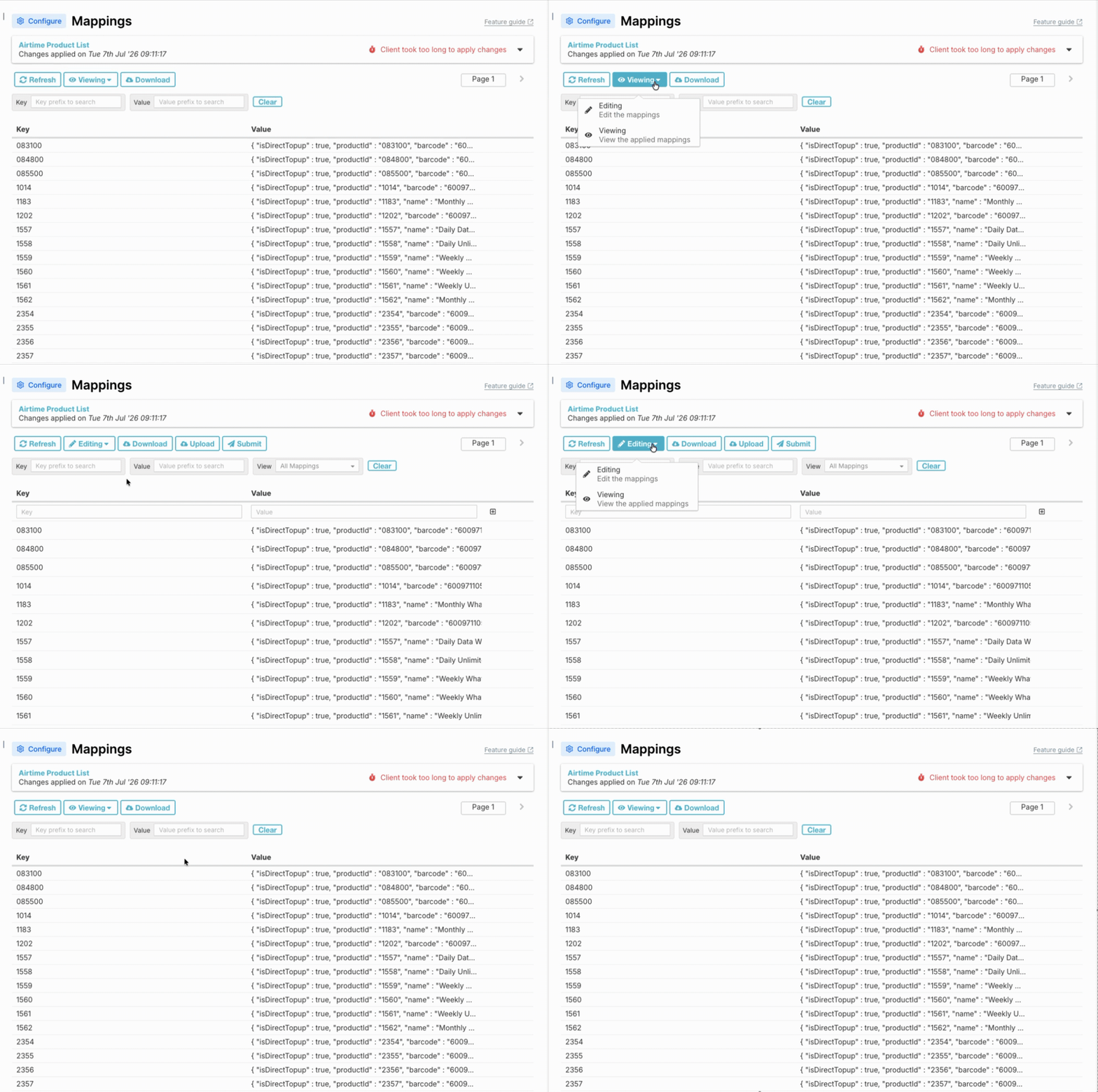
Viewing Mappings in Edit mode
Different types of edits are highlighted differently to make it easier to identify what has been changed. Edits will remain highlighted until an approver has reviewed and applied them to the live system.
| Colour | Description |
|---|---|
| Red | Entries that are marked for deletion and will be removed from configuration if the change is approved |
| Blue | Entries where the value has been changed |
| Green | New entries that have been added |
It is not possible to edit the key of an entry, only the value. If a key needs to be updated, then the entry must be deleted and a new key-value pair added.
In maps with a large number of mappings across multiple pages, it can be difficult to identify the changes that have been made. To assist with this, it is possible to change the view of mappings in Edit mode as follows:
- All Mappings - This view shows all mappings that have not been edited, those that have been changed and submitted for approval to be applied to the live system, and those that have been changed but not yet submitted for approval.
- All Changes - This view includes those that have been changed and submitted for approval to be applied to the live system, and those that have been changed but not yet submitted for approval.
- Unsubmitted Changes - Only the changes that have not been submitted for approval.
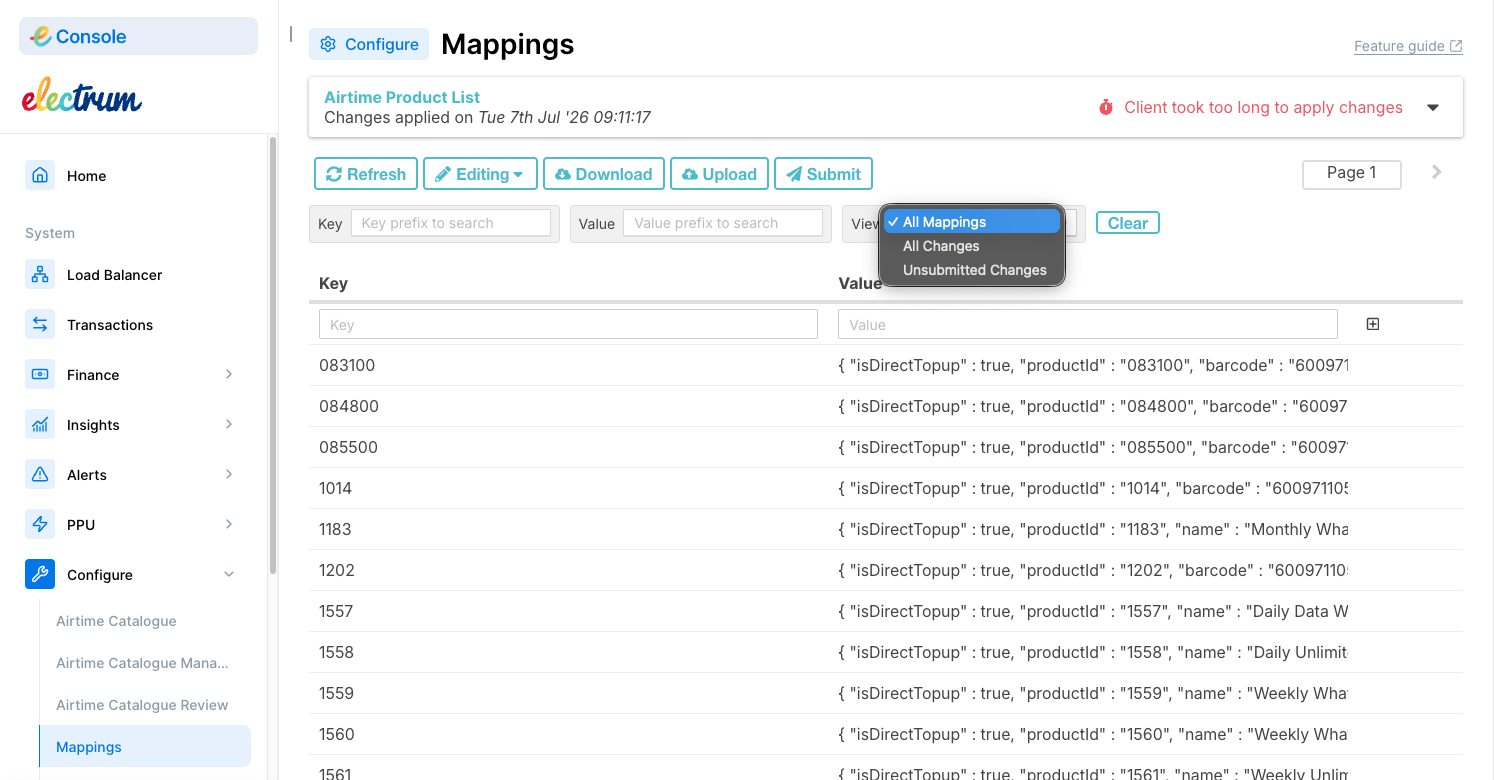
Mappings can be found by specifying part or all of the key or value in the Key and Value search fields.
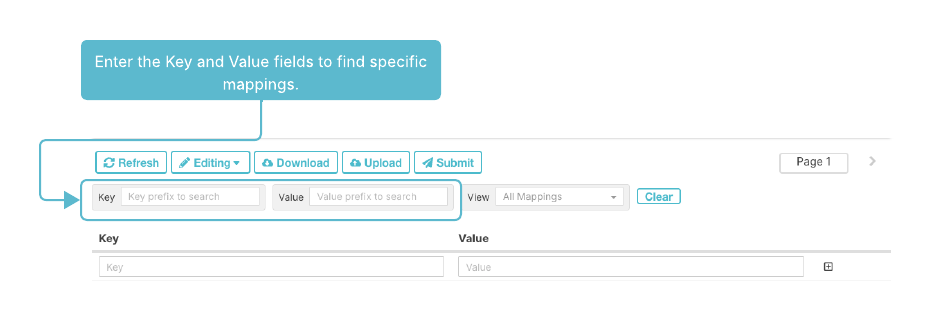
Making Changes to Mappings
Editing Individual Mappings
To edit the value for a key in a map
- Identify the value to edit using the search functionality as described above.
- Click the pencil button next to the value to edit. The Edit dialog displays.
- Change the value as required.
- Click Cancel to return to the Mappings screen without editing the value, or click Edit to confirm your change. The mapping is highlighted in blue until it has been submitted, reviewed, and applied to the live system.
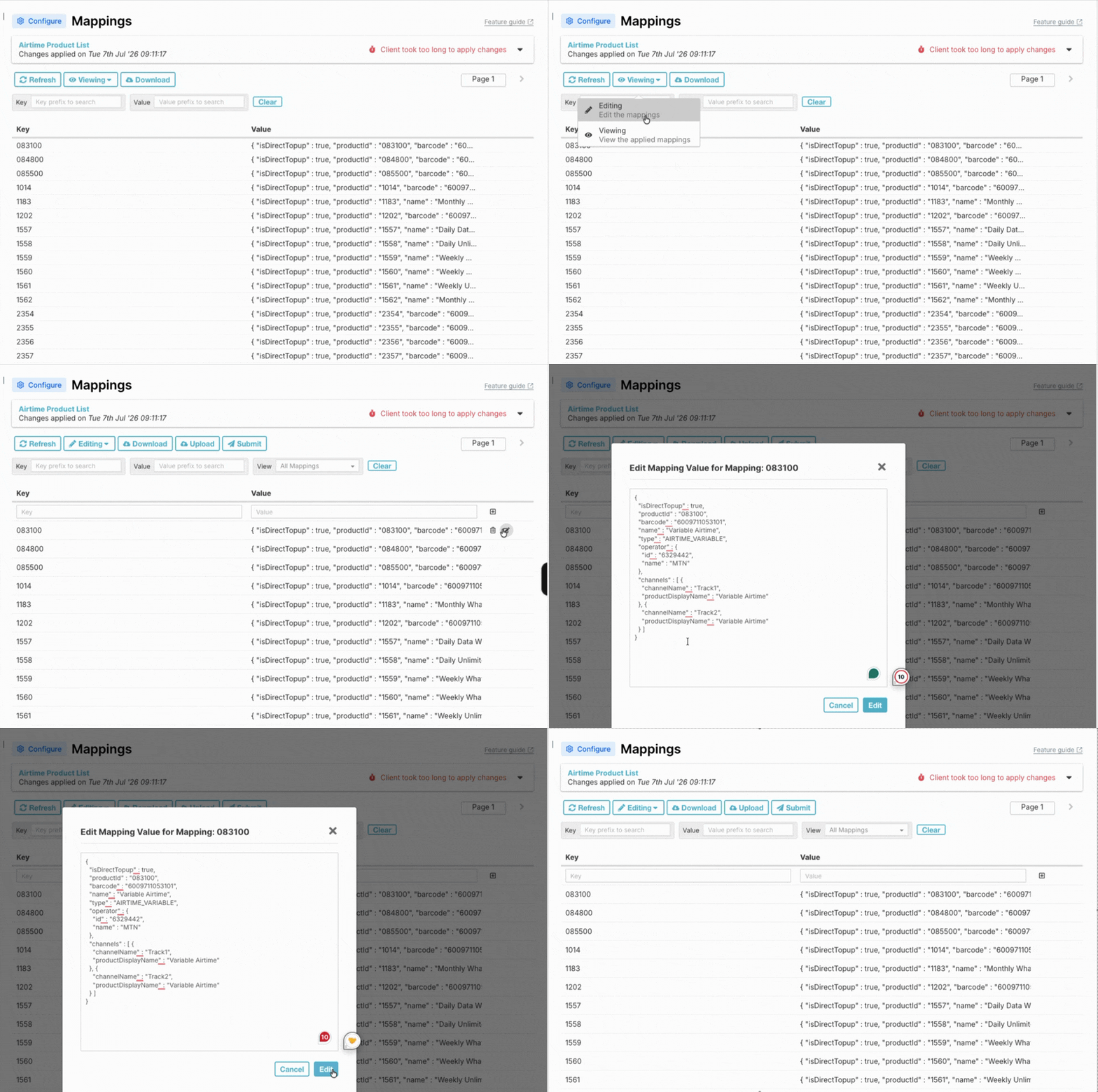
Adding Mappings
To add a key-value pair to a map
- Enter the key to add in the Key field.
- Enter the value that will correspond to the key in the Value field.
- Click + to add the mapping to the map. The mapping is highlighted in green until it has been submitted, reviewed, and applied to the live system.
Deleting Mappings
To delete a key-value pair (mapping) from a map
- Identify the key or value in the mapping to delete using the search functionality as described above.
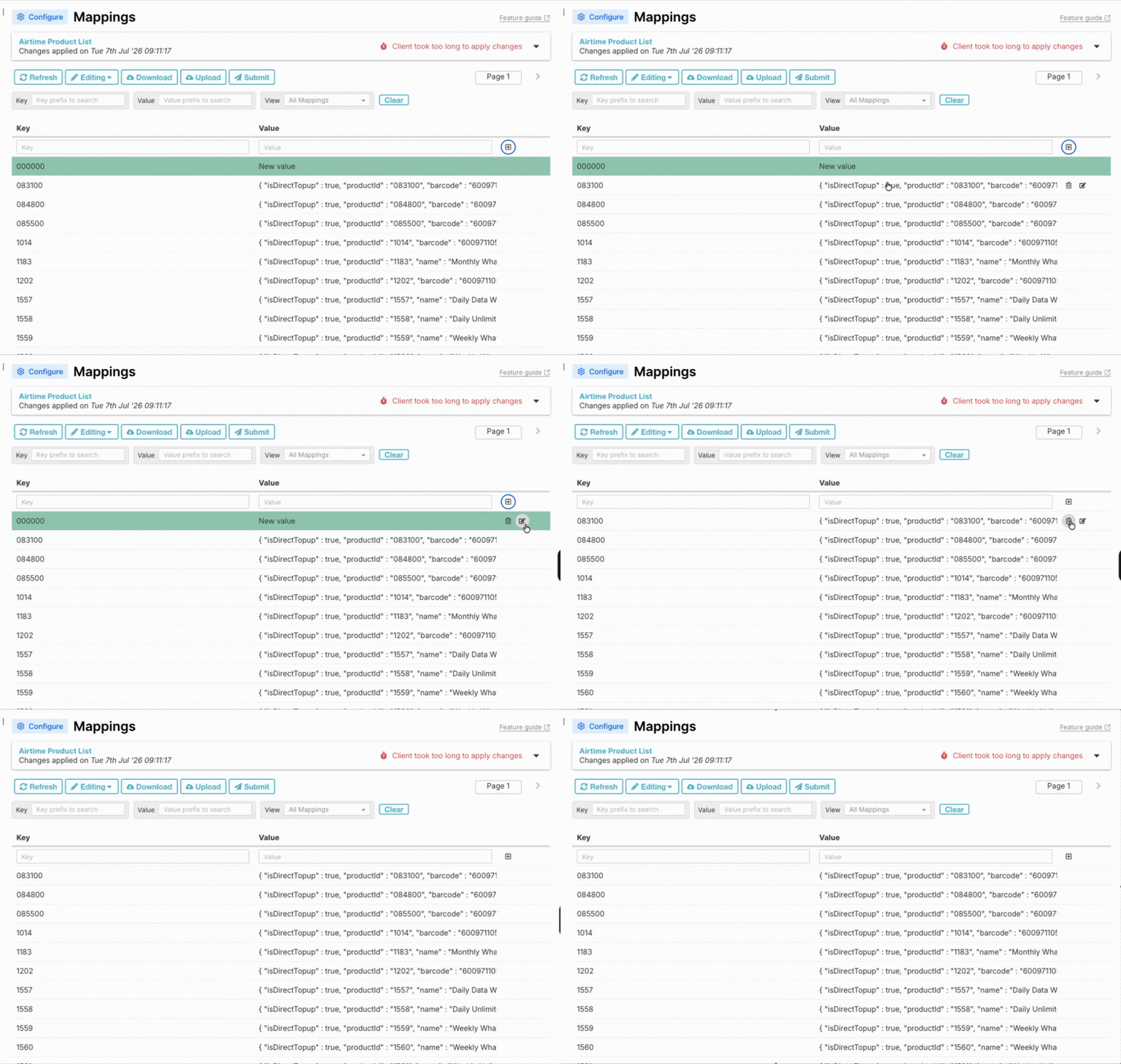
- Hover over the entry to reveal the edit and delete buttons.
- Click the trashcan button. The mapping is highlighted red and will be deleted after it has been reviewed.
Editing Mappings in Bulk
If multiple changes need to be made to a map, or if a new map needs to be populated with multiple mappings, it may be easier to upload a file that is pre-populated with data. Alternatively, the existing mappings can be downloaded, edited off-line, and then uploaded in bulk.
To upload mappings in bulk
Uploading a file will completely overwrite the previous mappings. The reviewer will not see a summary of changes before approving. Only perform this action if you are certain you want to replace all existing data in the map.
- Optionally download the existing mappings by clicking Download, selecting a file format, and then clicking Download.
- Make edits as required.
- Click Upload.
- Select the file to upload.
- Click Upload File.
Changes to the Electrum Switch configuration can have a significant impact on the running of the system. For example, incorrect mappings could result in failed transactions or reconciliation issues. To mitigate the risk associated with configuration updates, there is a two-step approval process that requires a user with supervisor permissions to review changes, before applying them to the system.
Sending Mapping Changes for Approval
After the required changes have been made to a map, they can be submitted for approval. When the changes are approved, they are applied to the live system.
To submit changes for approval
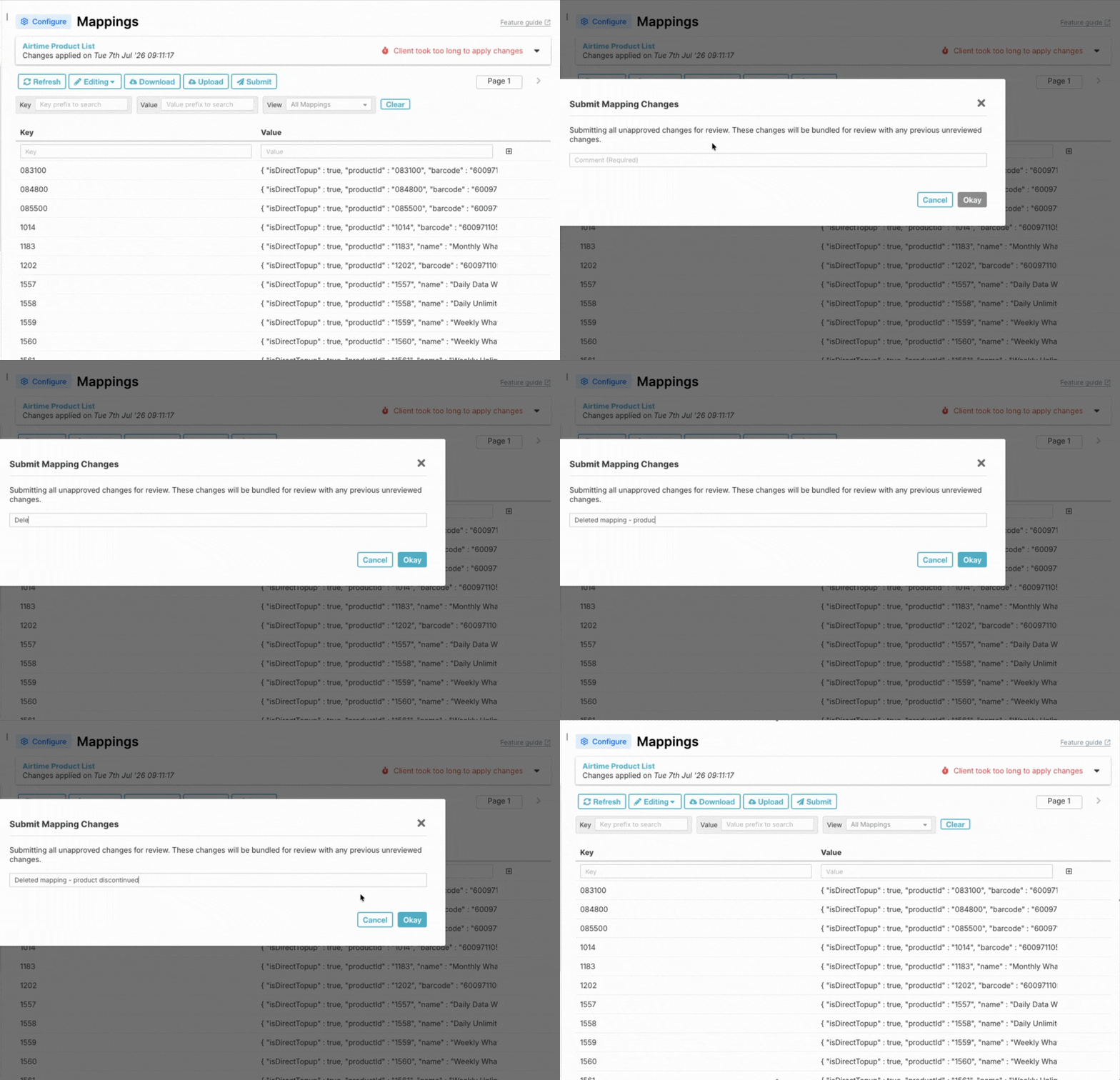
- On the Mappings screen in Edit mode, click Submit.
- Enter a comment for the reviewer to see when they review the changes.
- Click Okay. The changes will remain visible in Edit mode until the reviewer either applies or rejects the changes.
Applying Mappings Changes
After submitting changes for review, notify the approver so that they can log into the Electrum Switch and review the changes before applying or rejecting them.
To apply mappings to the live system
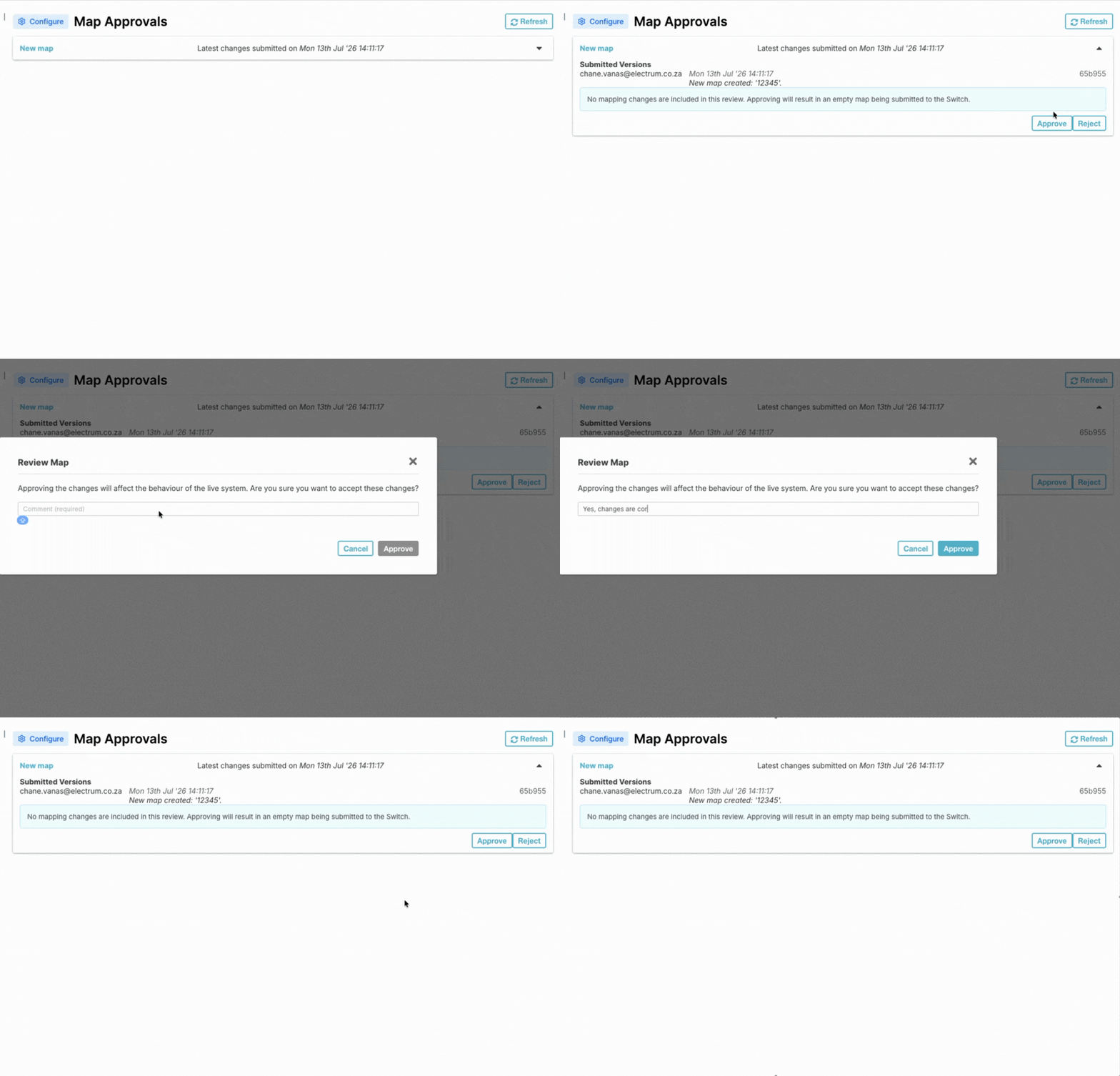
- Select Approvals in the left-hand menu.
- Evaluate the changes.
- If the changes are correct, click Approve.
- Enter a review comment and then click Approve. It may take a few minutes for the changes to take full effect in the live system. The status of the update can be viewed on the expanded card on the Maps screen.