Load Balancer
Load Balance at service provider level
The Electrum Load Balancer provides a quick and easy way to monitor connection health and manage load across the switch, adjusting any unhealthy connections between the Electrum Switch and service providers. It provides metrics on the rate of transactions and the success rate per service provider. Users with appropriate permissions can adjust the weighting applied by the Electrum Switch to each service provider when balancing transactions between them. Connections can be disabled so that no traffic will be routed to them at all.
Changes to the weightings will affect how transactions are routed in the live system within a few minutes. Only change this if you are sure you want to alter the average proportion of transactions routed to the service provider.
To change the proportion of transactions going to a service provider:
- On the provider card, click Edit default. The edit weighting dialog opens.
- Enter the new value in the text box. It can be any number, but should be chosen with all service provider weightings in mind, as they are relative to each other.
- Click Cancel to close the dialog without changing the weighting, or click Update to confirm the change. The change will take a few minutes to take effect after clicking Update.
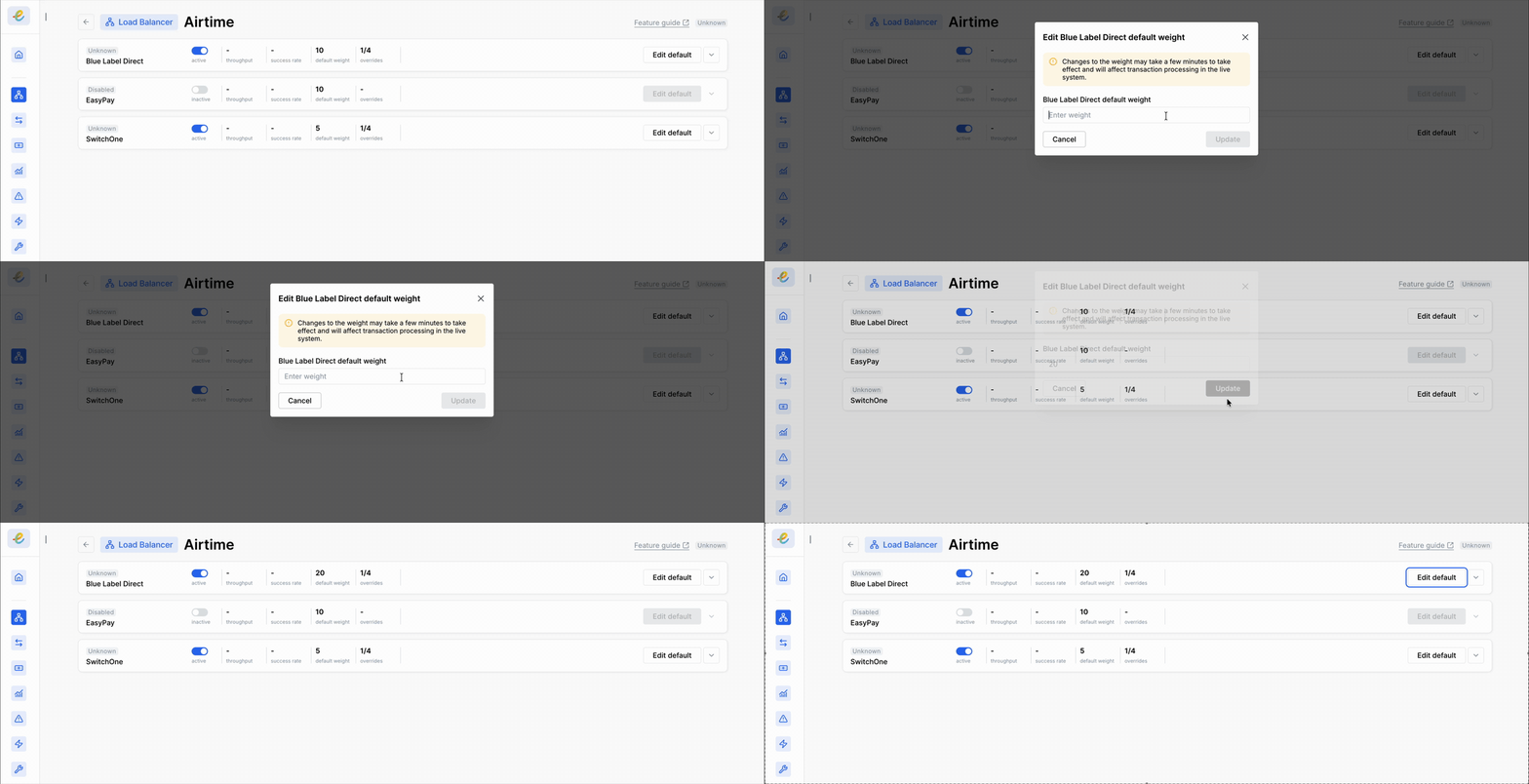
Load Balance at a mobile network operator level
The Electrum Load Balancer provides a quick and easy way to manage the load through the Electrum Switch to the various Mobile Network Operators (MNOs). It gives an overview of the default service provider weightings, the MNOs that are available and the weighting that apply to each of them, and whether any overrides have been implemented.
The default weight of the service provider will apply to all MNOs. Where you wish to specify the weighting of an MNO to be different to that of the default, you can institute an override that allows you to set a different weighting.
Airtime is currently the only service that supports overrides, where this is can be done at an MNO level. Note that your service provider card may vary across services. Airtime has a dropdown displaying the MNO information below. You can set an override using the available option. For most services, you will have the service provider-level load balancer. If you have airtime with Electrum, you can have a service provider-level or MNO-level load balancer, based on your preference.
Read the Load Balancer and Failover page to learn about the different features of the service provider-level and the mobile network operator-level load balancers.
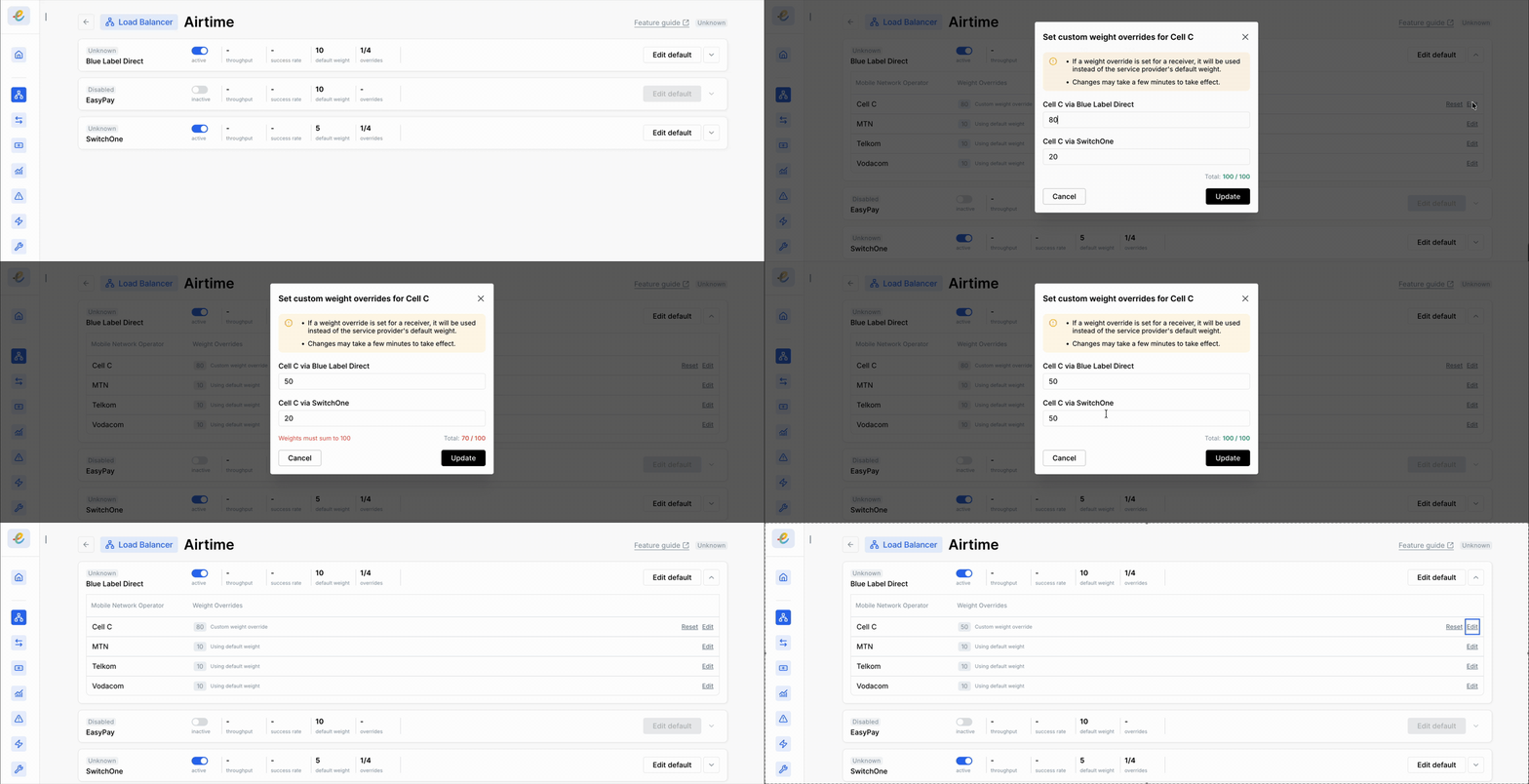
To change the proportion of transactions going to an MNO:
- Click on the drop-down arrow of the service provider to view the mobile network operators.
- Select the edit button to specify which MNO needs to change.
- A dialog box will appear to set a custom MNO weight override.
- Enter the desired weightings for the selected MNO for each service provider. Note that MNO weightings across the service providers must add up to 100. If they do not add up to 100, you will be prompted to reenter the values such that they do add up to 100.
- To cancel the weighting setting, select cancel. You will return to the Airtime view.
- Set the custom override, and select "update". You will see that the tab now displays one override (1/4).
- If you wish to reset to original default weightings, select the reset button next to the MNO. A dialog box will appear to reset the weightings. If you reset the weightings, the service provider default weight will apply.
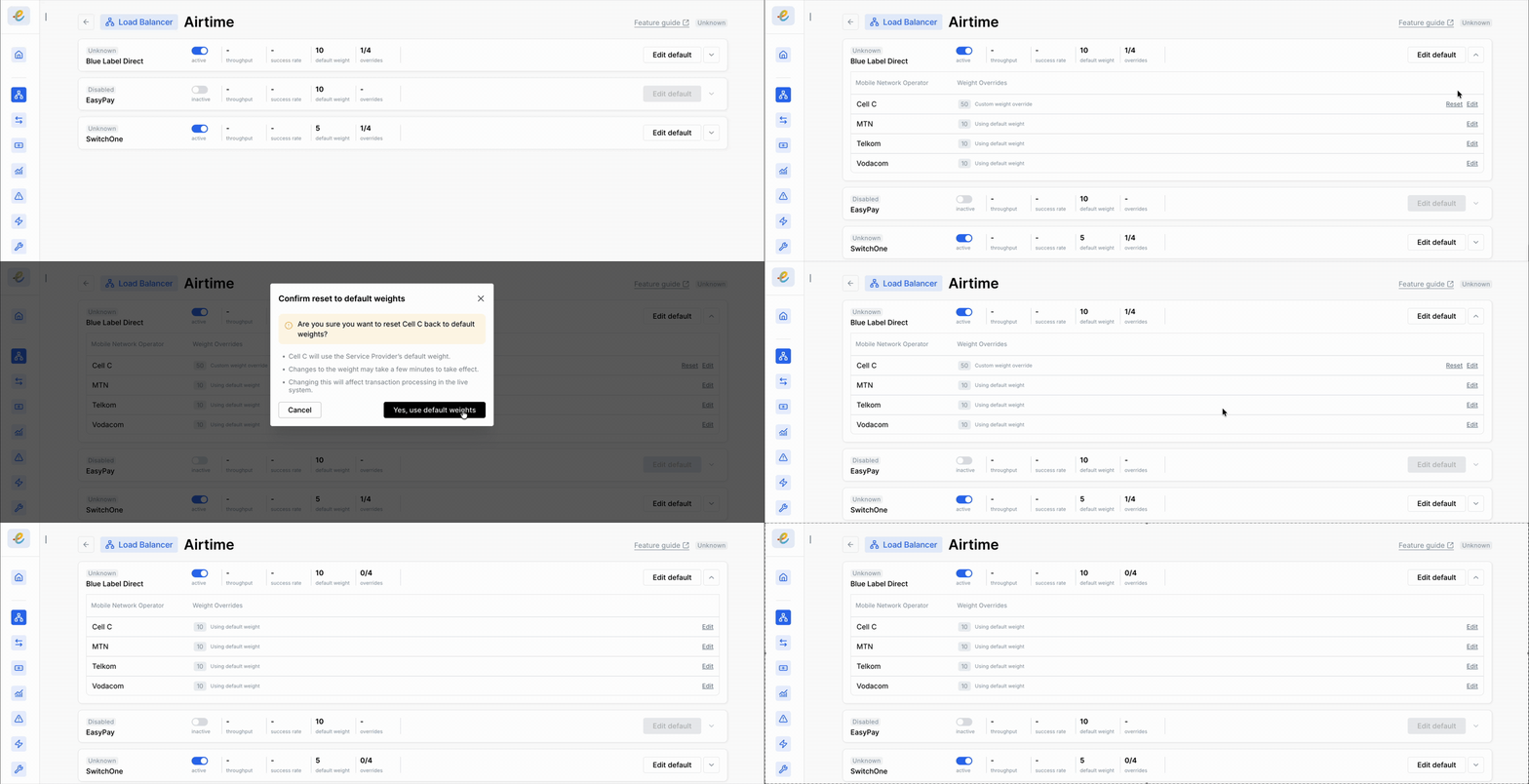
- The number of overrides possible will equal to the number of MNOs.
- If all MNO weights are overridden, they must be reset individually.
Activating or Deactivating a connection on a service provider level
To activate an inactive connection on a service provider level
- Select the Inactive toggle to Active.
- Select Cancel to close the dialog without activating the connection, or click Yes, enable to proceed with the activation. Activation can take a few minutes to take effect.
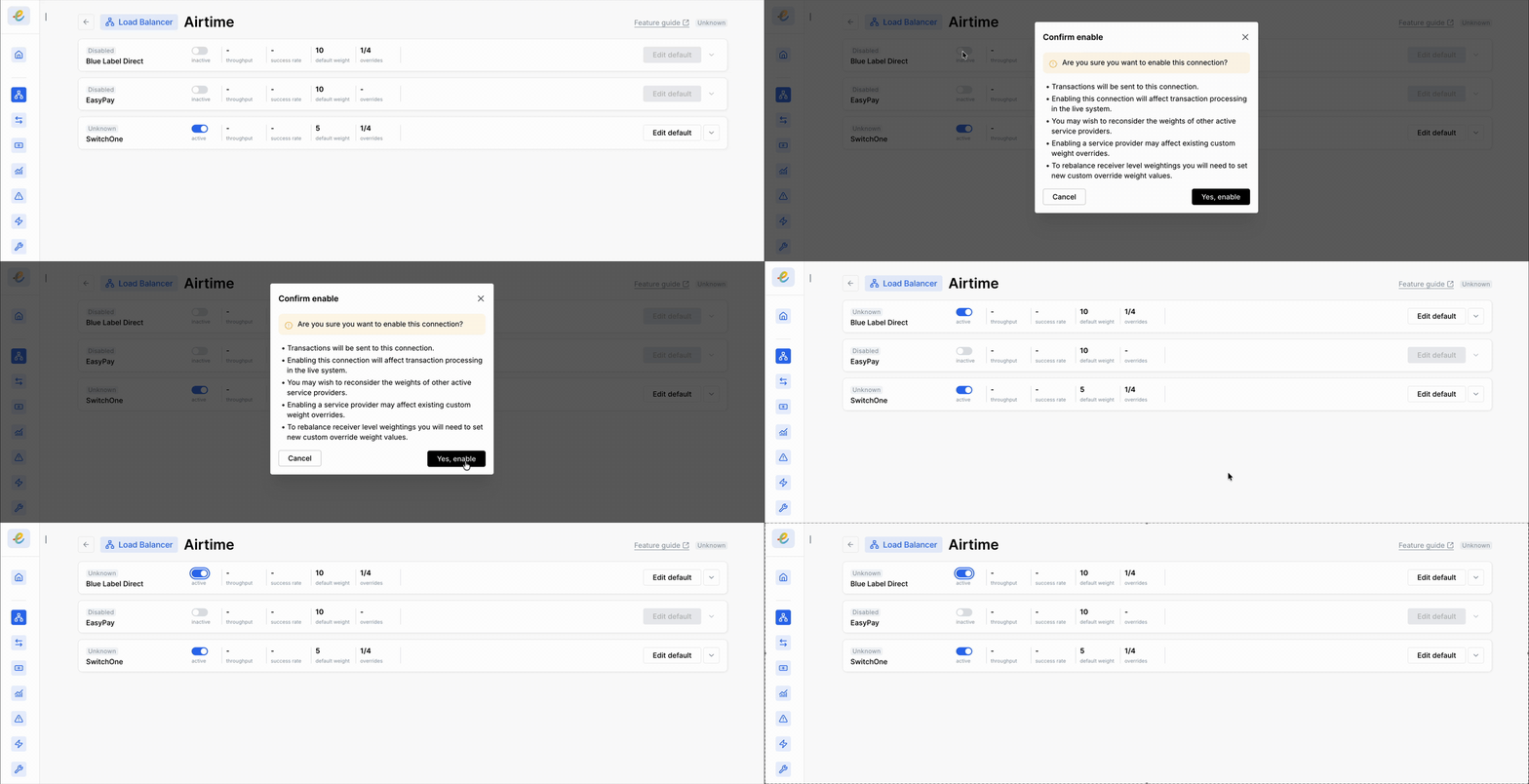
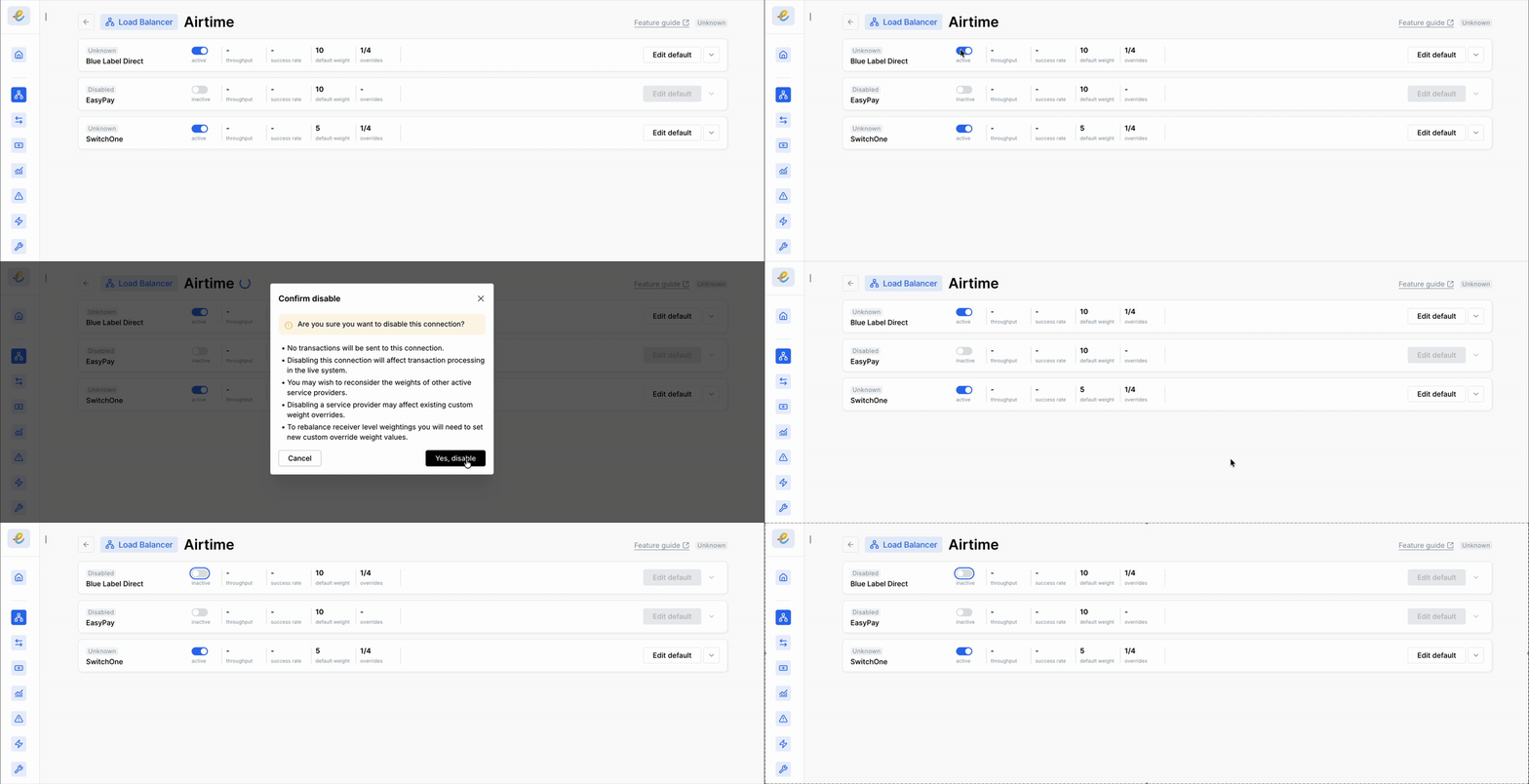
To disable an active connection
- Select the Active toggle to Inactive.
- Click Cancel to close the dialog without disabling the connection, or click Yes, disable to proceed with the deactivation. This can take a few minutes to take effect.
Monitoring Service Health on a service provider level
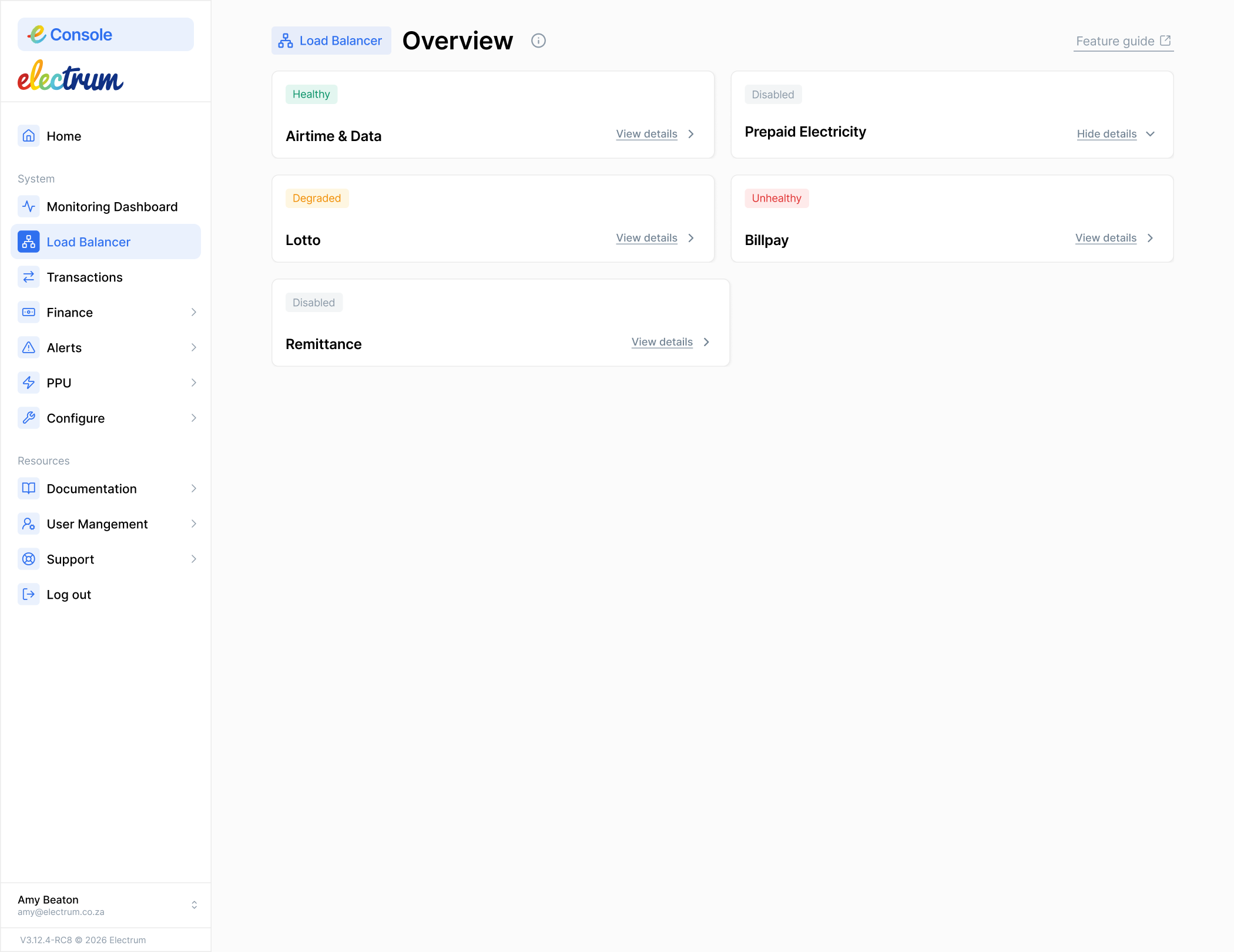
The Load Balancer page also shows the health of connections to service providers. The Electrum Switch identifies unhealthy streams by performing periodic health checks. If it detects a failure, it automatically switches from an unhealthy provider to a healthy one that is available.
To view the health of services
Click Load Balancer in the left-hand menu.
The list of services displays with an indicator of its current health status.
Understanding the Health Status
| Colour | Status | Description |
|---|---|---|
| Red | Unhealthy | All upstream connections are down and all transactions are failing for the service. Action should be taken to restore the connections. |
| Orange | Degraded | One or more (but not all) upstream connections are down and transactions routed to them are failing. Action should be taken to restore the connection, or the connection should be disabled so that transactions are not routed to it. It can be enabled again when it is healthy. |
| Green | Healthy | All connections are up and working well. |
| Grey | Disabled | All connections in the service are not active and no transactions are being processed. |
To view the health and metrics of each connection
Click Load Balancer in the left-hand menu.
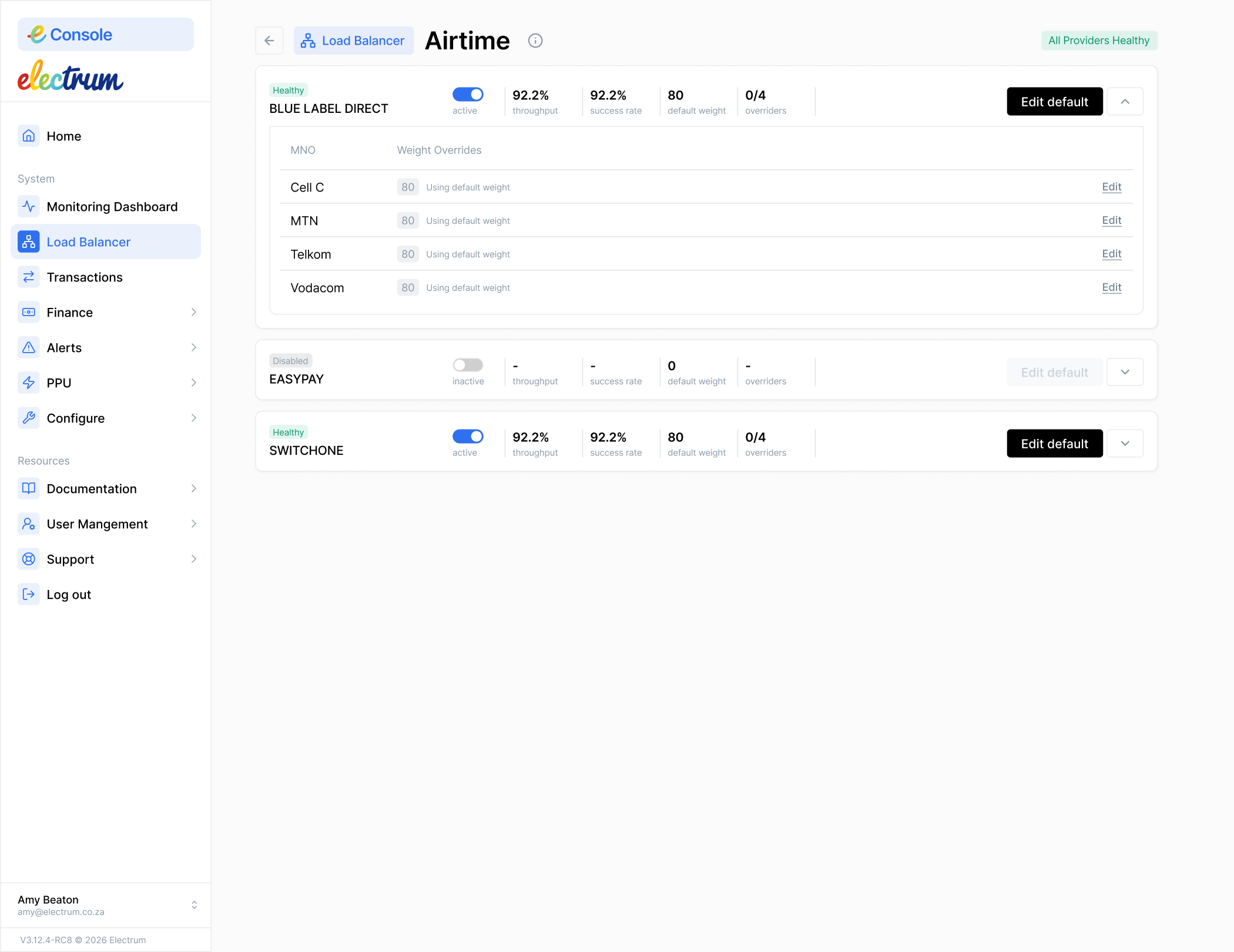
Select the View details option on the Airtime & Data card to view the service provider health.
| Item on the receiver card | Description |
|---|---|
| Status colour | The indicator of the service provider's connection health status. The colours are the same as those described in Understanding the Health Status above. |
| Connection name | The name of the connected service provider. |
| Status description | The health status provided as text. |
| Activate / Deactivate toggle | Users with appropriate permissions can switch a service provider's connection on or off. |
| Throughput | The number of messages going to the connection per second. |
| Success rate | The percentage of transactions that have succeeded at the service provider in the past measurement. This is configurable, but is typically around 30 seconds. |
| Weight | The proportions at which the traffic will be directed across different service providers. For example, if one receiver is set to 10 and the other to 20, the latter will receive two thirds of the transactions on average. The weights do not need to add up to 100. |
| Edit button | Users with appropriate permissions can alter the weightings to change the average proportion of transactions routed to each service provider. |
Monitoring Service Health on a mobile network operator level
We currently do not support viewing the health status and success rates for each MNO. Electrum can set up alerts to help flag when transactions with an MNO fail.