Transactions
The Transactions page of the Electrum Console gives users the ability to investigate individual transactions that have been processed by the Electrum Switch. The default page view shows a list of all transactions for the current day across all services.
Search for a Transaction
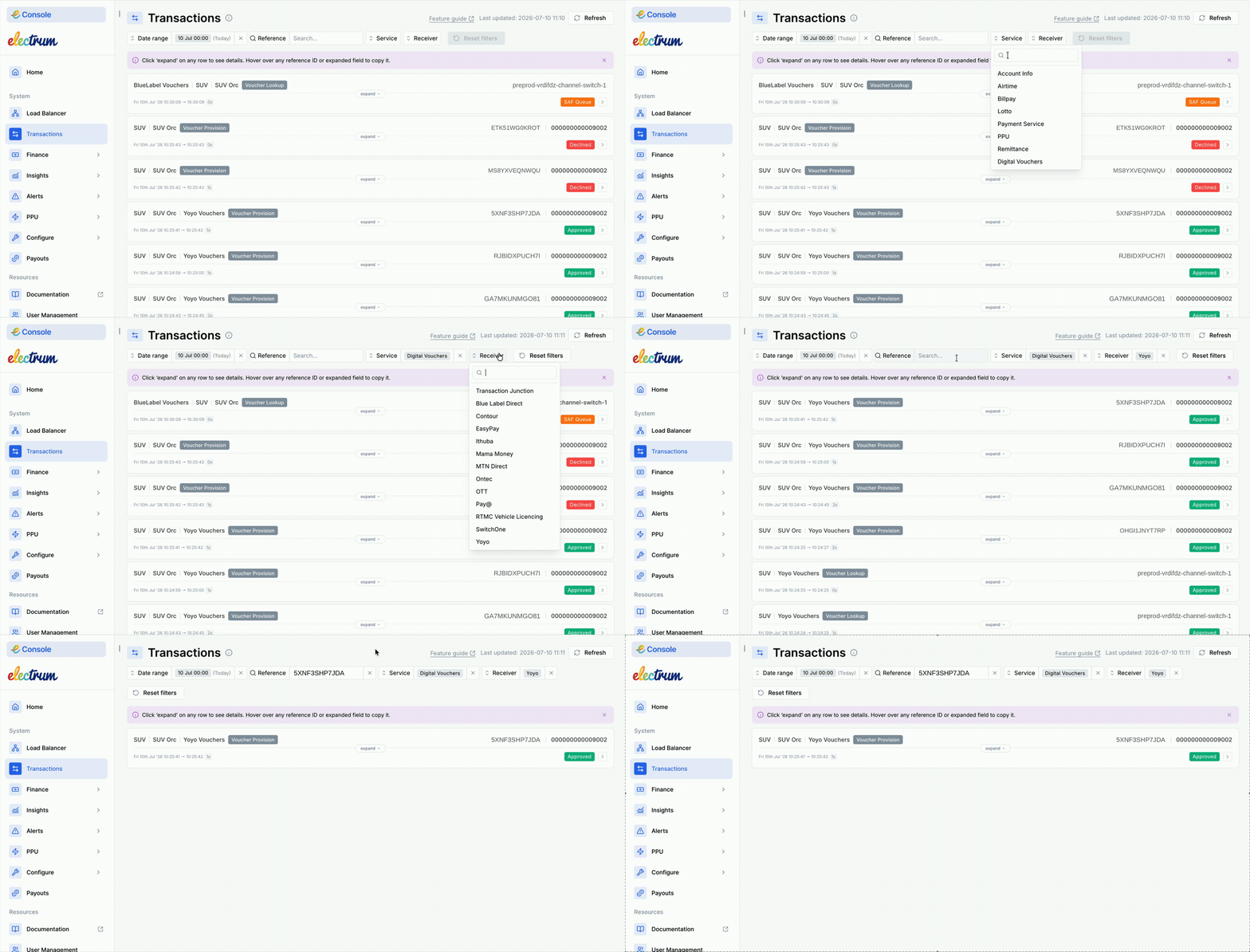
To search for one or more transactions
- In the left-hand menu, click Transactions.
- Enter any of the following optional criteria:
The date and time range when the transaction was received or responded by the Electrum Switch.
The service from the available drop-down menu.
The receiver from the available drop-down menu.
Any of the following reference values:
- Message ID - The reference used to uniquely identify a transaction processed by the Electrum Switch. This is contained in the id field of messages formatted according to the Electrum specification.
- Third-party identifier - An identifier assigned to a transaction by an entity other than the Electrum Switch, e.g. Retrieval Reference Number (RRN). This is not guaranteed to be globally unique.
- MSISDN - The mobile number used for a direct top-up airtime purchase.
- Electricity meter number - The meter number used for a prepaid electricity purchase.
- Bill payment reference number - The account number used for a bill payment.
- Voucher PIN - The identification number for a voucher that is being provisioned or redeemed.
The transactions matching the criteria entered will be displayed in the Results section.
View Transaction Details
Information displayed on the transaction card
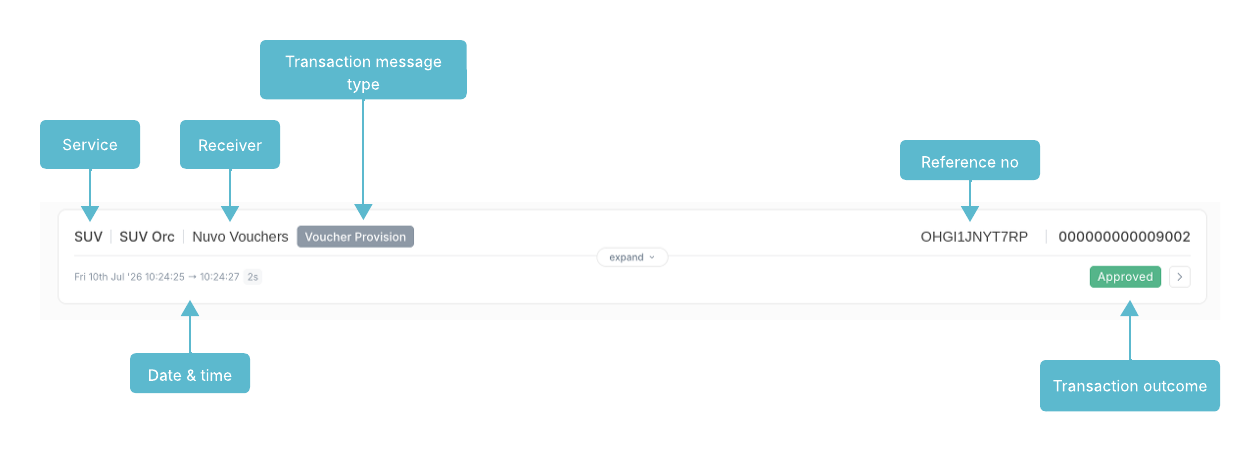
- Each transaction in the Results list is represented by card that shows the following information:
- Receiver – The service provider (that is, the destination system) to which request messages of the transaction were routed.
- Service – The specific service through which a transaction was processed, such as airtime.
- Reference – This can be any of the transaction identifiers as described above, or a combination of fields separated by a pipe ("|").
- Transaction outcome – The current status of the transaction, if available (e.g., Approved/Declined).
- Date & time – The date and times at which the transaction was received and responded to.
To view transaction summary
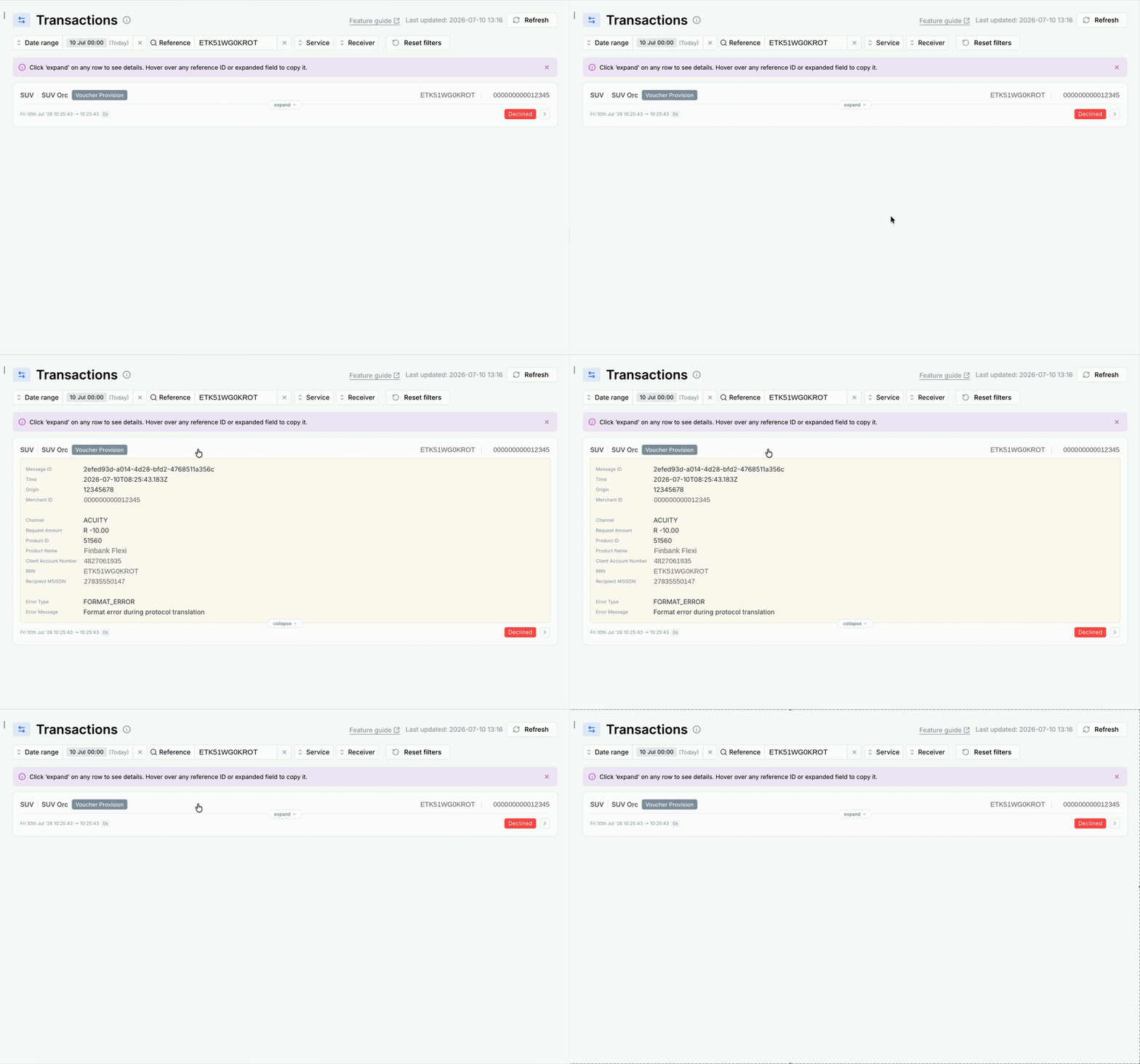
Click on any transaction card to expand it. The expanded card displays the pertinent properties of the transaction in a yellow box. The data shown will depend on the transaction type and service type.
To view message flows and traces
For an even more detailed view, click on the yellow box of an expanded transaction card. A new page is loaded showing the following:
- Transaction summary
- Message flow diagram
- Full message traces
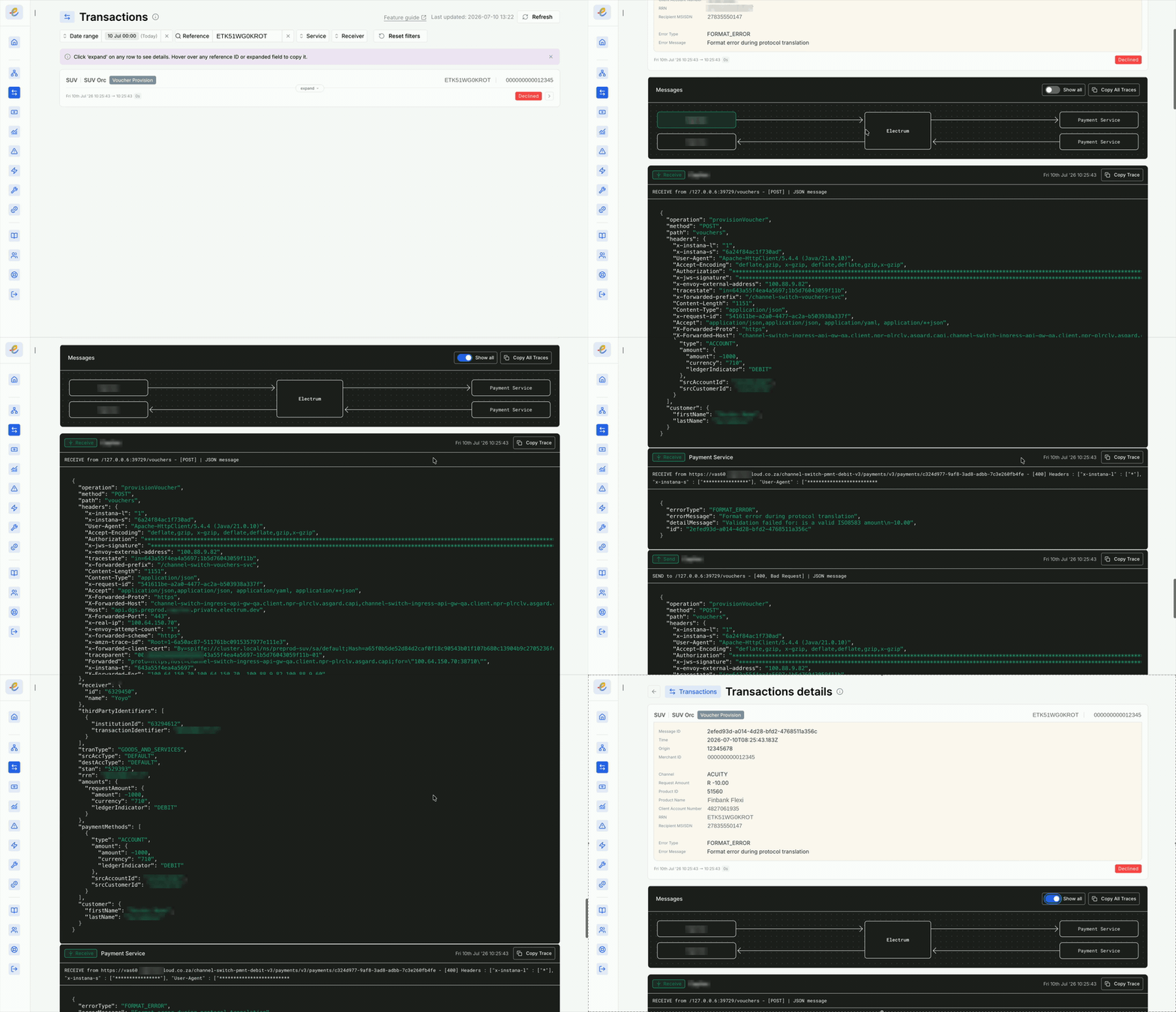
In the message flow diagram, all individual messages of the transaction that have been received and sent by the Electrum Switch are shown.
- An arrow from an external system to the central box represents a transaction message received by the Electrum Switch from the external system.
- An arrow from the central box to an external system represents a transaction message sent by the Electrum Switch to the external system.
Select any of the individual messages to display a trace of that message. Click the Show All button to show traces of all messages of the transaction below each other, in the order that the messages were processed.
Click the Copy Trace button to copy the trace details to the clipboard. This is useful if the raw message details need to be shared for troubleshooting purposes.
Troubleshooting Guidelines
This section shows you the general first-line steps to follow when you receive a customer complaint and you need to investigate. You can look at the various legs of the transaction flow to see where an error occurred.
To check for errors at any stage:
- Click on the box for the transaction stage in question (e.g., in the diagram below, click on the top ‘Client’ block to look at the first message of the transaction flow).
- Scan the corresponding message trace for error codes and error or failure messages.
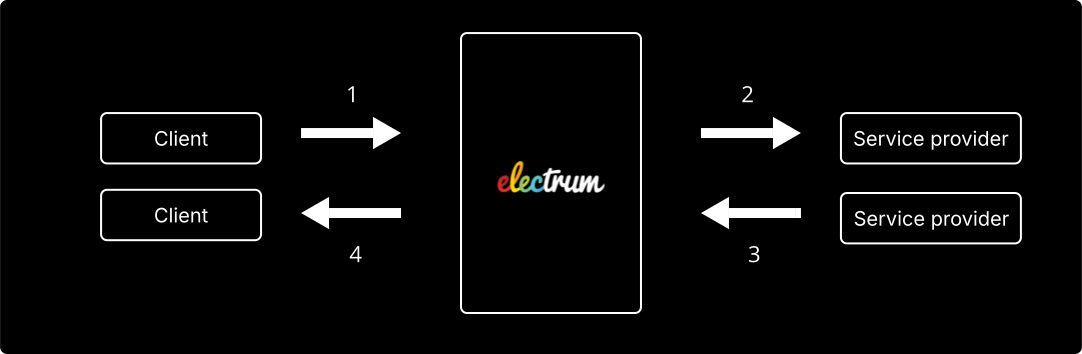
‘Service provider’ can refer to the aggregator or third party to which Electrum forwards your VAS request.
Error at transaction leg one (message from client to Electrum)
- Check for errors as described above.
- If there is an error, check whether it originated internally (on your system) or at Electrum.
- If the error originated on your system, or you can see that the message wasn’t sent, then investigate internally.
- If you see on your system that Electrum returned a
500or other error message, then contact Electrum Support. - If there are no errors, check the next transaction leg.
Error at transaction leg two (message from Electrum to service provider)
- Check that there is a message.
- If there is, check for an error message and code in the trace.
- If the message is missing or there is an error, contact Electrum Support.
- If there are no errors, check the next transaction leg.
Error at transaction leg three (message from service provider to Electrum)
- Check that there is a message.
- If there is, check for an error message and code in the trace.
- If the message is missing or there is an error, contact the service provider.
- If there are no errors then check the next transaction leg.
Error at transaction leg four (message from Electrum back to client)
- Check that there is a message.
- If there is, check for an error message and code in the trace.
- If an error occurred at Electrum (when there was no error at the service provider in leg three) then contact Electrum Support..
- If the error here originated at the service provider (you should have seen this in the trace in leg three) then contact the service provider.
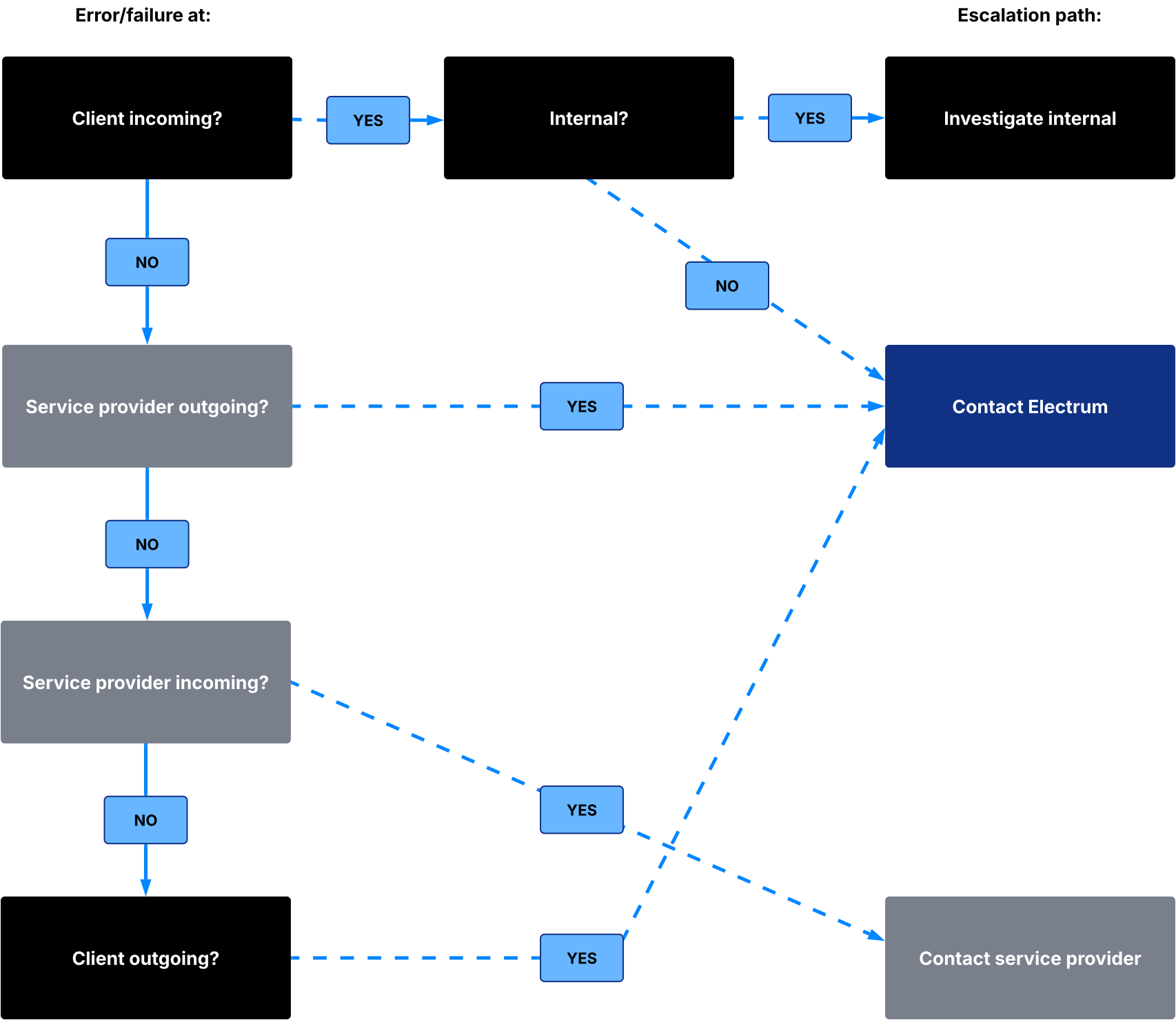
See the decision tree below for a summary of the troubleshooting steps.
Contact Electrum Support
If you need further support, email support@electrum.co.za with a description of your issue.
Include in your email:
- As much information about the failed transaction as you can.
- A link (URL) to the transaction in the Electrum Console.