Inbox
The Inbox tab of a process displays all files that have been uploaded for the selected process. These include files uploaded via the system’s SFTP server as well as files uploaded by operators via the Electrum Console.
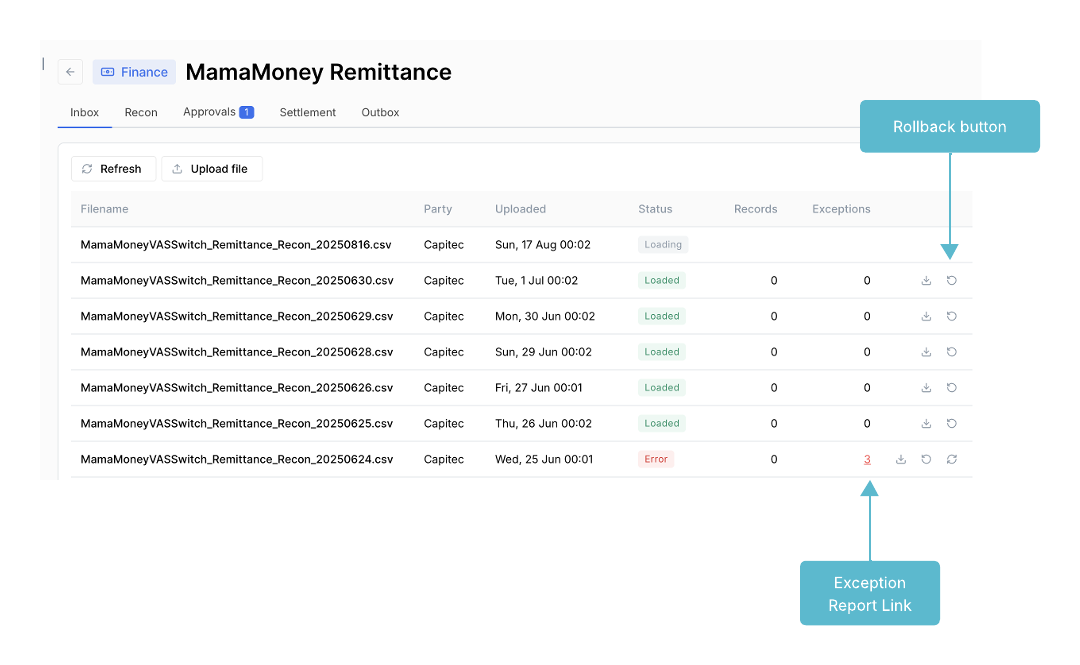
The following information is displayed for each file:
| Field | Description |
|---|---|
| File name | The name of the file. |
| Party | The name of the entity that generated the file. |
| Uploaded | The date and time of the file upload. |
| Status | The upload status of the file. |
| Records | The number of records in the file that were successfully parsed and loaded into the system. |
| Exceptions | The number of records in the file that could not be loaded into the system. |
The upload status of a file can be any of the following values:
QUEUED - A request for the file to be uploaded has been registered and needs to be approved by an approver user the upload can proceed.
LOADING - The file upload is in progress.
LOADED - The file, or parts of the file, has been successfully uploaded and some or all of the records were loaded into the system.
ERROR - The file upload has encountered an error and none of the records were loaded into the system.
ROLLBACK - The file has been rolled back successfully and all records in the file have been removed from the system.
FINALIZED - All transactions in the file have been settled and no further actions can be taken on the file or transaction.
You cannot manually upload any events for Kafka events. Since the events are streamed continuously, you should not need to.
Upload Files Manually
Uploading files via the Inbox page requires approval from an Admin user with Approval permissions.
To upload a file for an Electrum Finance process
In the Inbox tab, click the Upload button.
Select the file to upload from the file explorer and then click Open.
Select the process to add the file to.
Add a comment. This comment will be visible to the approver, who must finalise the upload action.
Click Continue.
If successful, a confirmation message displays and the upload action is registered in the Approvals tab for an approver to approve. If unsuccessful, or the file has already been added, an error message displays.
After the upload is approved, the file appears on the Inbox tab. If it does not display immediately, click refresh.
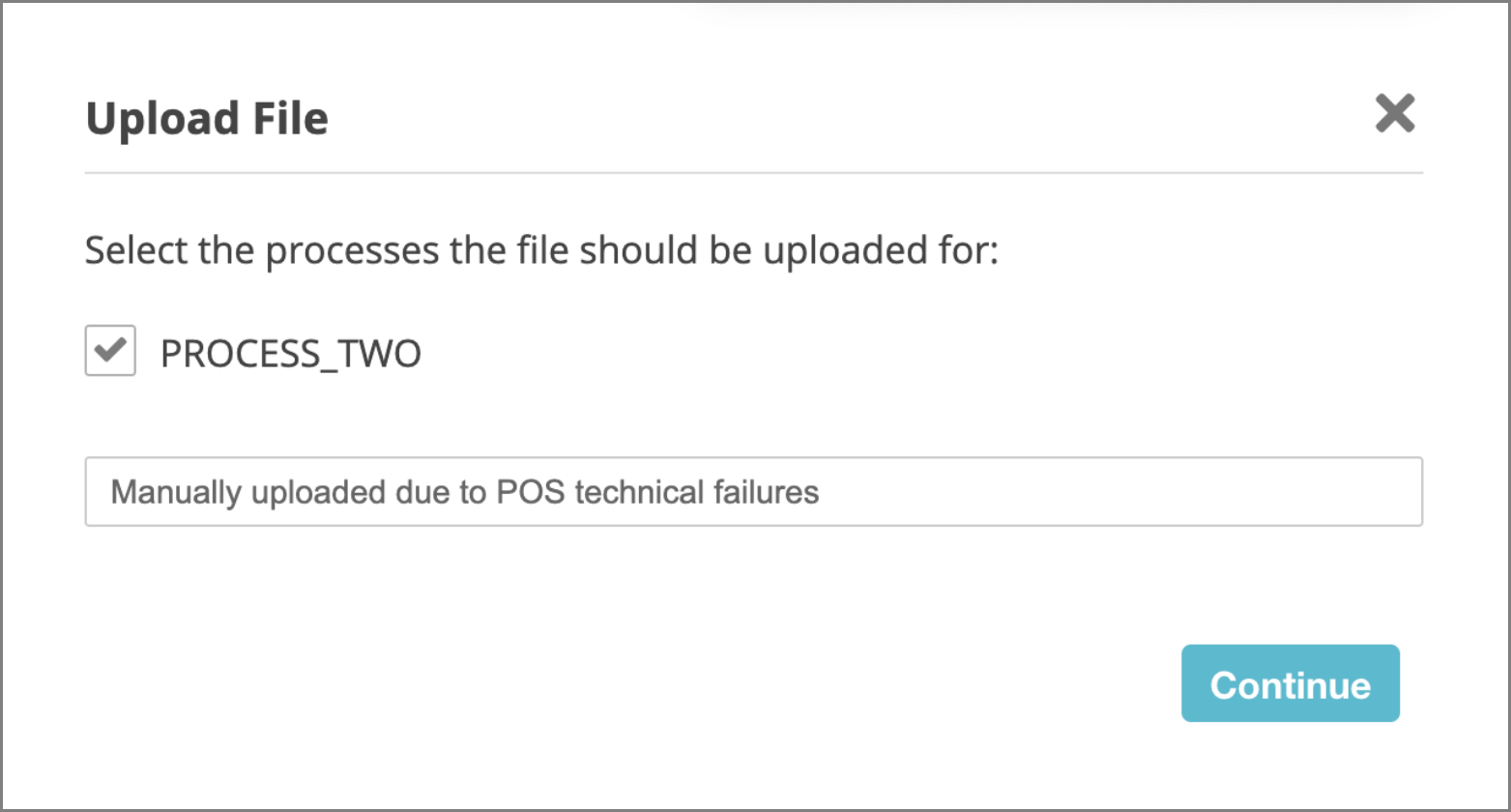
An operator can also upload a file to one or more processes simultaneously from the Processes page.
Troubleshoot File Uploads
When a file upload displays a status of ERROR, the following possible reasons should be investigated:
| Cause of error | Description |
|---|---|
| File name | The file name was not recognised by the system. The file name format is defined in the configuration of the process, and typically includes the details of the party uploading the file, the relevant process, and the date and time of producing the file. |
| File format | The system was unable to interpret the file type or format. The supported file formats for the process are defined in the configuration of the process. |
| Duplicate file | A file with the same file name was uploaded previously. |
| System failure | The system encountered an unexpected error such as a database connectivity issue. |
Files that are automatically uploaded via the system’s SFTP server do not require approval and are immediately loaded into Electrum Back Office.
Download Exceptions
If the Inbox tab indicates that there were exceptions i.e., transaction records that could not be loaded into Electrum Finance, then an operator can download the list of exception records for troubleshooting purposes.
Download the exception records of a file
- In the Inbox tab, identify the file with exception records that need to be exported.
- Click the Exceptions Report link that is available in the Exceptions field of the file.
- In the window that opens, specify a location for the downloaded file to be saved and enter a name for the file.
Roll Back Files
If a file was uploaded by mistake, or contained errors that have since been corrected, it can be removed from the process by an operator.
All transaction records with one of the following Status values are deleted from the system and will no longer be considered for recon and settlement:
- MATCHED
- PARTIALLY MATCHED
- UNMATCHED
- PENDING
- ISSUE
Transaction records with the following Status can not be rolled back:
- SETTLED: If any of the records in a file has a Status value of SETTLED, then the file can not be rolled back and none of the records in the file will be removed.
Only non-empty files (that is, files that contain one or more transaction records) can be rolled back.
Uploading files via the Inbox page requires approval from an Admin user with Approval permissions.
Roll back a file
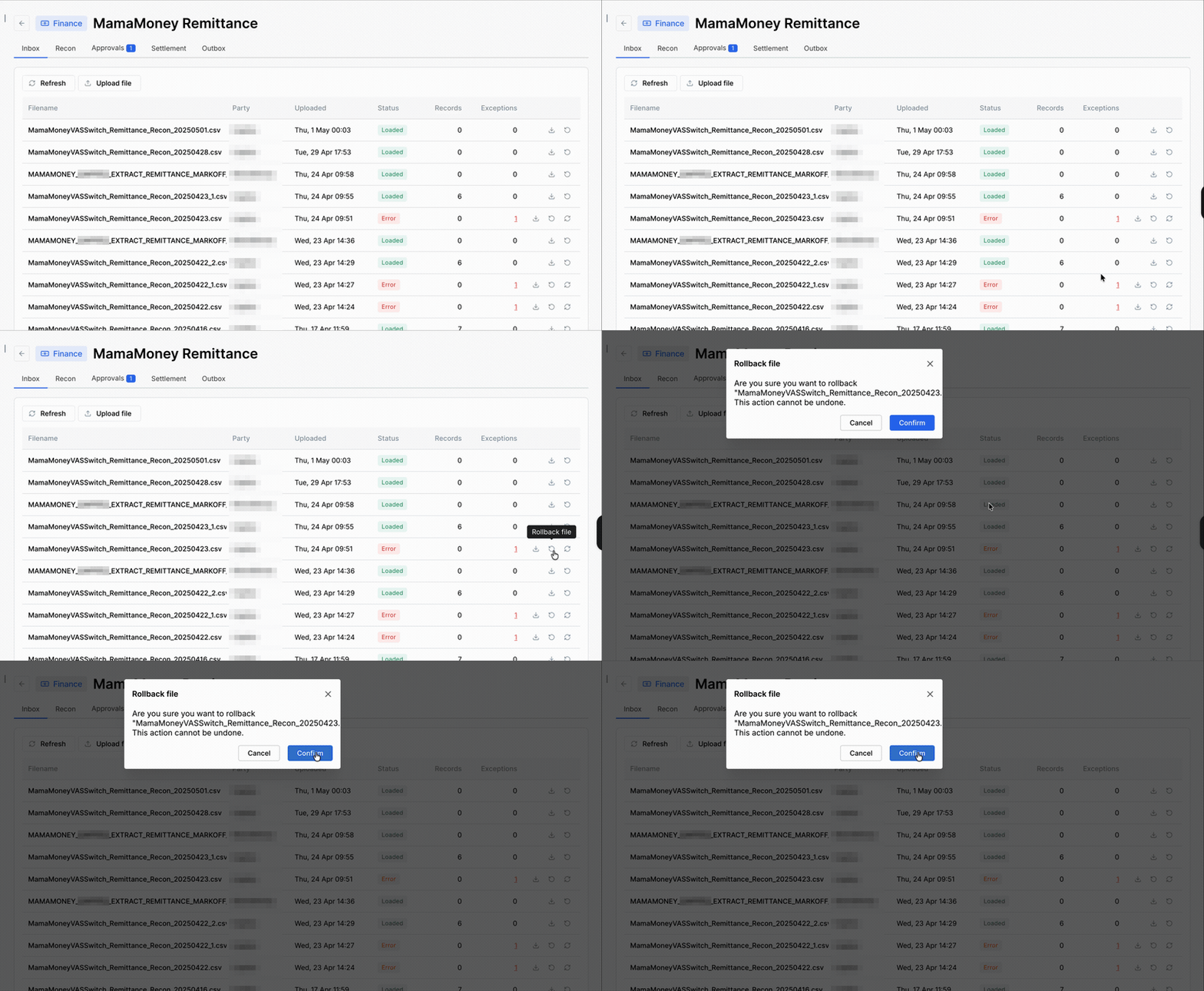
- In the Inbox page, identify the file to roll back.
- Click the Rollback button for the file.
- In the window that opens, add a comment. This comment will be visible to the approver, who must finalise the rollback action.
- Click Yes, rollback file. If successful, a confirmation message displays and the rollback action is registered in the Approvals tab for an approver to approve. If unsuccessful, an error message displays.
- After the rollback is approved, the file status changes to ROLLBACK and the records are removed from the process.
Kafka Event Postings
Kafka is an event streaming platform that enables real-time event publishing, storing, and processing of event data. Electrum as well as some external systems are able to make generate these events instead of mark-off files to share transaction data for transactional reconciliation purposes. The events are informational in nature and are not used for online payments processing, but contain transaction payloads and associated details that can be consumed by Electrum for reconciliation.
If an event contains errors, the system lists them in the exceptions file (shown in the Exceptions column). You only need to correct and resubmit that specific event (no rollback required). The system continues to process all other events without interruption.
Continuous streaming means that events always show as 'LOADING'.
The Uploaded column in the interface shows when we began consuming events, not when we received the latest event.
Navigate to the Events Publisher page to learn more about this feature.