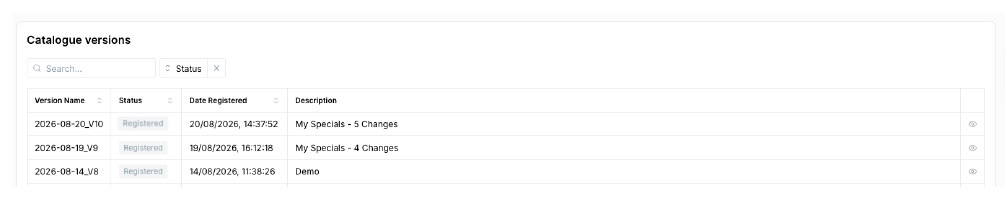
Airtime Catalogue Review
Overview
Only authorised users can access the Airtime Catalogue Review tab and approve or reject submitted catalogues. Confirm with Electrum Product Support which of your users should have access to these functions.
You must ensure that you are working from the correct environment (int, preprod, prod) in the Electrum Console. This will be the environment in which you want to effect a catalogue change.
Once a catalogue has been submitted for approval, authorised users can review and approve or reject versions from the Airtime Catalogue Review page.
Go to the Airtime Catalogue Review tab under the Airtime Catalogue Manager in the Configure section of Electrum Console. The different sections you will see on the screen are listed below.
Active version. Similarly to the box on the Catalogue Manager page, this shows the catalogue that is currently active (live) in that specific environment, and that catalogue’s details.
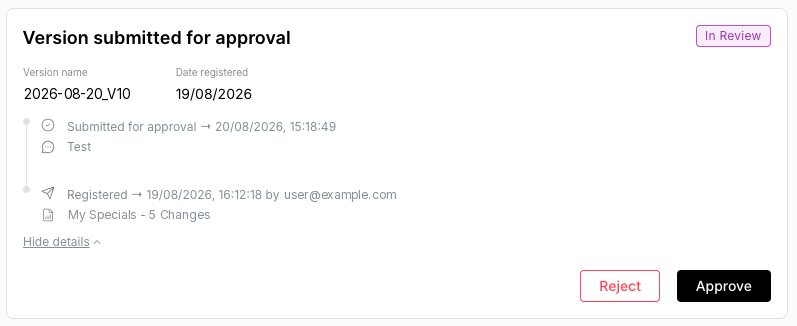
Version submitted for approval. This gives details about the version that was submitted for approval. Authorised users approve or reject the submitted version from here.
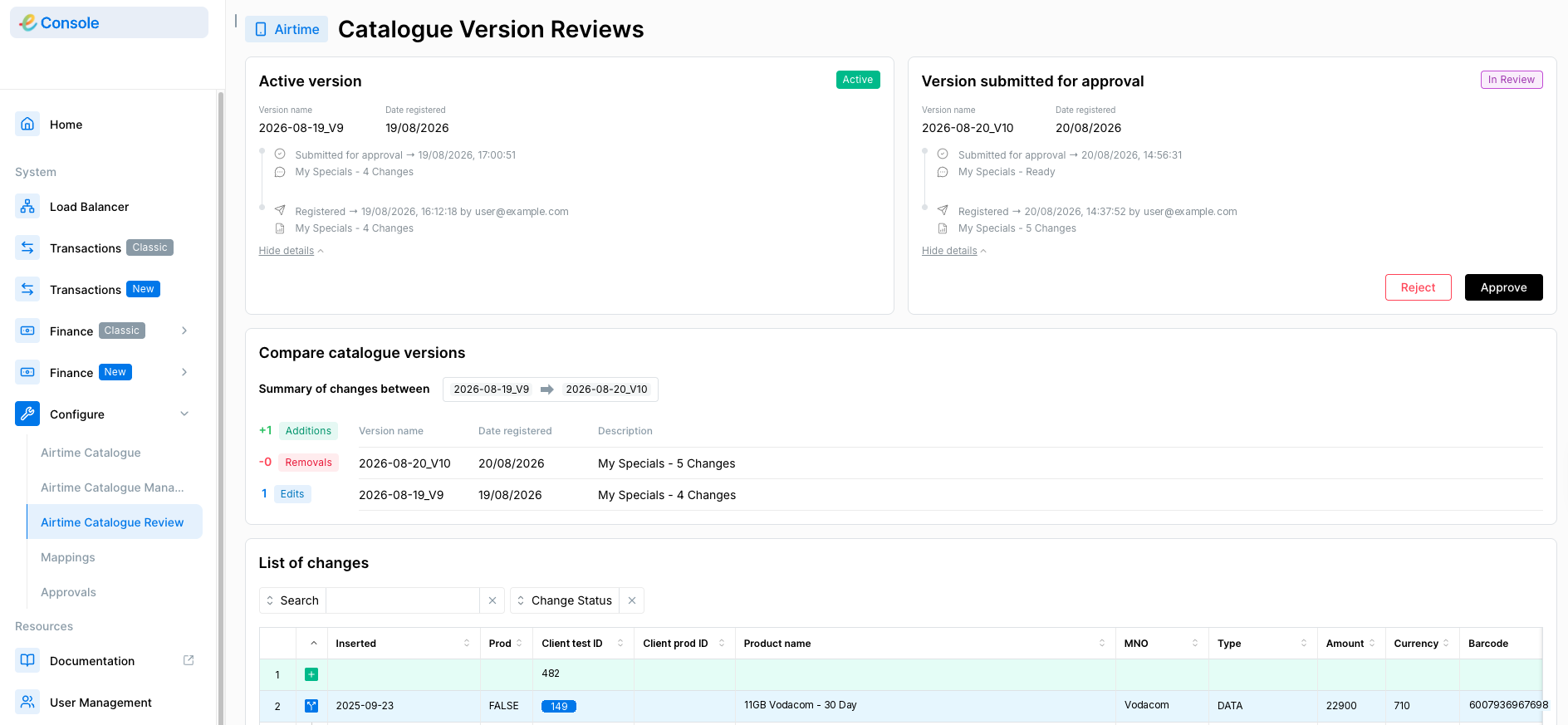
Compare catalogue versions summary. If there is a catalogue version in review then you will see the comparison between the active and submitted versions.
NOTE: This is different to the comparison tool found on the Catalogue Manager page in that:
- You will only see a comparison of how the submitted version differs relative to the active version. There is no option to select different versions to compare.
- The comparisons are automatically shown on the Review page (if there is a version in review) without having to select to ‘run comparison.’
The table shows the submitted version and highlights the changes in the submitted version relative to the active one.
Approve Submitted Catalogue Version
If you, as an authorised user, have reviewed a submitted catalogue version and want to approve it, then do the following:
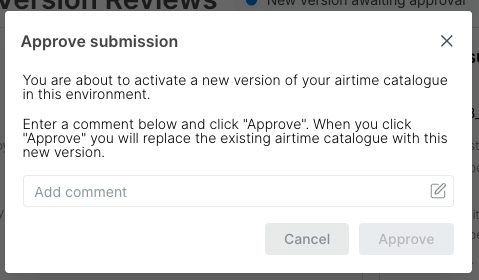
Click the ‘Approve' button on the Submitted version section.
The following dialogue box appears. Add a comment, then click ‘Approve’.
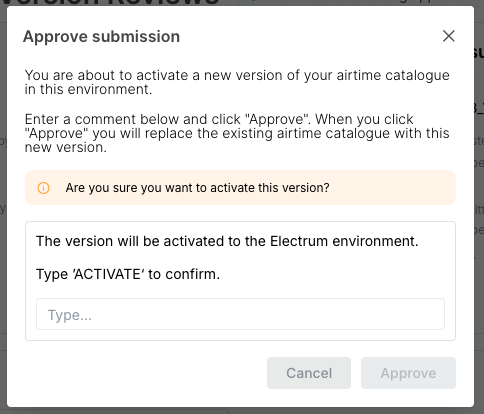
- The following dialogue box appears. It asks you if you are sure that you want to activate this version in this environment. If you are sure that you want to activate the version, then type ‘ACTIVATE’. After you have typed ‘ACTIVATE’ then the greyed-out ‘Approve’ button will become live and clickable. Click 'Approve’.
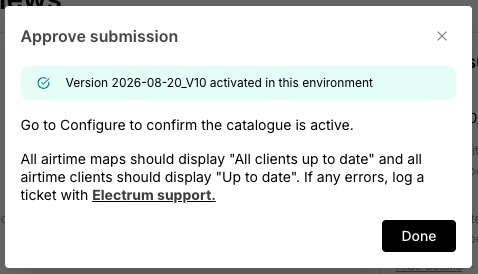
- You will see the following message indicating the approval was successful.
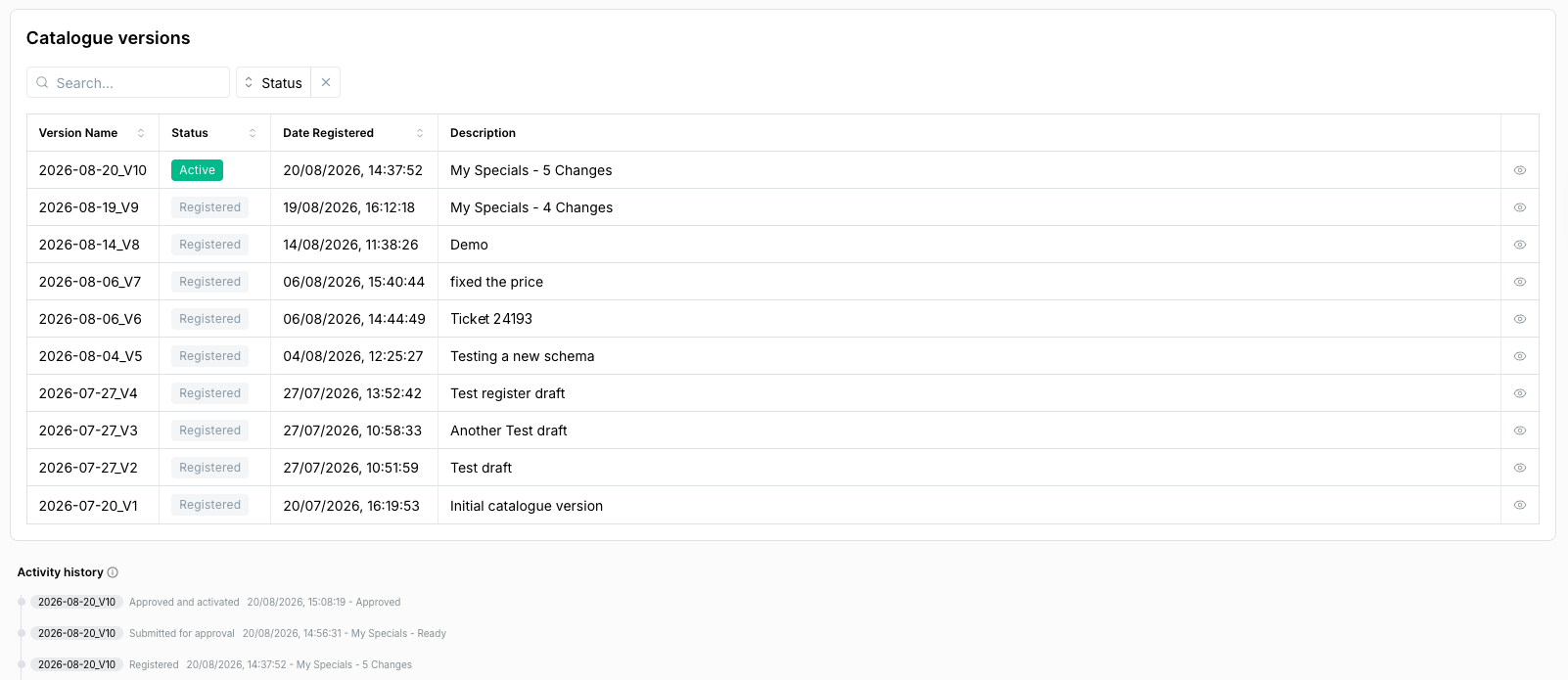
- If you go back to the Catalogue Manager page, you will now see that the version is now active in the environment.
- The catalogue version that was previously ‘IN REVIEW’ has changed to an ‘ACTIVE’ state.
- The catalogue version that was previously ‘ACTIVE’ has gone back to being ‘REGISTERED’. This catalogue is still available for future use and can be reactivated if necessary, after it goes through the submission and approval process again.
- The activity history will also reflect that the version was approved and activated.
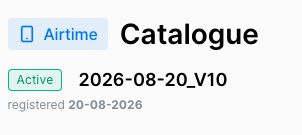
- You will also see the newly approved version displayed as the active version from the main Airtime Catalogue page.
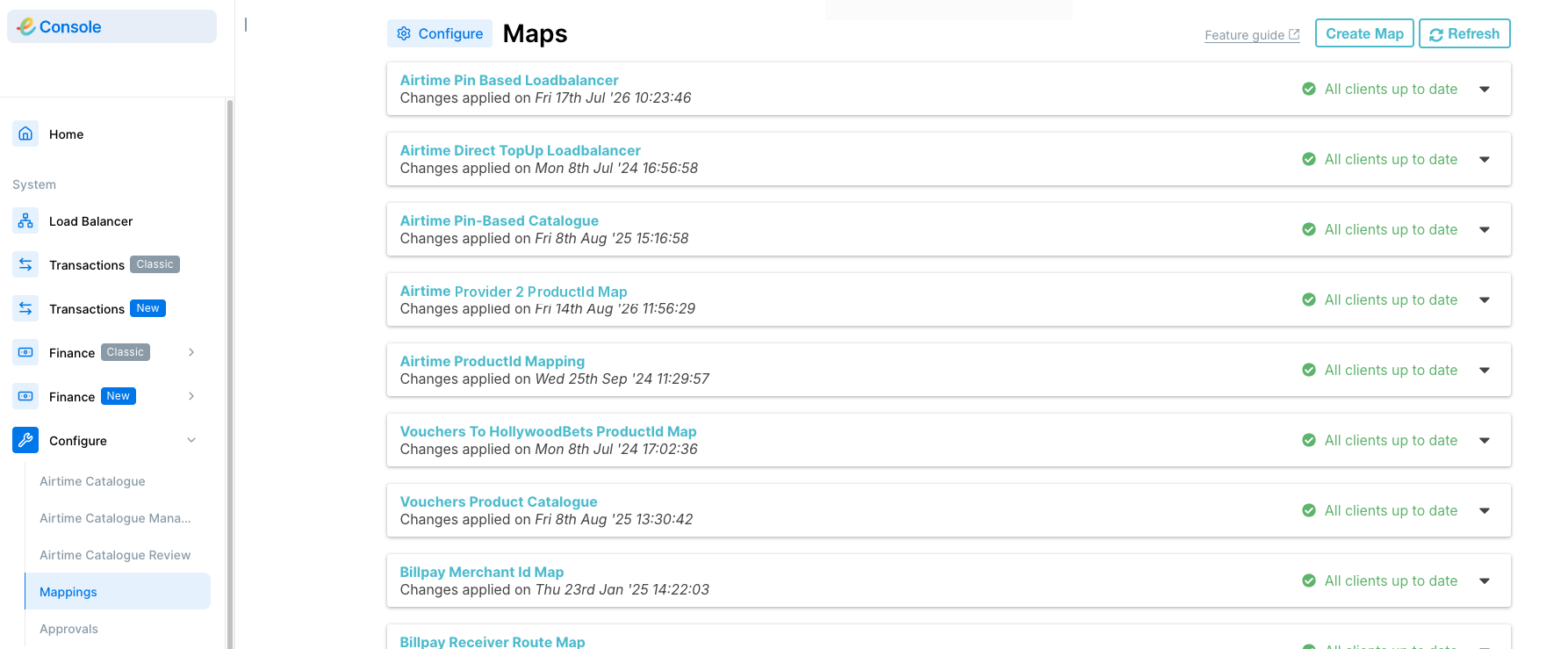
- Even though the catalogue version was activated, or successfully sent to the system, you should still confirm that the catalogue was successfully loaded by going to the Configure tab in the Console. Check that all airtime product mappings indicate ‘All clients up to date’ in green and any airtime-related items in the drop-down lists underneath indicate ‘Up to date’ in green.
If you note any errors, you can log a ticket with Electrum support.
Reject Submitted Catalogue Version
If you, as an authorised user, have reviewed a submitted catalogue version and want to reject it, then do the following:
- Click the ‘Reject' button in the Submitted version section.
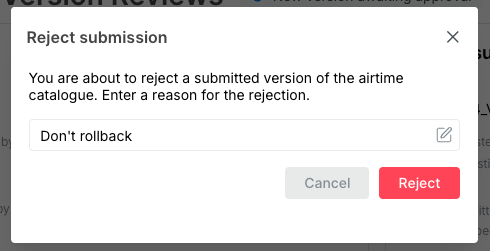
- The following dialogue box appears. Enter a comment explaining the reason for the rejection.
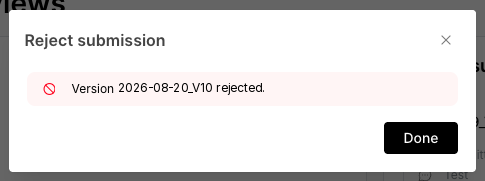
- Click ‘Reject.’ You will see the following message indicating that the submitted catalogue version has been rejected.
- At the top of the Catalogue Review screen, in the Submitted version section, you will see that there is no longer a version submitted for approval.
You can also navigate back to the Catalogue Manager screen to see that:
- The submitted catalogue version that was previously ‘IN REVIEW’ has reverted to a ‘REGISTERED’ state.
- The catalogue version that was previously ‘ACTIVE’ is still ‘ACTIVE’ (because the submitted catalogue was rejected and therefore did not replace the original active catalogue).