Airtime Catalogue and Catalogue Editor
Airtime catalogue overview
Find Airtime Catalogue under the Configure tab in the Electrum Console.
You will see the following on your home screen:
- A banner at the top indicating which environment you are in (except if you are in a Production environment).
- The active catalogue version that is live in that environment, and the contents of that version.
- If there is currently a draft version in progress or not.
- If there is an existing draft then you can edit it and save changes. You can do this via the Airtime Catalogue Editor which you can access via the Catalogue screen.
- If there is no draft in progress and you wish to create a new catalogue version then you can create one from here.
The Airtime Catalogue Editor feature is environment-agnostic. It does not matter which environment you are logged into when you edit, save, or register a catalogue version. A catalogue version will become available in all environments when you register it.
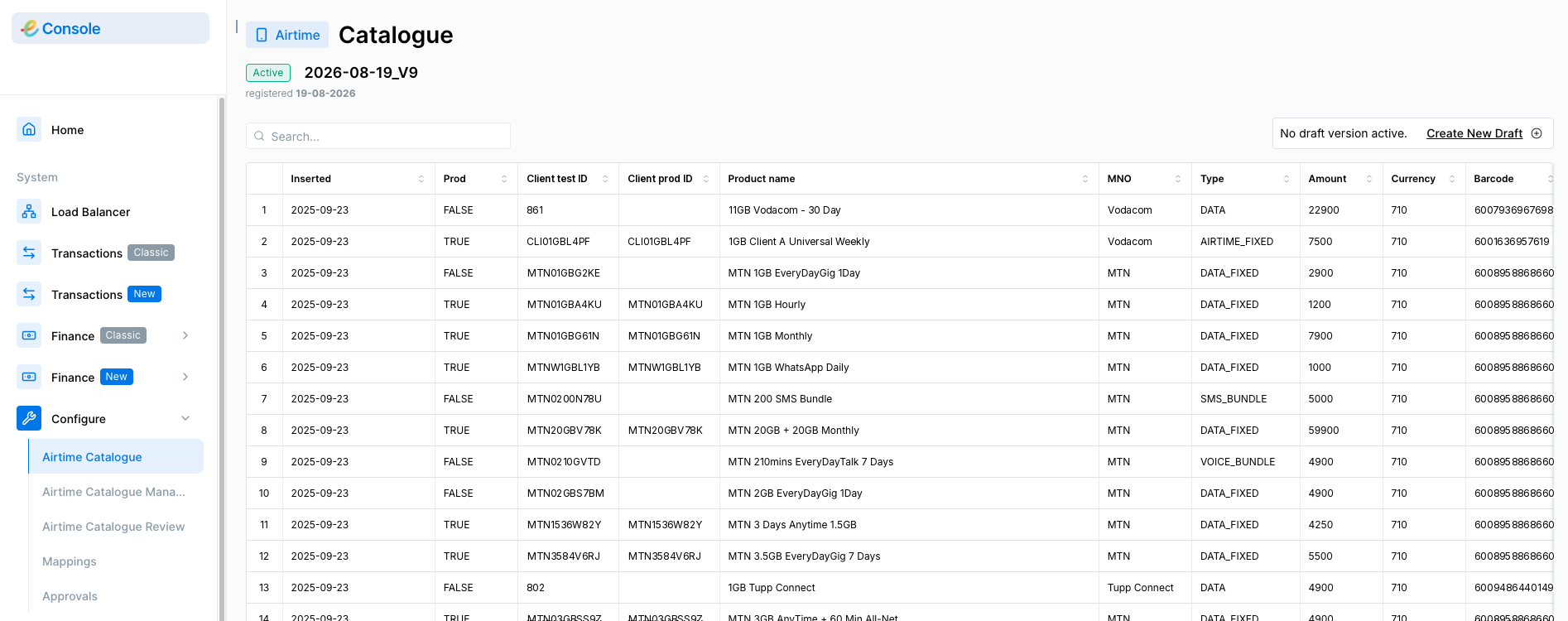
- Create a New Draft
From the Airtime Catalogue screen, click ‘Create New Draft’.
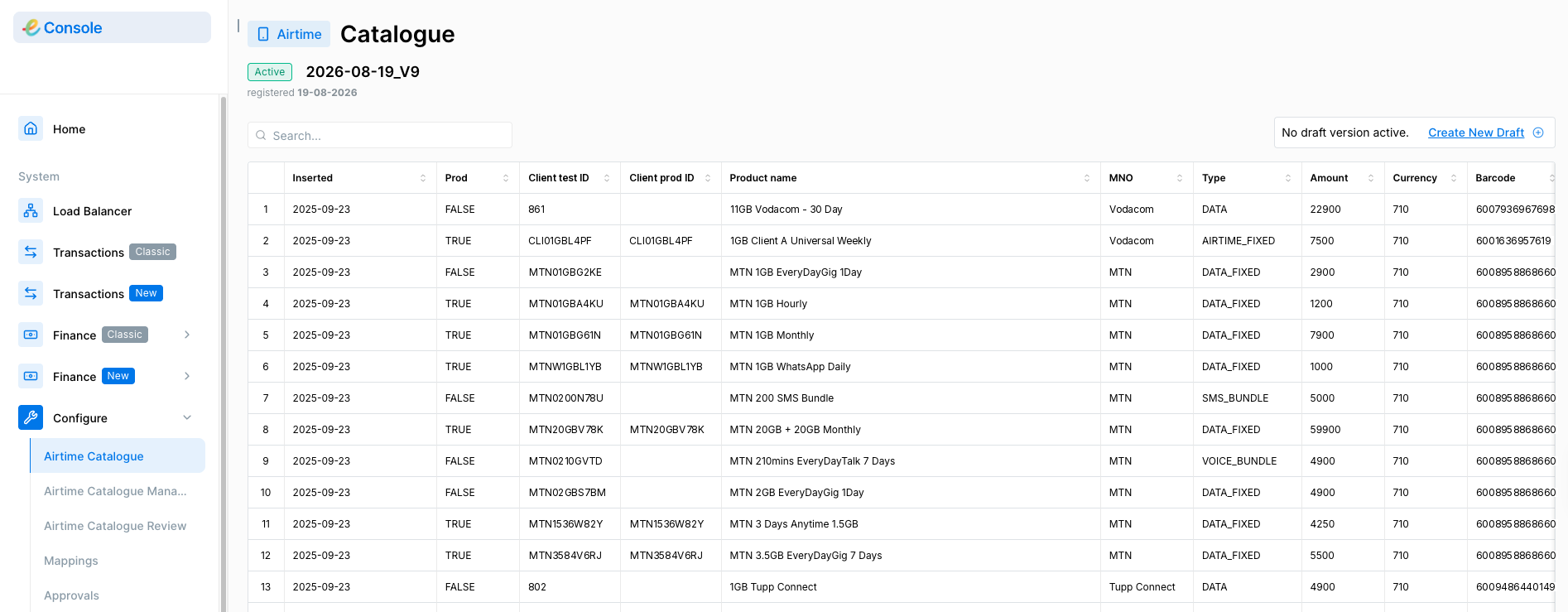
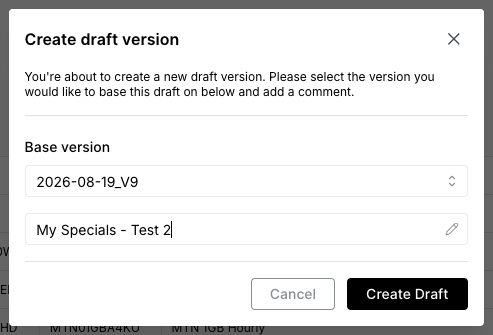
- The following screen will pop up.
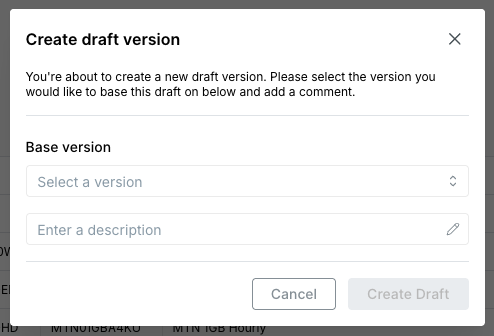
- Select the version on which you want to base the new draft. This action will create an exact copy of the version you have chosen, in a draft form that you can edit. The draft form will simply be named ‘Draft’.
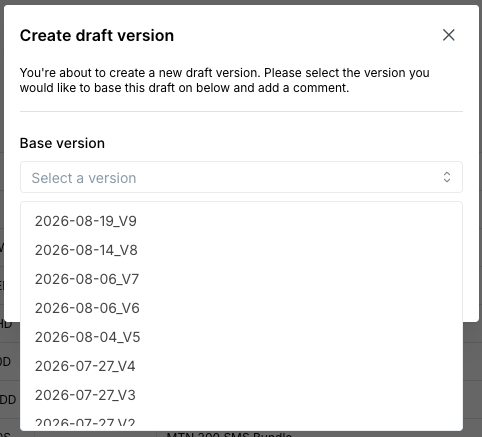
- Enter a description and click ‘Create Draft’.
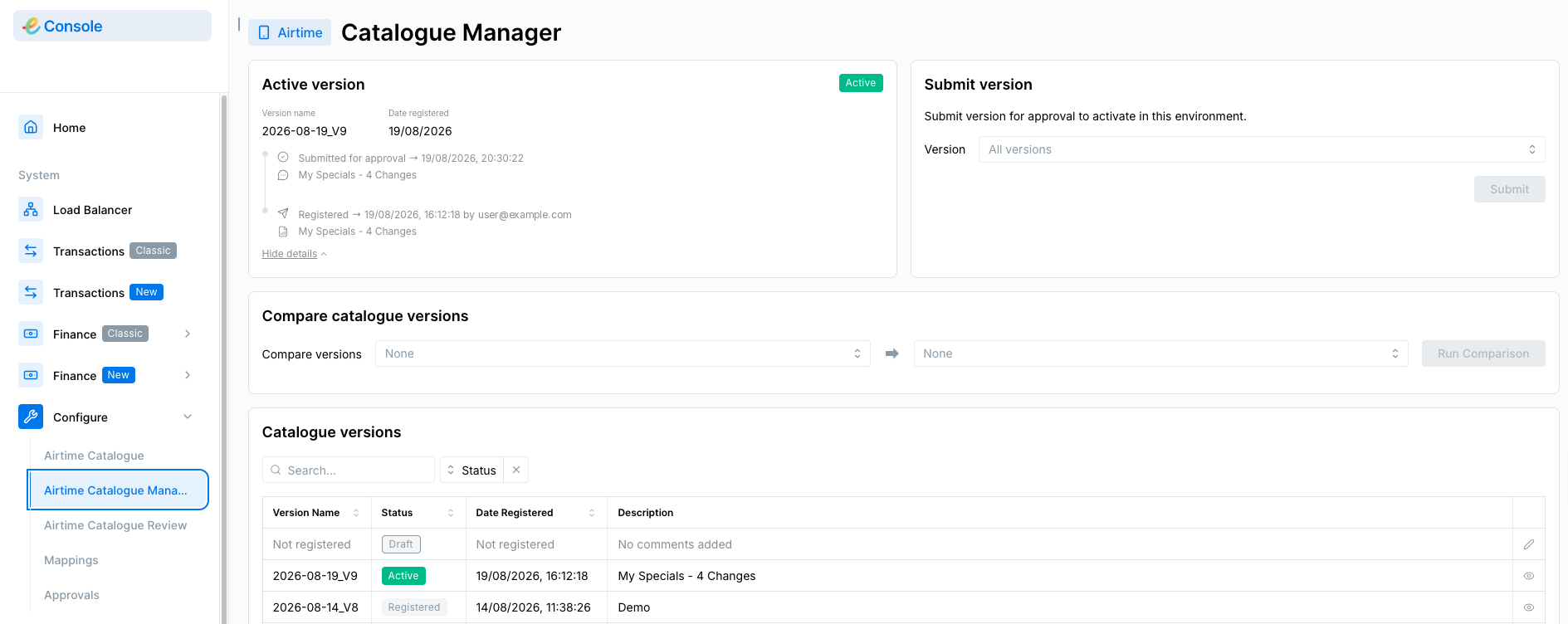
- You will see the new draft listed on the Catalogue Manager screen, in the list of catalogue versions and activity history.
Edit an Existing Draft and Save Changes
The catalogue row numbers (as seen in the images below) do not refer to display order and are simply a point of reference for the list of items. Row numbers adjust automatically when you add or delete rows.
- You can open the catalogue editor in two ways:
- On the Catalogue Manager screen, click the pencil icon next to the catalogue you want to edit.

- On the Airtime Catalogue screen, click Edit draft. This link appears only when a draft exists.

The ‘Catalogue Editor’ screen will appear, and you will see the full draft version.
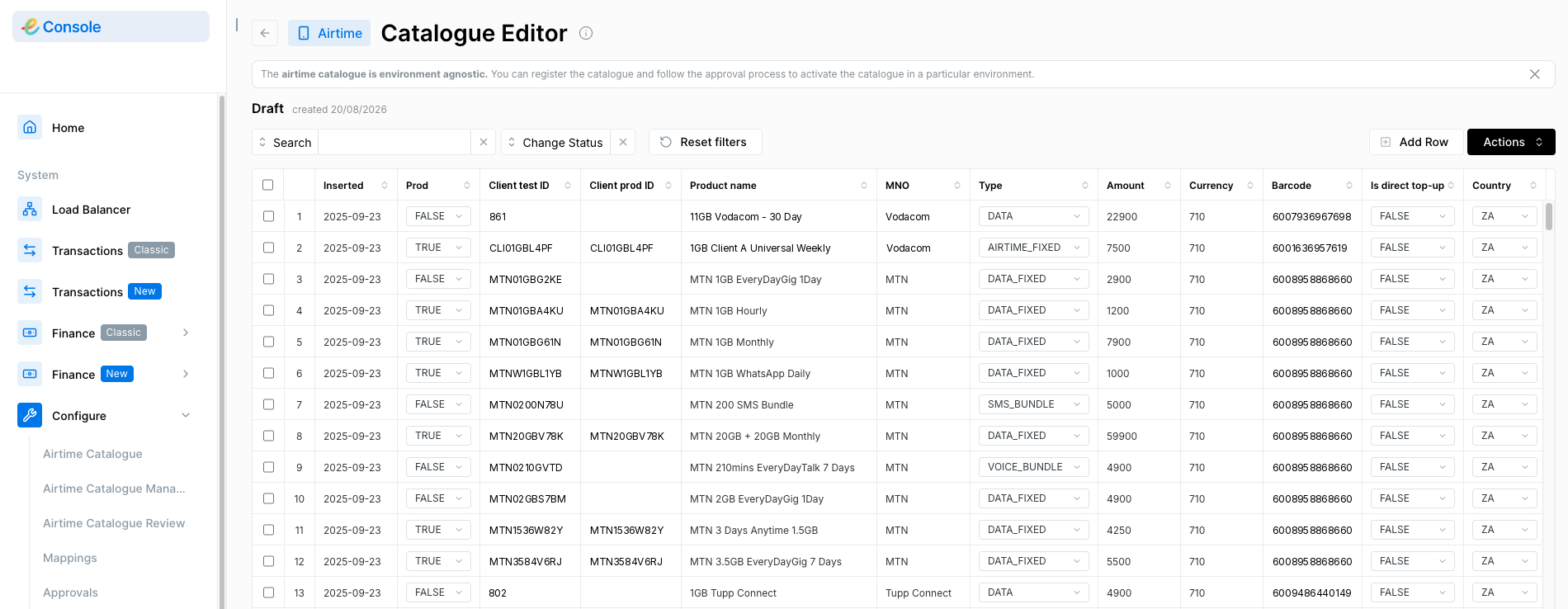
- Edit the draft as follows:
Add an entry one of two ways:
- Click ‘Add Row’. A new, unpopulated line will appear. Enter your new product here.
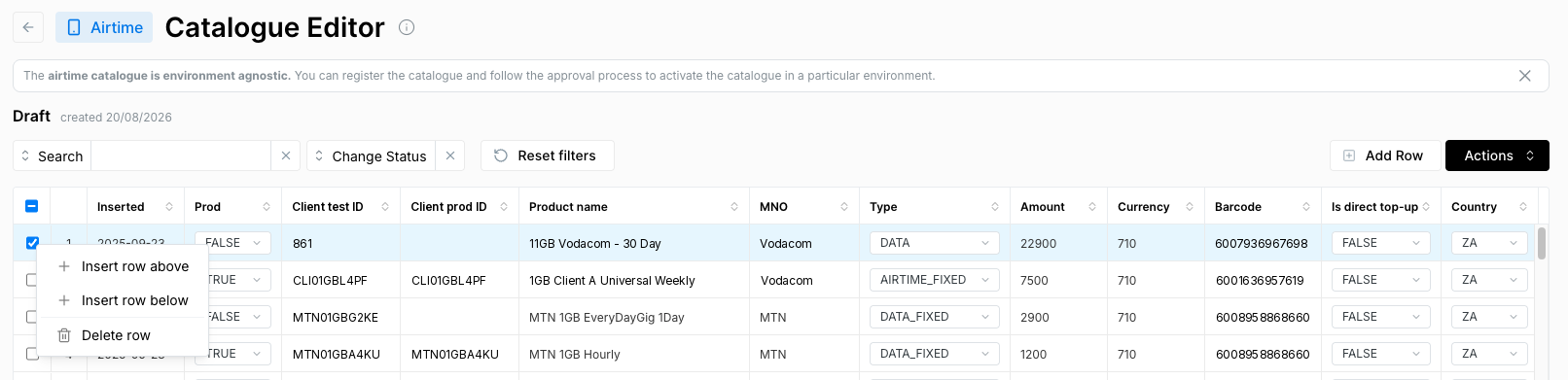
- Tick the box to the left of the entry in the table (see image below) and add a row above or below where you are in the table.
- Production ID
- Test ID If you do not populate these then you will get an error message. See the Error Handling section below for more details on possible errors.
Delete an entry: tick the box to the left of the entry, and click ‘Delete Row’.
Edit a product directly on the respective table row.
- Added rows will show up in green.
- Edited rows will show up in blue.
- Deleted rows will no longer be visible.
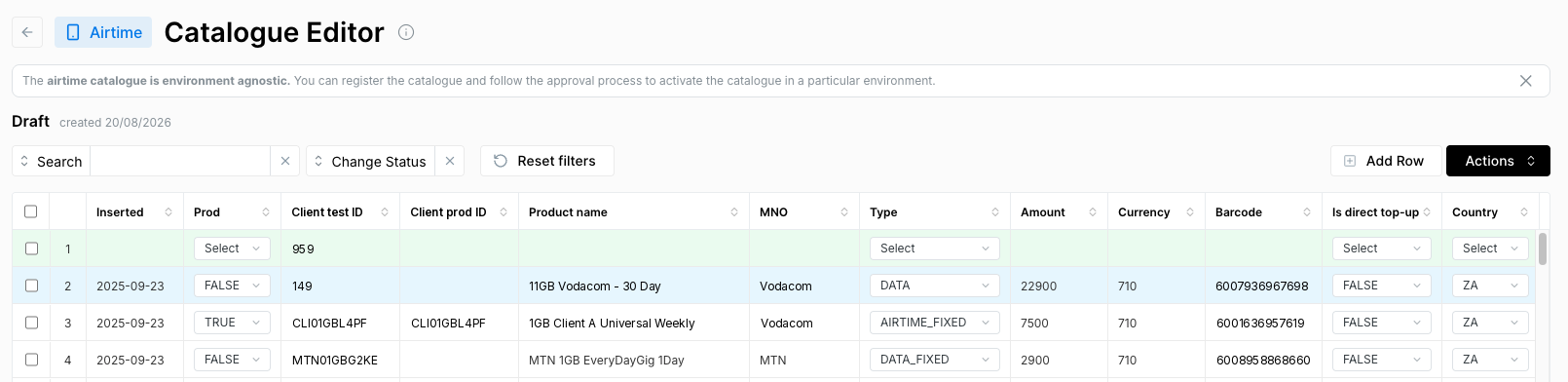
Scroll through the catalogue to see all your changes.
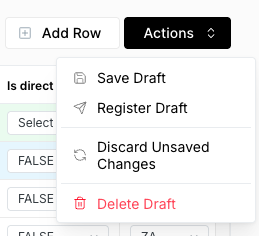
- Click ‘Actions’, then ‘Save Draft’ to save your changes.
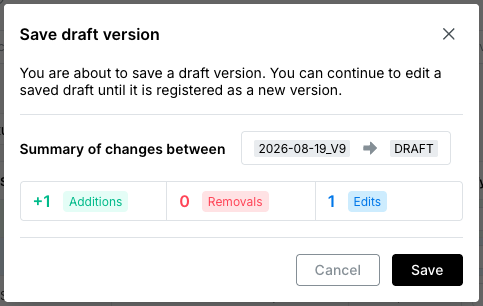
- The following dialog box pops up. It gives a summary of the changes that were made since the draft was last saved. If you are sure that you want to save the changes, then click ‘Save’.
You can continue to edit this draft version by following steps 1-4 (making and saving changes) until you register it.
When you click the ‘Actions’ button you will see there are several other actions you can perform besides saving your draft. You can:
There can only be one version in draft at any given time.
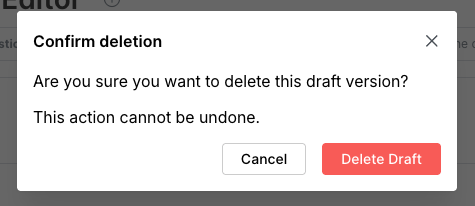
Delete a Draft
- Click ‘Actions’.
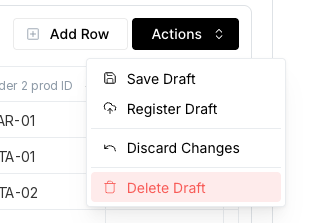
- Click ‘Delete Draft’. You will not be able to retrieve this particular draft, however, you can now start a new draft if you wish.
!
Error Handling
This section describes common errors you might see while editing and saving your draft.
Test ID missing
If you do not fill out the Test ID fields when you add a row to the catalogue then you will see the following error when you try to save your changes.
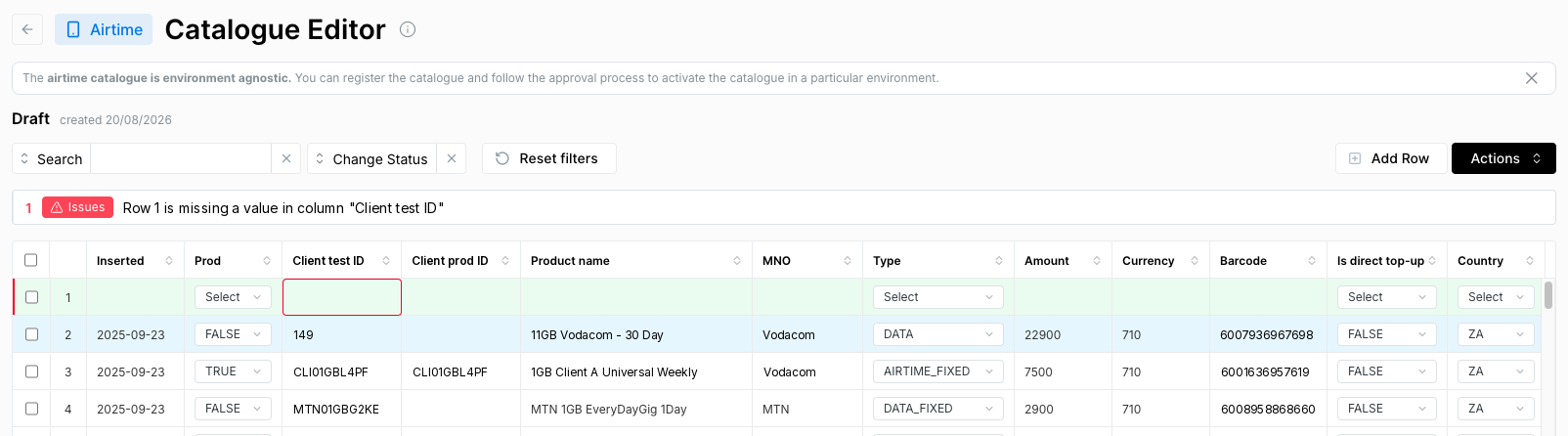
Populate these fields and then save again.
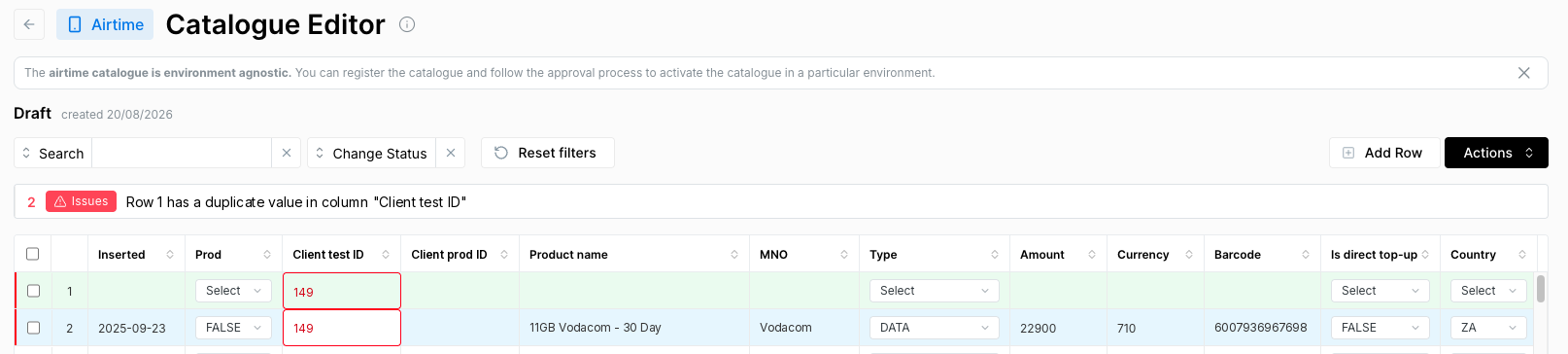
Duplicate value test ID fields
If you enter a Test ID that is the same as that of another product already listed in the catalogue then you will see the following error as soon as you enter the duplicate value.
 *
*
Assign a unique Production and Test ID value to the product in the new row. The Production ID and Test ID for the same product can be the same, but they cannot be the same as another product.
Register a draft as a new version
Once you have made and saved all necessary changes to your draft version, then you can register your version. This will make it available to any environment in which you want to activate it.
- Click ‘Actions’.
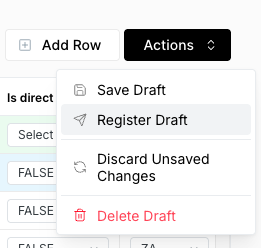
- Click ‘Register draft’. The following dialogue box will pop up. It will show a summary of all the differences between the base catalogue version (the one on which you based your draft) and the draft version being registered.
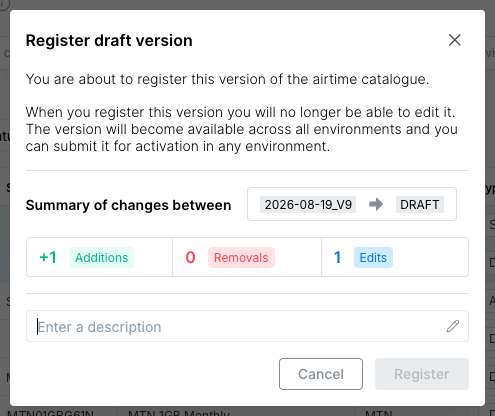
- If you are sure that you are ready to register then enter a description in the dialogue box, and click ‘Register’.
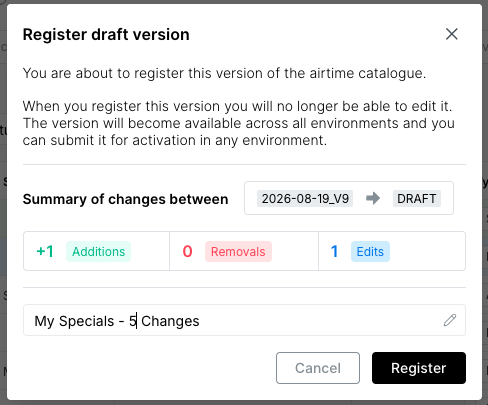
Once you register a version it will no longer be in draft form and you will no longer be able to edit it. If you want to continue making changes after you have registered the version, then you can make a copy of this newly registered version to form a new draft, and make edits from there.
On the Catalogue Manager page, you will see the draft listed as REGISTERED in the list of Catalogue versions and in the Activity history.