Airtime Catalogue Manager
Overview
You must ensure that you are working from the correct environment (int, preprod, prod) in the Electrum Console. This will be the environment in which you want to effect a catalogue change.
Find the Catalogue Manager page under the Configure tab of the Electrum Console. (Make sure that you are working in the correct environment, i.e., int, preprod, production, etc.)
You will see different sections on this page, as listed below.
Active version. This shows the catalogue that is currently active (live) in that specific environment, with the details of when this version was registered and when this version was approved for activation.
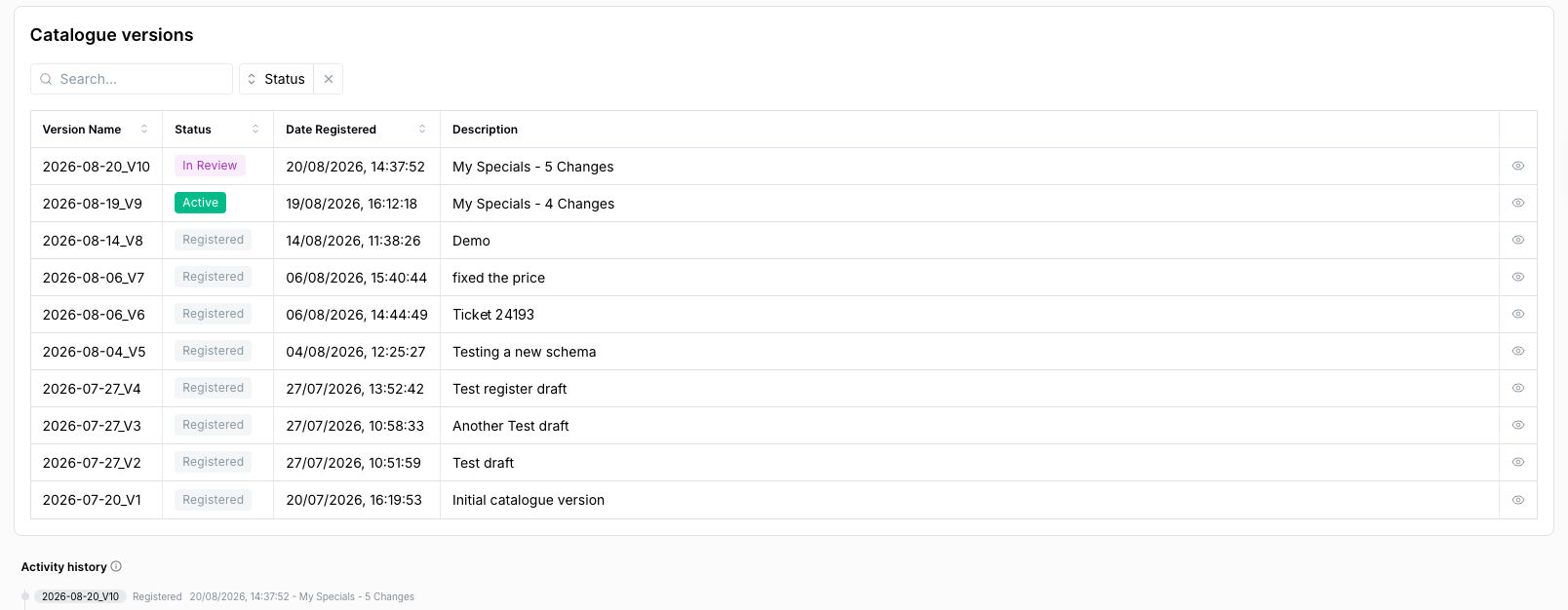
Catalogue versions. This is a list of all versions of the catalogue that have been registered from Retool.
The version name is automatically generated when you register a new catalogue version from the Catalogue Editor. The version name consists of the date plus the next consecutive version number (e.g., V1, V2, V3).
Each catalogue will have a status. The table below lists the possible statuses.
| Catalogue Version Status | Description |
|---|---|
| ACTIVE | The version that is currently active (actively being used) in that environment. Note that different catalogue versions may be active in different environments. |
| DRAFT | The version that is still in draft form and that has not yet been registered. |
| REGISTERED | The version is registered and available but is not currently active in the given environment. It may never have been activated for that environment. It may previously have been activated and then replaced with a later version. |
| IN REVIEW | The version has been submitted for approval. |
Click on the 'eye icon' at the end of each row to view the full details of a registered or active version (i.e., all product entries in the catalogue).
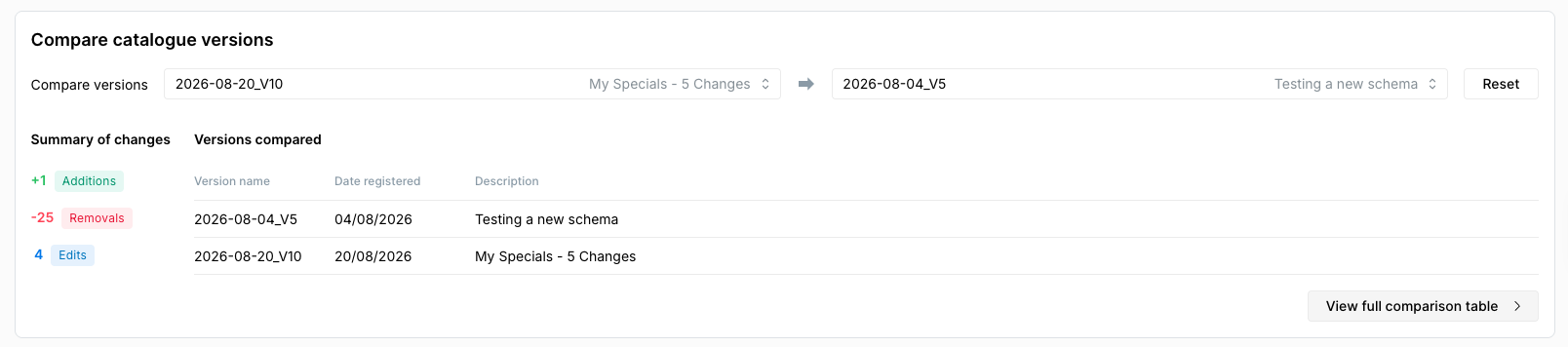
- Compare catalogue versions. Here you can compare any two versions of the catalogue from the catalogue list.
- Submit version. You can submit any registered catalogue for approval, to activate that version in the environment.
- Activity history. You can now see the history of the different versions that were created, registered, approved in the particular environment.
View Catalogue Version
This section describes how to view a single catalogue version from the Airtime Catalogue Manager page.
- In the Catalogue versions section, click on the eye icon next to the catalogue version you wish to view.

- The full catalogue version appears with full list of product entries.
Compare Catalogue Versions
This section describes how to compare any two registered catalogues from the Catalogue Manager screen.
- Go to the Compare catalogue versions section on the Catalogue Manager page. Enter the two catalogues you want to compare and click ‘Run Comparison’.

- You will see a comparison of the two versions. The summary of changes shows the differences between the two versions, shown as either additions, removals (deletions), or edits.
- The changes relate to the direction of the comparison, where the changes summarised are the ones seen in the version to the right of the arrow.
- For example, if the summary shows that for version ABC —> version XYX there are two additions, then it means that version XYZ has two added entries relative to version ABC. But if you compared the same two versions in the opposite direction, version XYZ —> version ABC, then the summary would show two deletions.
- Thus the comparison tool can be used for both forward-looking and backward-looking comparisons.
To view the List of changes table at the bottom of the page, click the View Full Comparison Table. It lists all entries in the catalogue and colour-codes those that changed. See table below.
| Colour | Meaning |
|---|---|
| Green | Added |
| Red | Deleted |
| Blue | Edited |
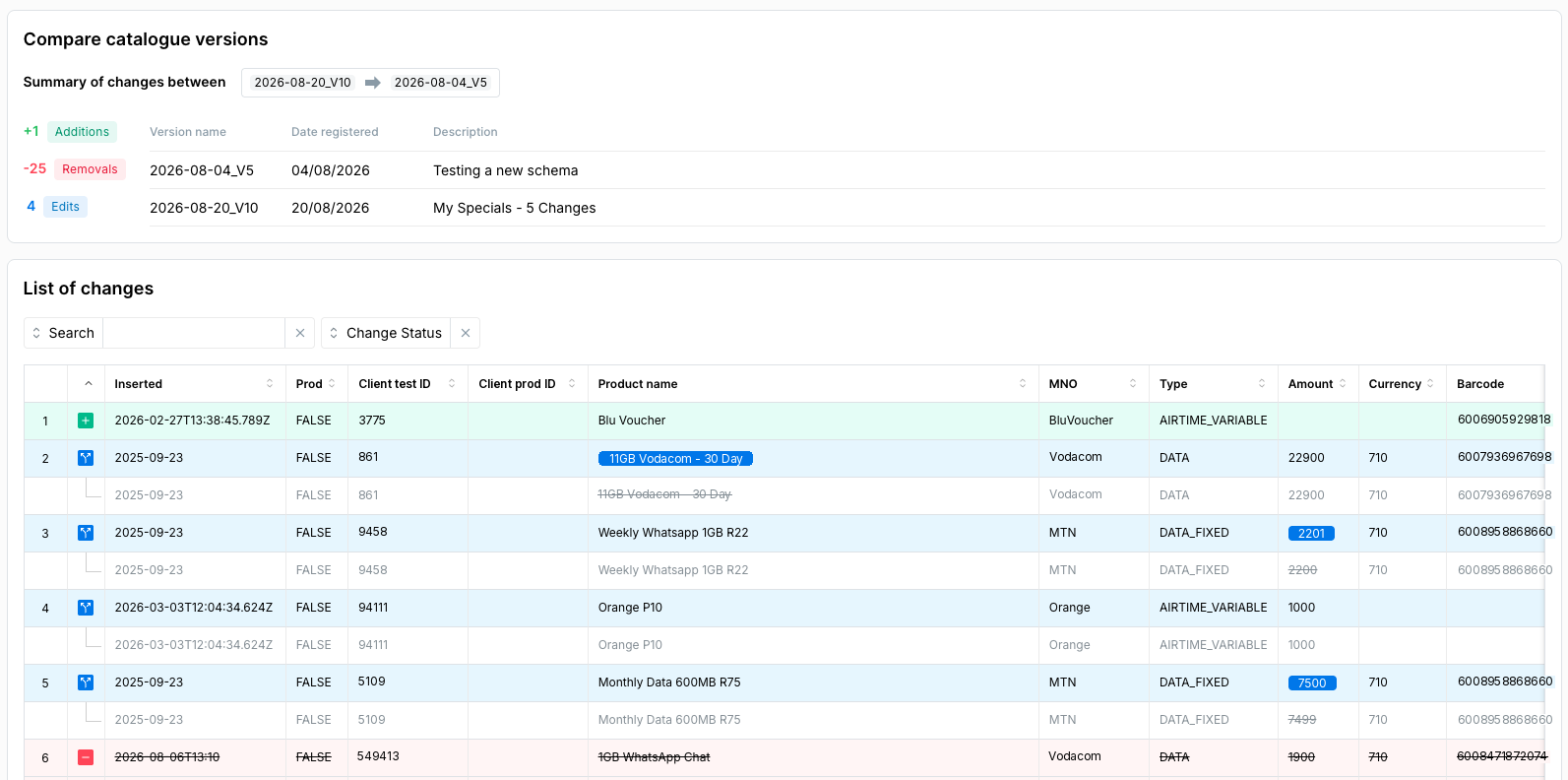
Entries that did not change are not colour-coded.
Submit Catalogue Version
If you wish to submit a registered catalogue to be activated in a given environment, then do the following.
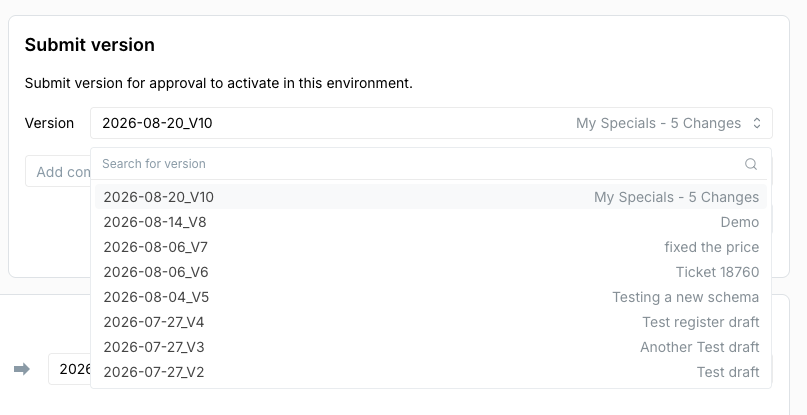
- From the Catalogue Manager screen, under the Submit version section, select the registered catalogue version you wish to submit for approval. You can search for a particular version or choose a version from the list.
- Enter a comment and click ‘Submit’.
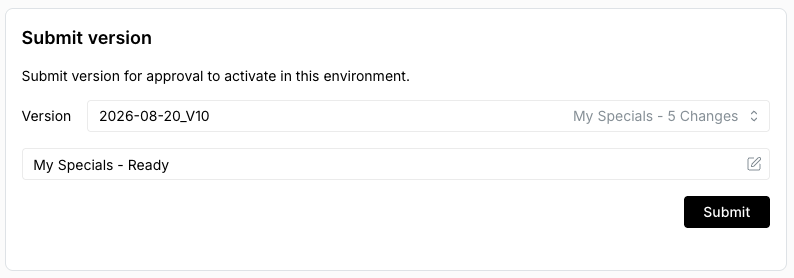
- If you look at your list of registered catalogues now, you will see:
- The status of the version that was submitted for review and approval has changed from ‘REGISTERED’ to ‘IN REVIEW’.
- The version that was active before remains active - this will only change later if the new version is approved and activated in the environment.
- The activity history will also reflect that the version was submitted for approval.
Authorised users with appropriate permissions can now review the submitted version from the Airtime Catalogue Review screen.
Once you register a version it will no longer be in draft form and you will no longer be able to edit it. If you want to continue making changes after you have registered the version, then you can make a copy of this newly registered version to form a new draft, and make edits from there.