Access Profiles User Guide: Levels 1 and 2
This page describes how to use the Access Profiles feature if you have level 1 (view-only) or level 2 permissions.
Level 2 users can perform all functions described on this page. Level 1 users cannot create or edit access profiles, but can only view profiles or services.
View access profiles
- Navigate to the Access Profiles page. You will find this in the left-hand menu of the Console. You will see a list of all access profiles.
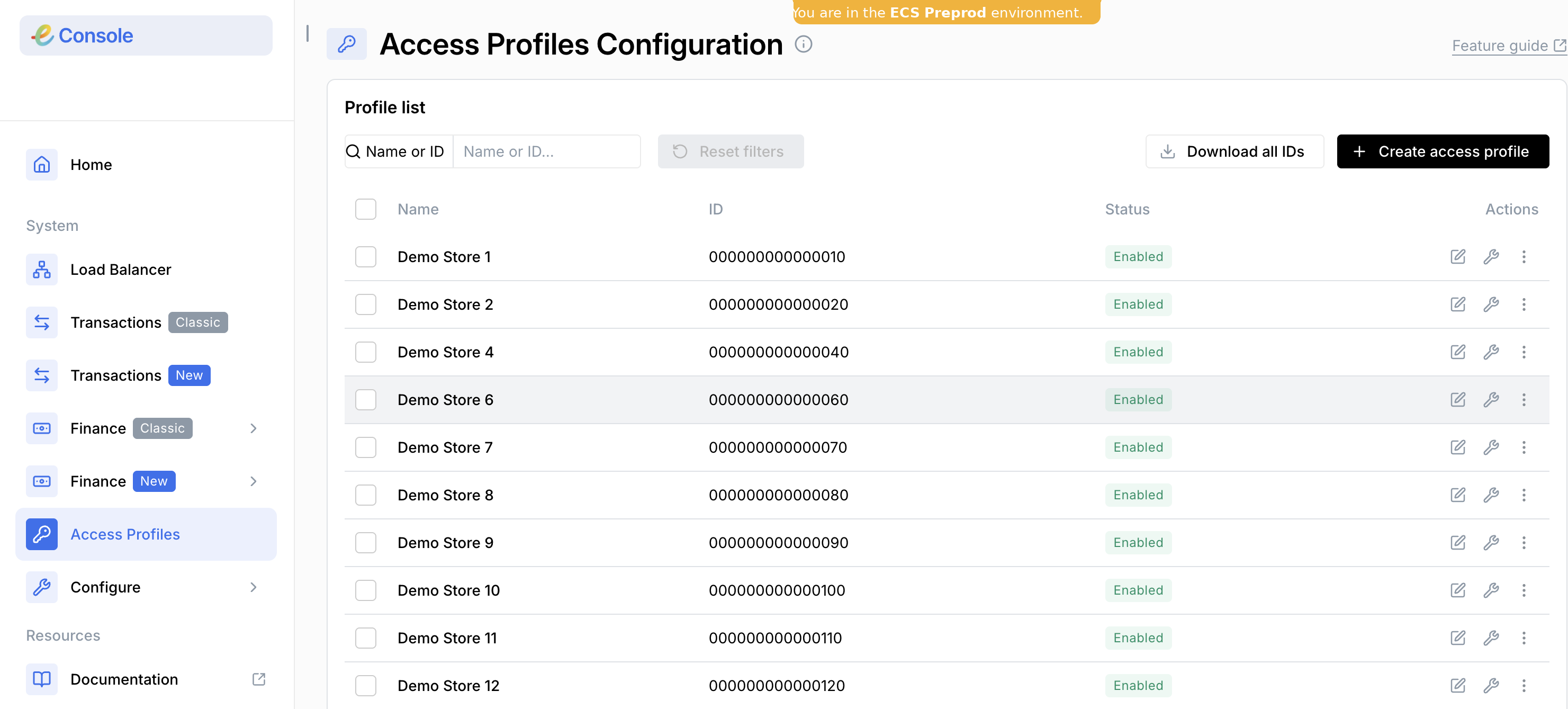
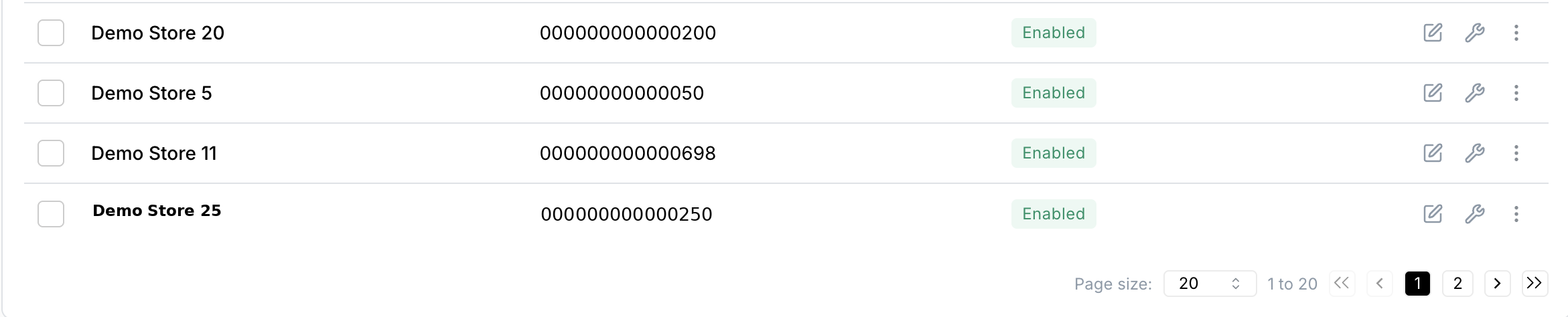
- Click on the arrows or the page numbers at the bottom of a screen to go to another page.
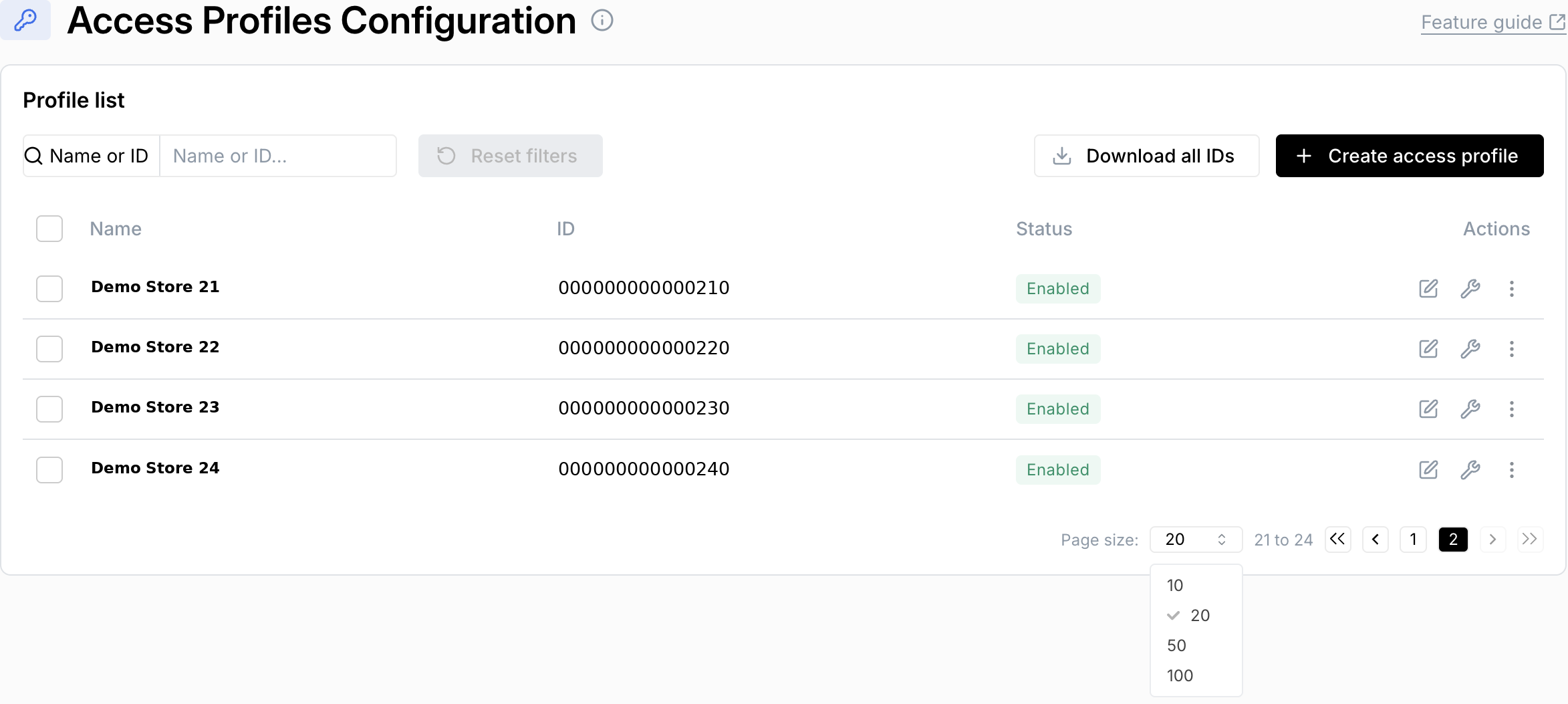
- You can also select the number of entries you want to display on the screen.
Search for an access profile
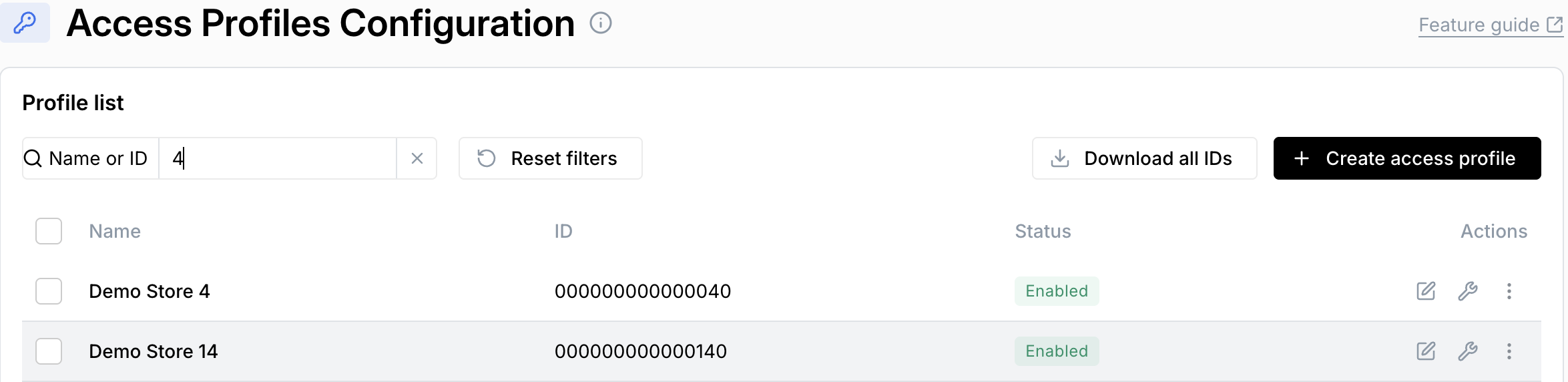
- Type in a full or partial name or ID in the Name or ID search bar at the top of the page.
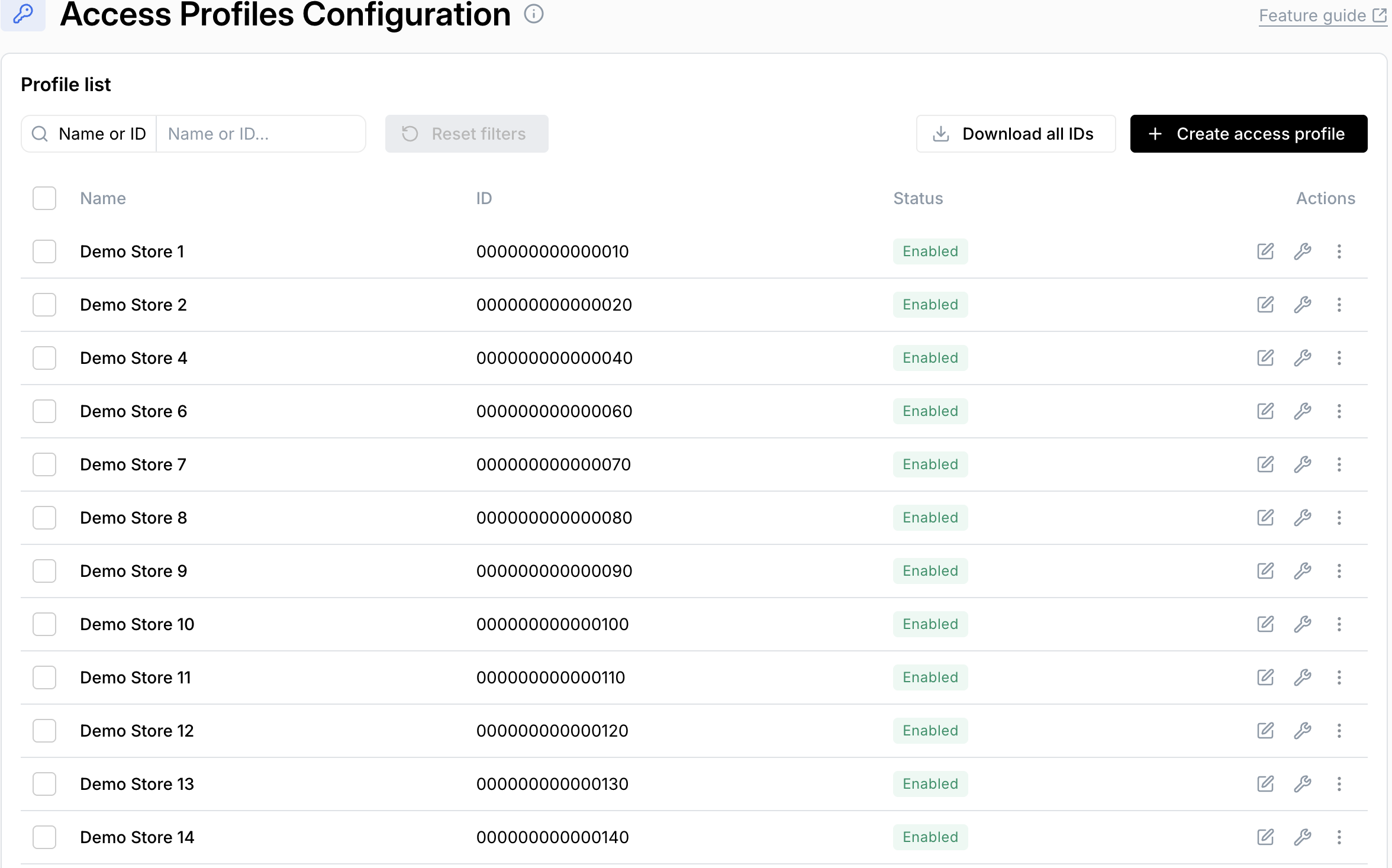
- As you type you will see a list of all profiles containing your search parameter.
Create an access profile
Users with level 1 (view-only) permissions will not be able to perform this function.
- Click the Create access profile button at the top right of the screen. The following modal will pop up.
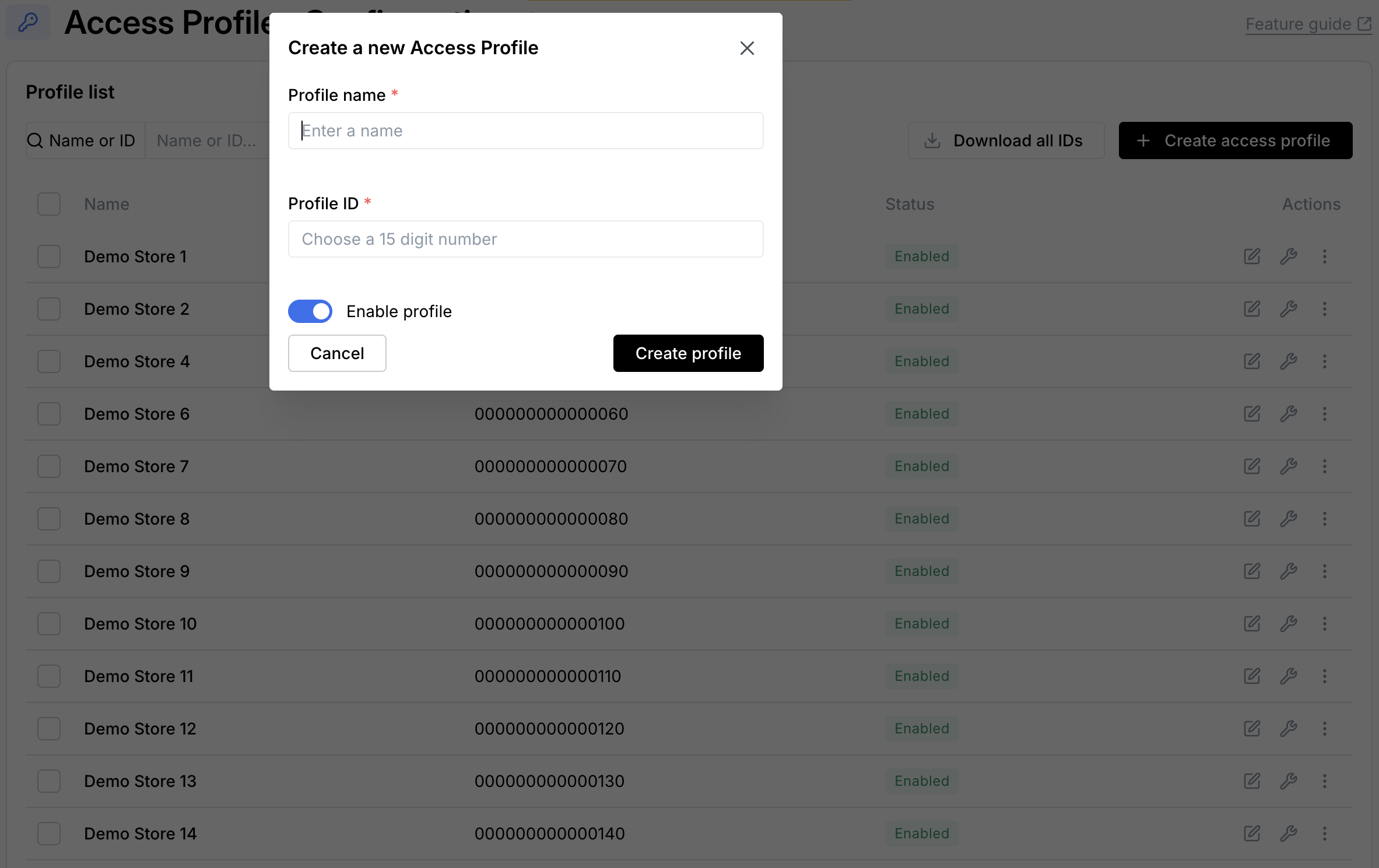
- Enter a profile name and ID. Check that the profile is enabled, then click Create profile.
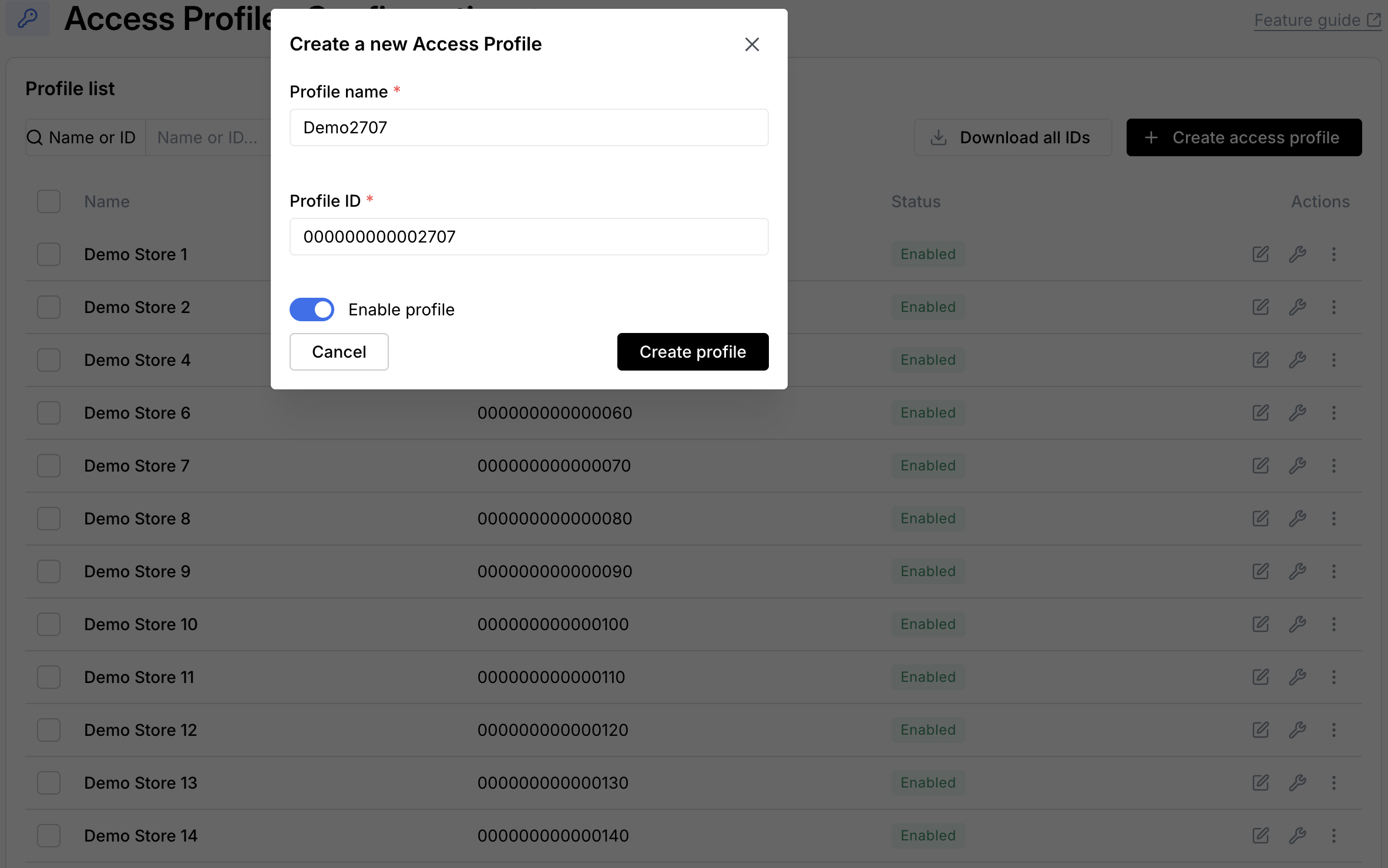
The profile ID must always be 15 digits long. If your files contain IDs of less than 15 digits, then add leading zeros to make up a total of 15 digits.
For example if your file contains a profile ID number of 12345, then change it to 000000000012345.
- You will see a message at the bottom of the screen indicating that the profile was successfully added.
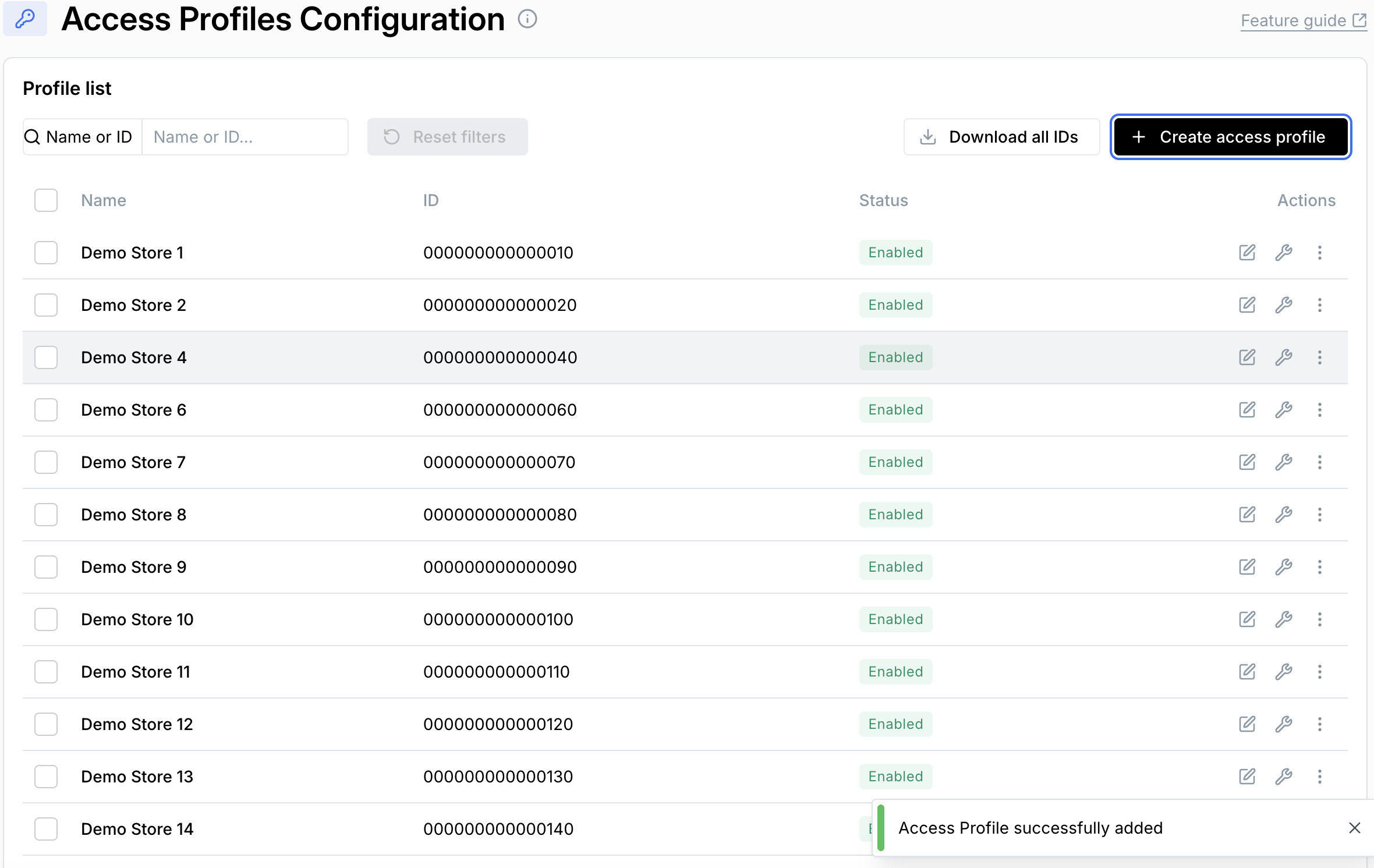
- The newly created profile will appear in the list of profiles (bottom of the list in the image below).
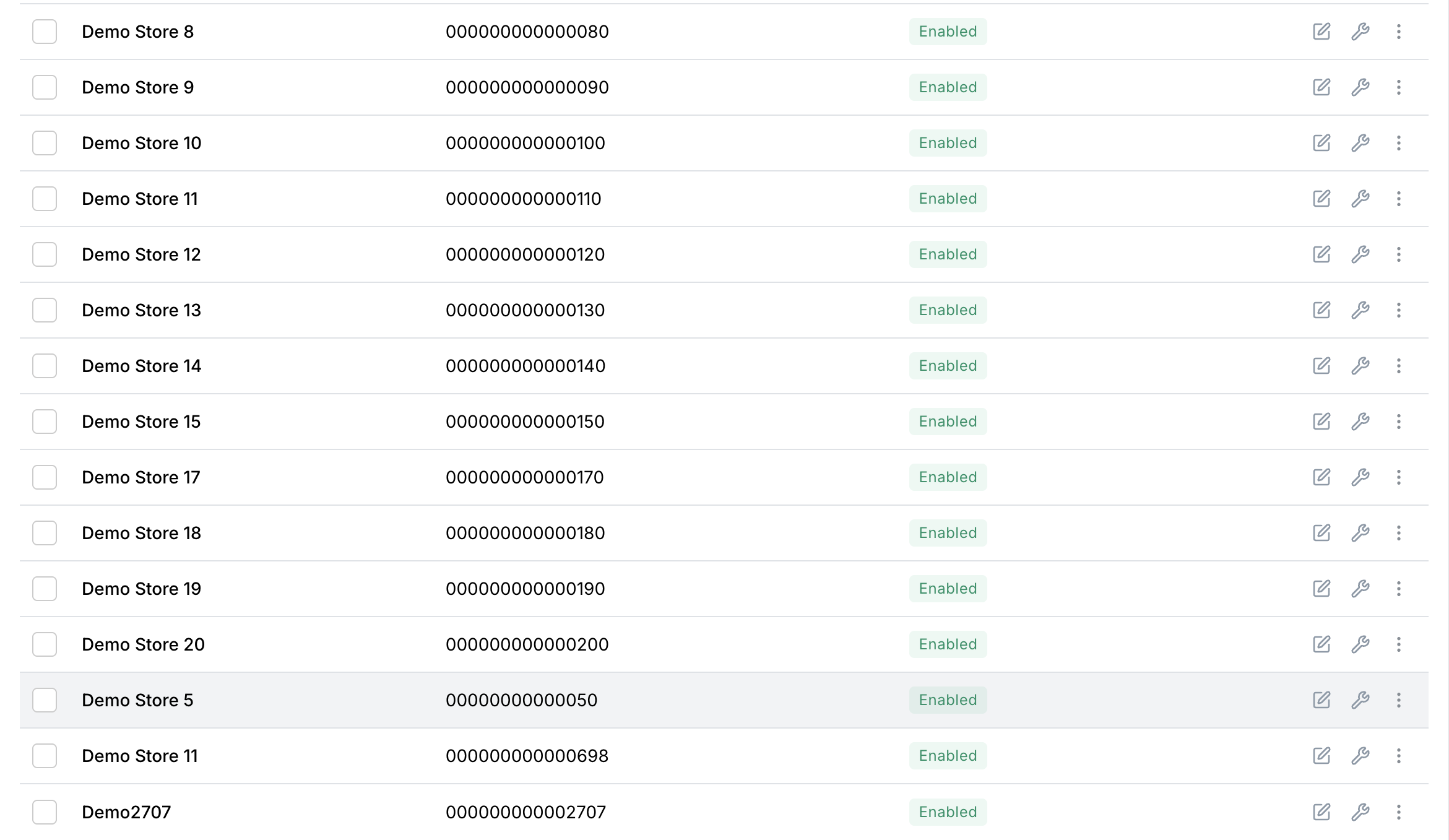
By default, a newly created access profile will not have any VAS services selected for it.
You must configure the profile to be active for the relevant services. See the Manage services section further down this page.
Edit an access profile
Users with level 1 (view-only) permissions will not be able to perform this function.
- You can edit a store profile in one of two ways:
Either click on the three dots at the end of the profile row, and select 'Edit access profile'.
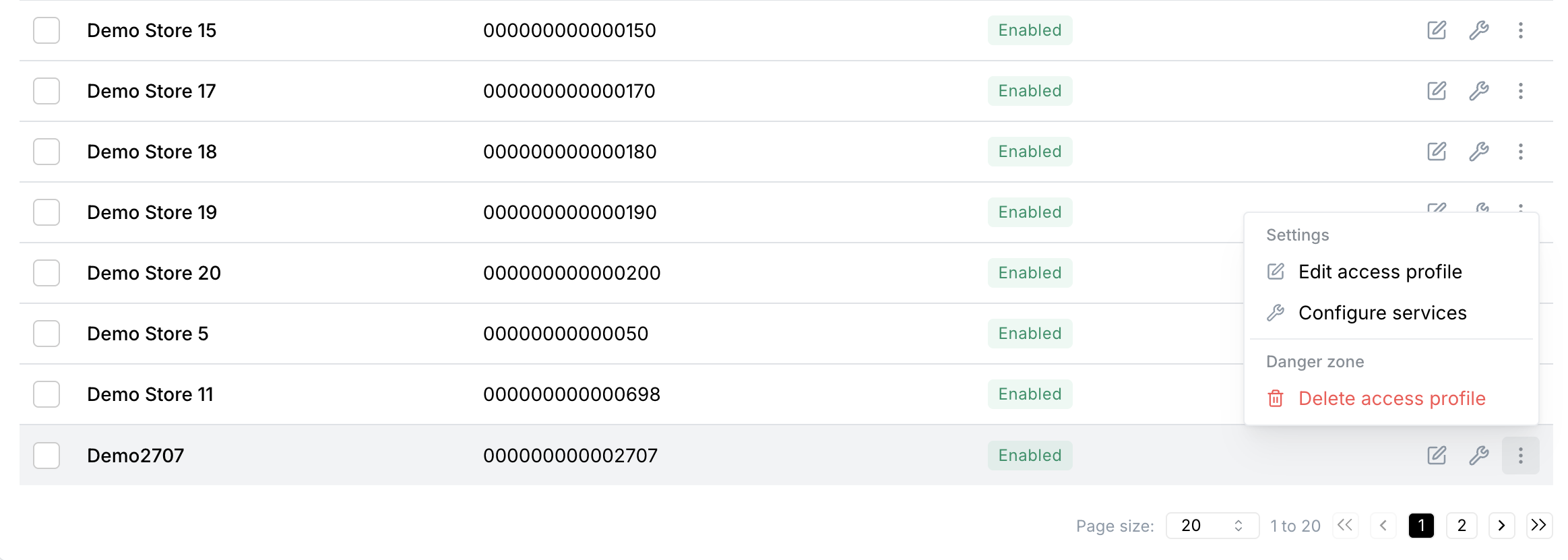
Or, click the edit icon in the profile row.

- The following modal will pop up. Edit the profile as required:
- Edit the profile name or ID.
- Disable the profile (or enable a profile that was previously disabled).
If a profile is 'enabled' it means that it is active and allowed to trade.
If a profile is disabled, then it means the channel is inactive. The channel (e.g., a retailer POS) will not receive valid secrets, so transactions cannot be processed for that channel. You may wish to disable a channel when:
- It is offline or undergoing maintenance.
- It is decommissioned or not yet ready to trade.
- You need to restrict access due to security concerns
Toggle the Enable profile button at the bottom of the modal to change a store's state between enabled and disabled as required.
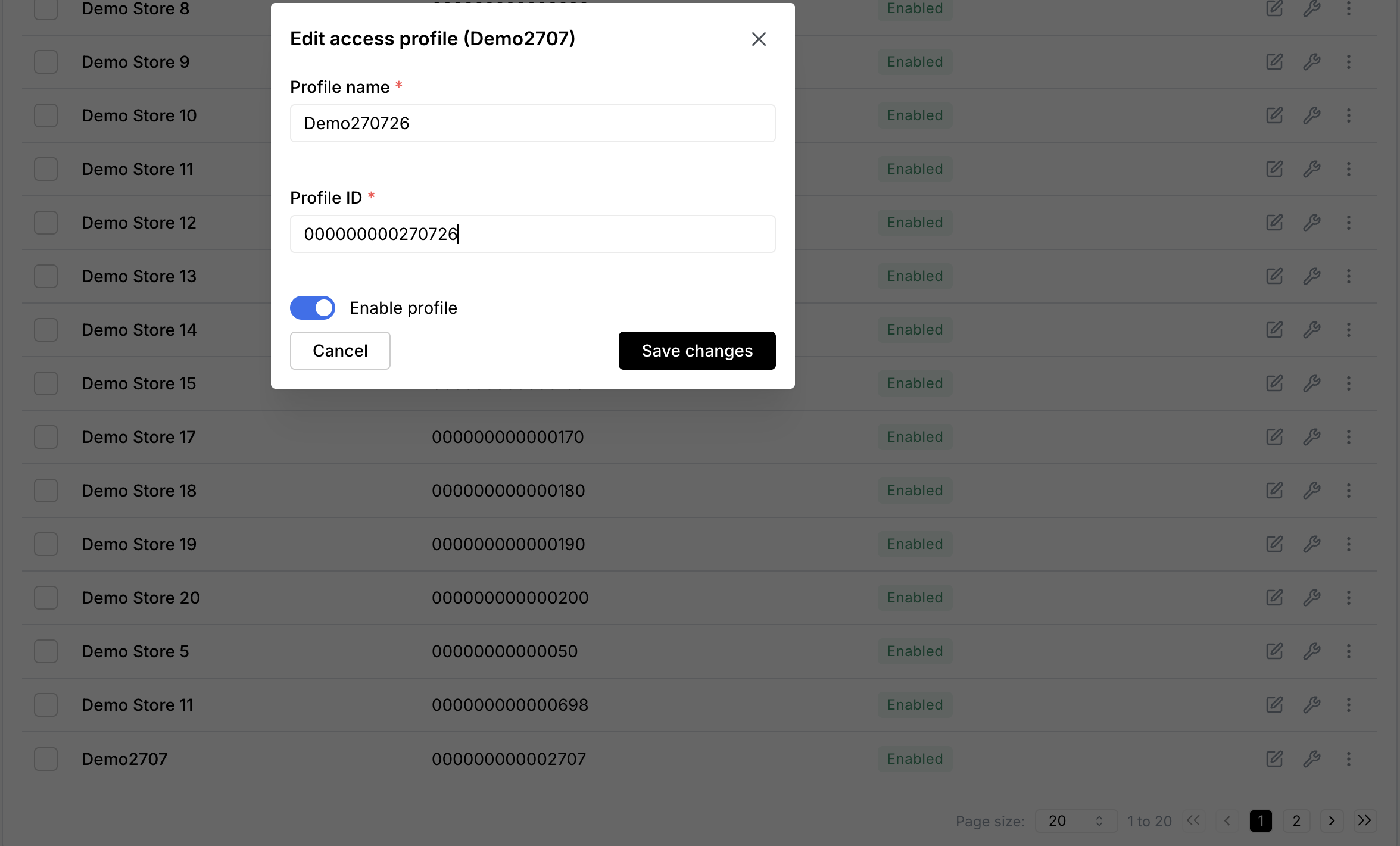
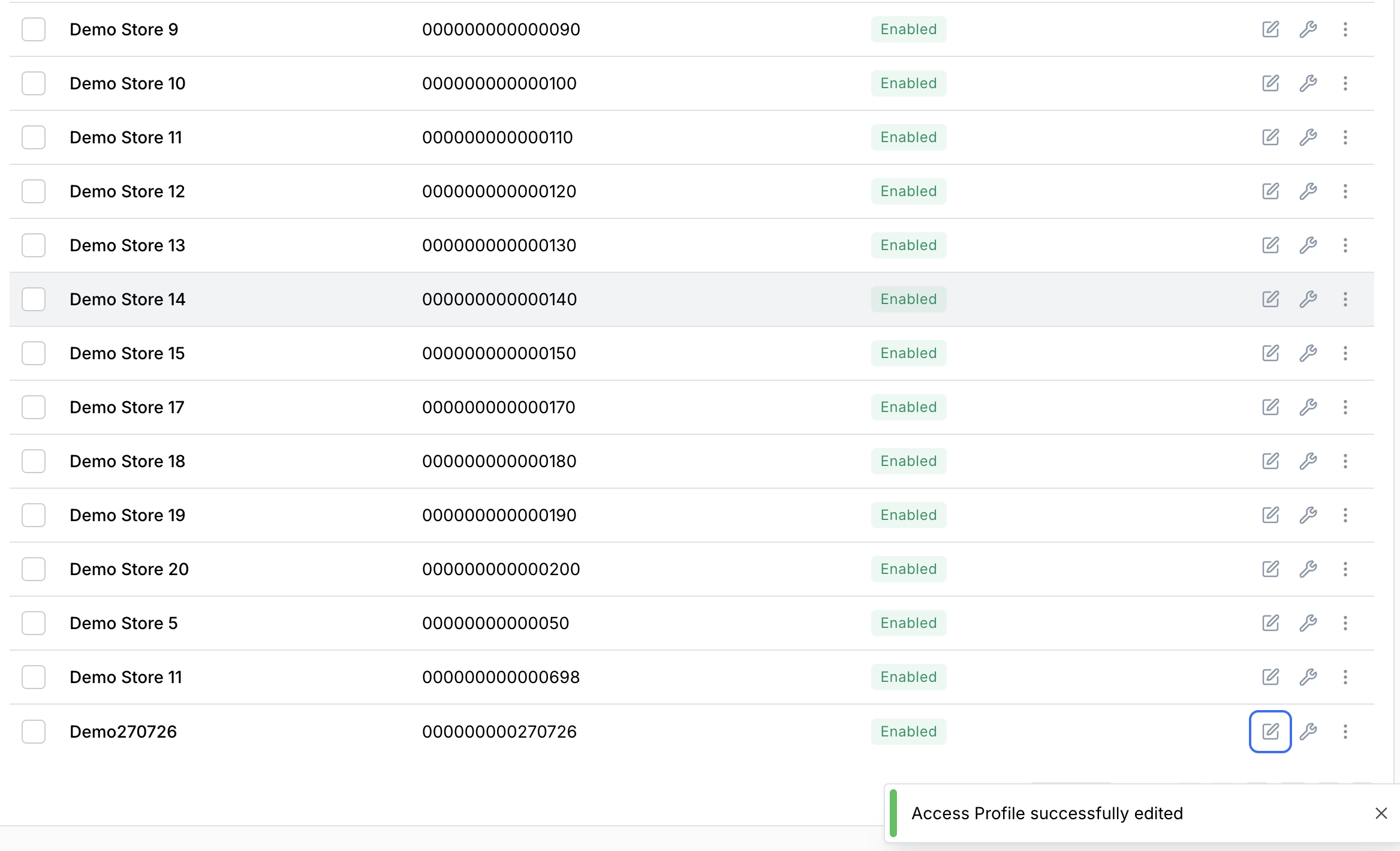
- Click Save changes. You will see a message at the bottom of the screen indicating that the profile was successfully edited.
Manage services
Users with level 1 (view-only) permissions will not be able to perform this function.
- You can configure the list of services for a particular channel in one of two ways.
Either click on the three dots at the end of the profile row, and select 'Configure services'.
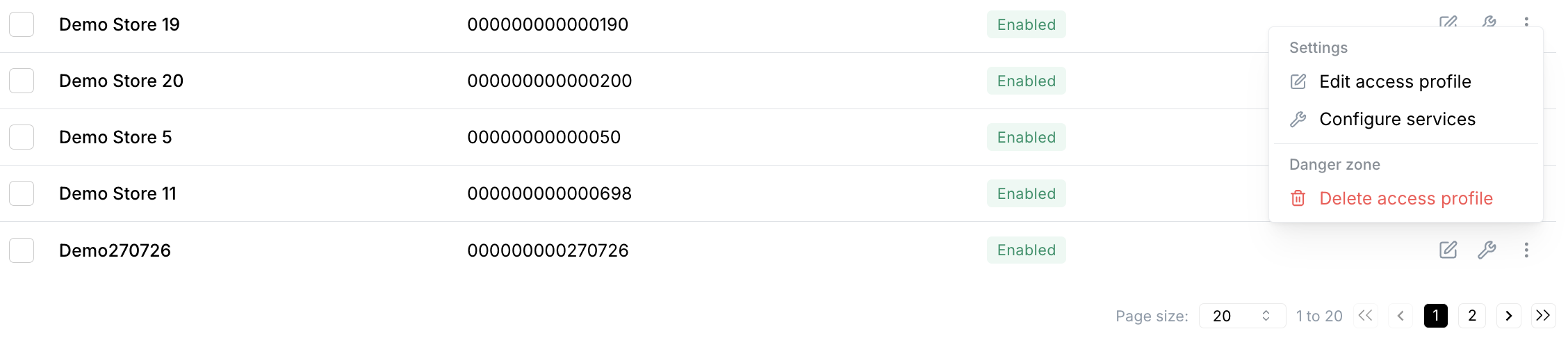
Or, click the wrench icon ('Manage services') in the profile row.

The following modal pops up.
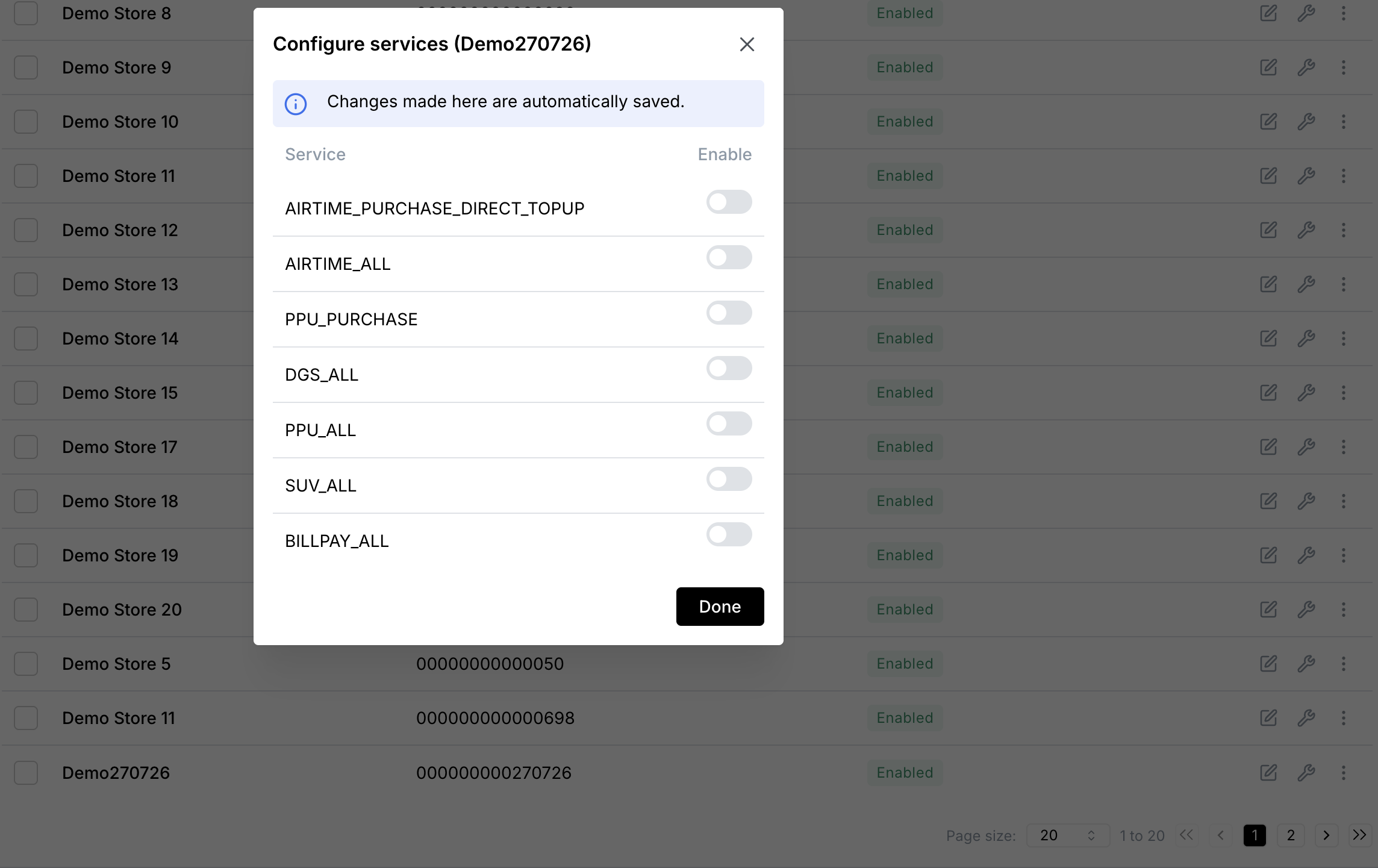
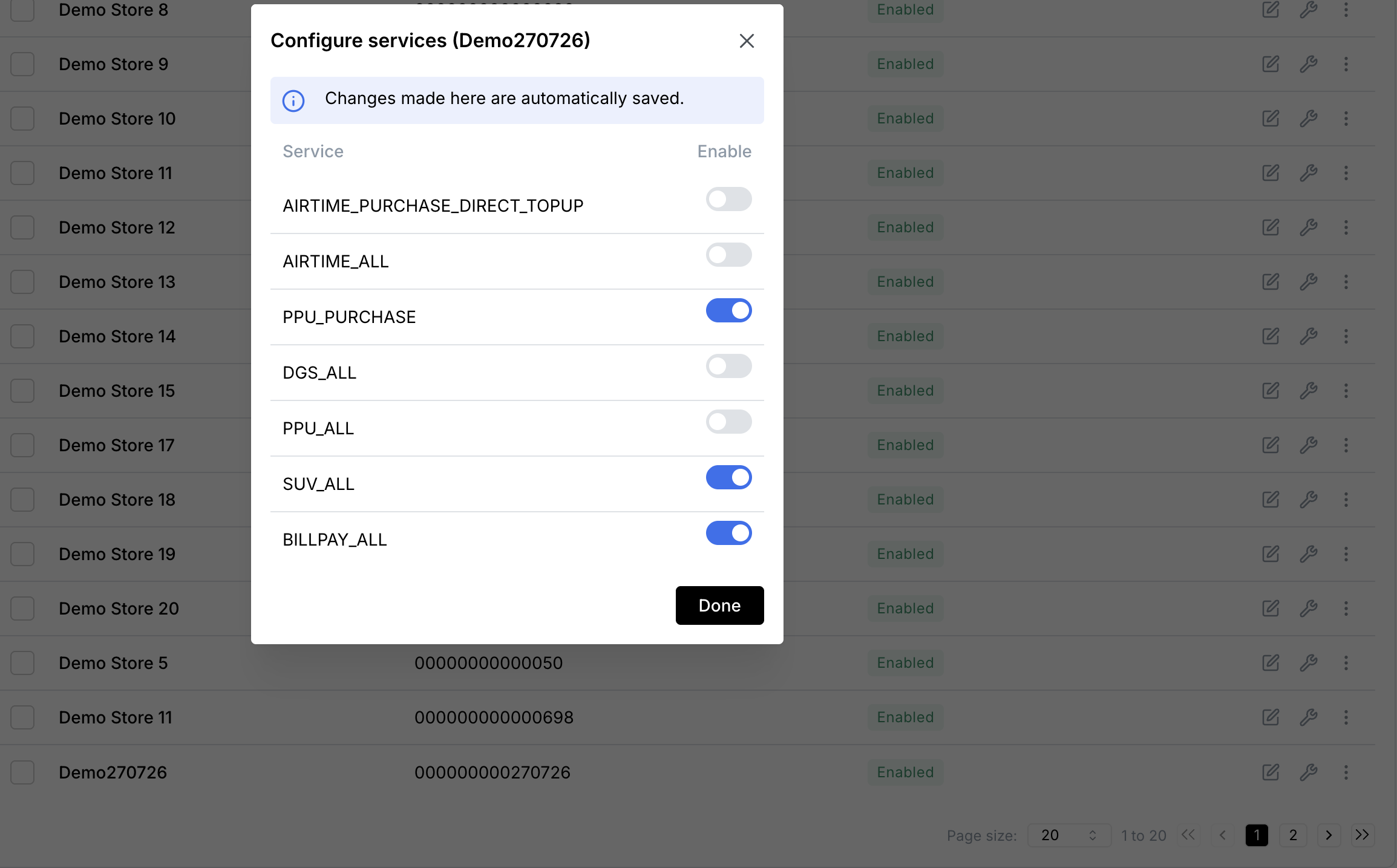
- Select the relevant services (or deselect ones you want to remove), then click Done.
Download IDs
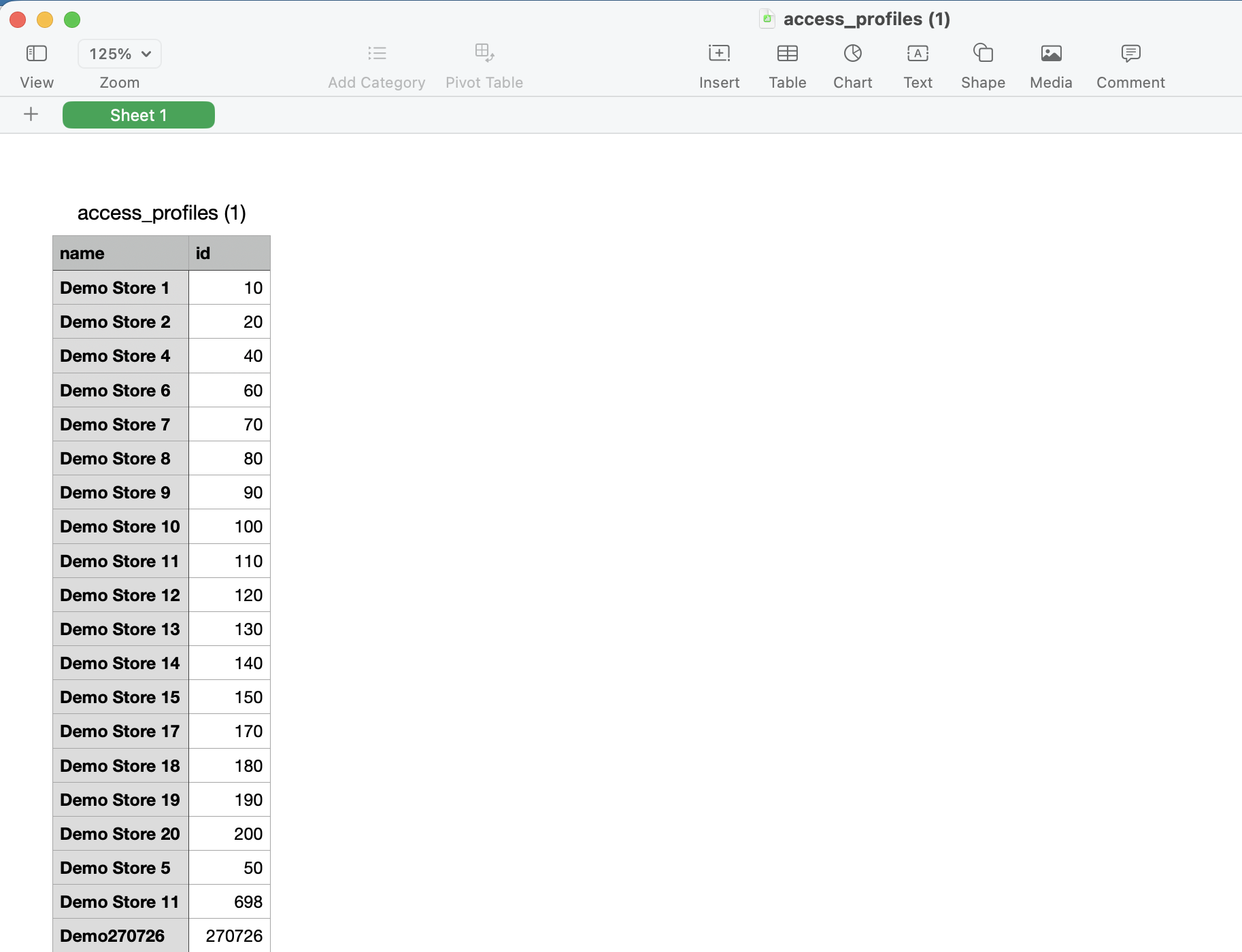
- To download all IDs in the list, click the Download all IDs button.
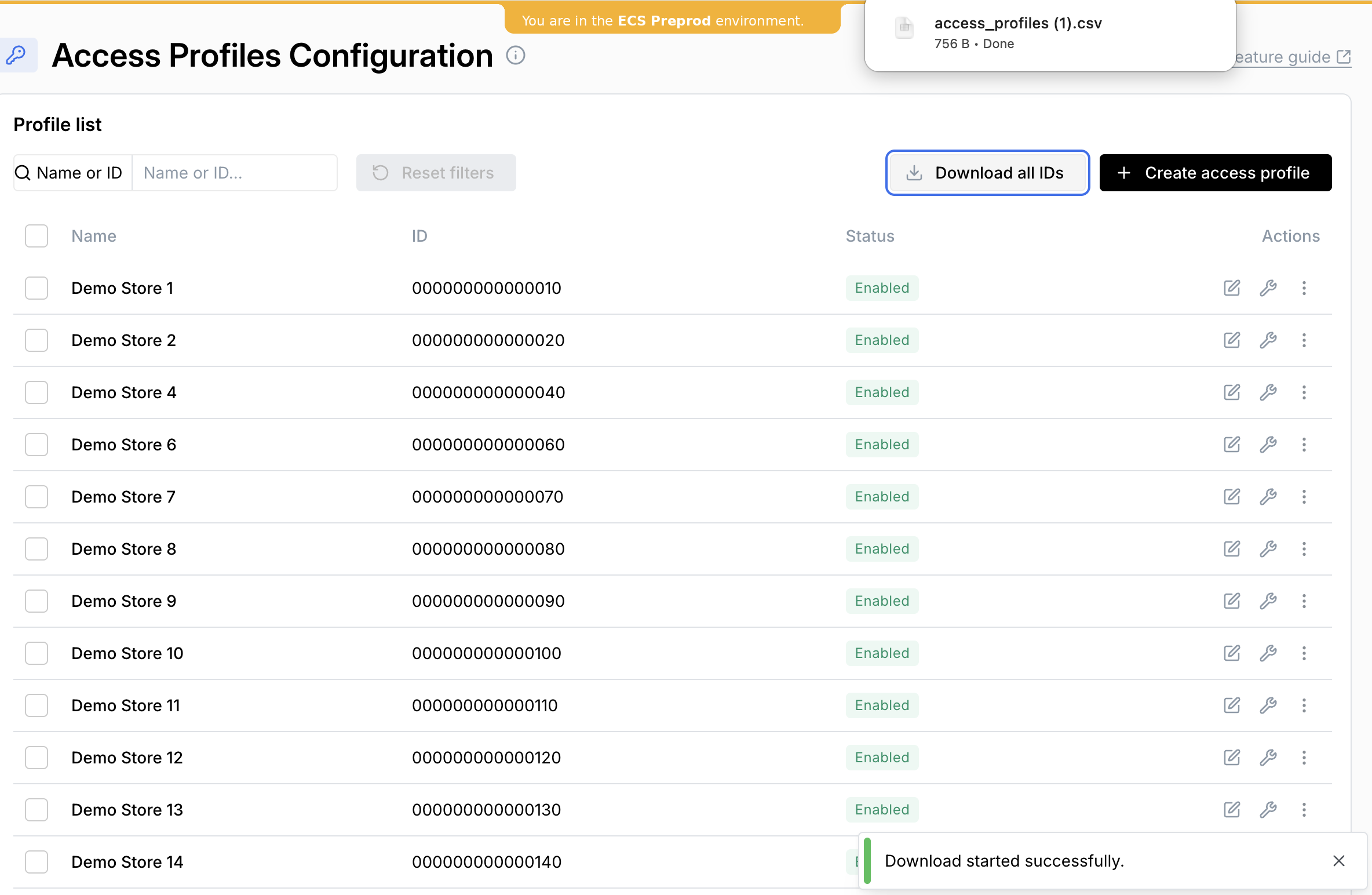
- The list of profile IDs will download as a csv file.
Delete an access profile
Users with level 1 (view-only) permissions will not be able to perform this function.
- Click on the three dots at the end of the profile row, and select 'Delete access profile'.
- You will see the following warning. If you are sure that you want to delete the profile then click Yes, delete.
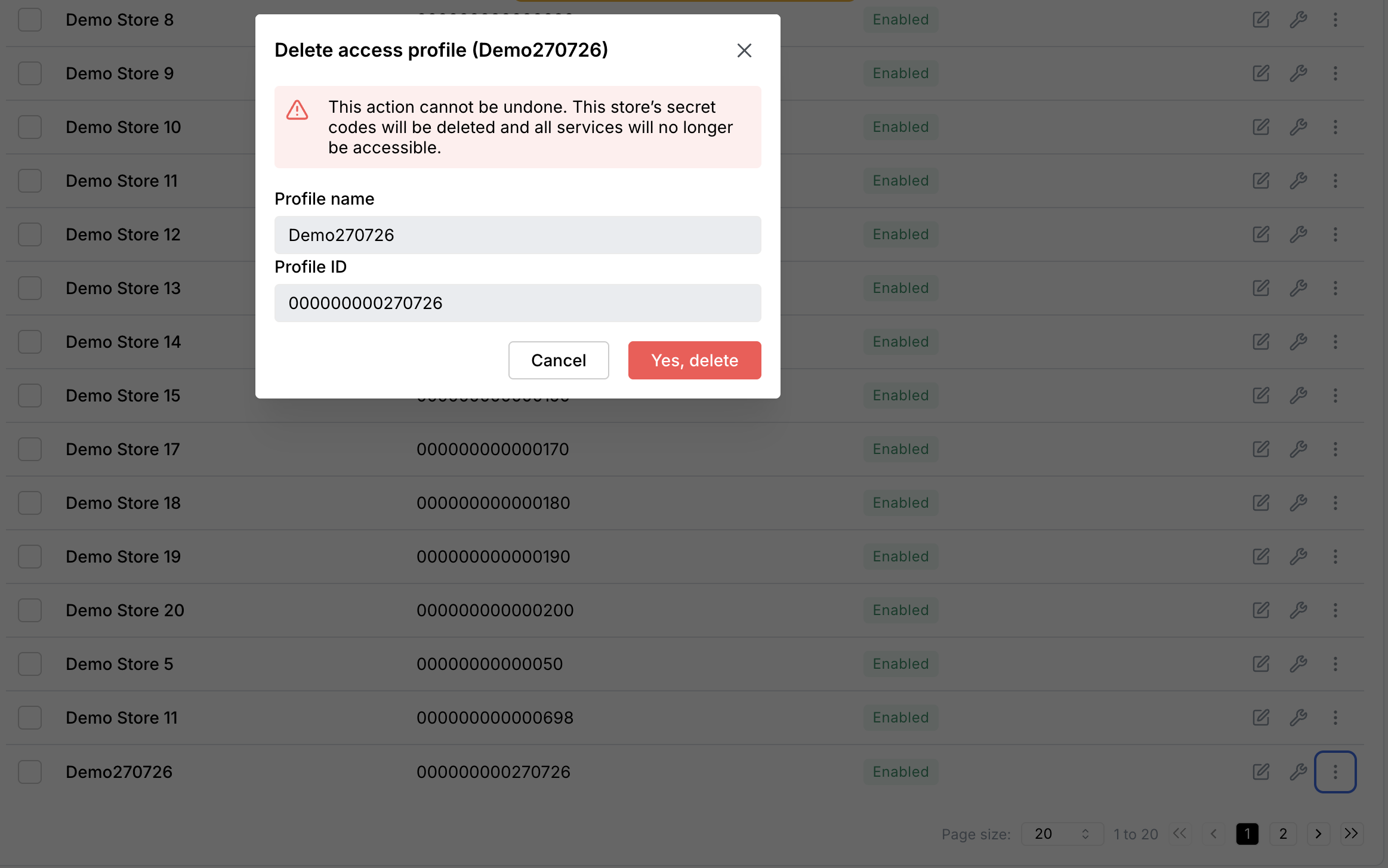
The deleted profile will disappear from the list of access profiles.